

Overview
The Transaction Report gives you a single source of truth for payments inside your Academy. It is essential for closing the books, reconciling against Stripe, and supporting decisions about pricing, promotions, and Program performance. The report only populates after Stripe is connected to your Academy.Before you start
- You need Admin access to view the Transaction Report.
- Stripe must be connected to your Academy. Without an active Stripe connection, the Transaction Report has no data to display.
- Refunds, partial refunds, and currency conversions are handled through Stripe and reflected in the Transaction Report.
Open the Transaction Report
- Go to the Admin area.
- Select Products.
- Select Transactions.
What’s in the Transaction Report
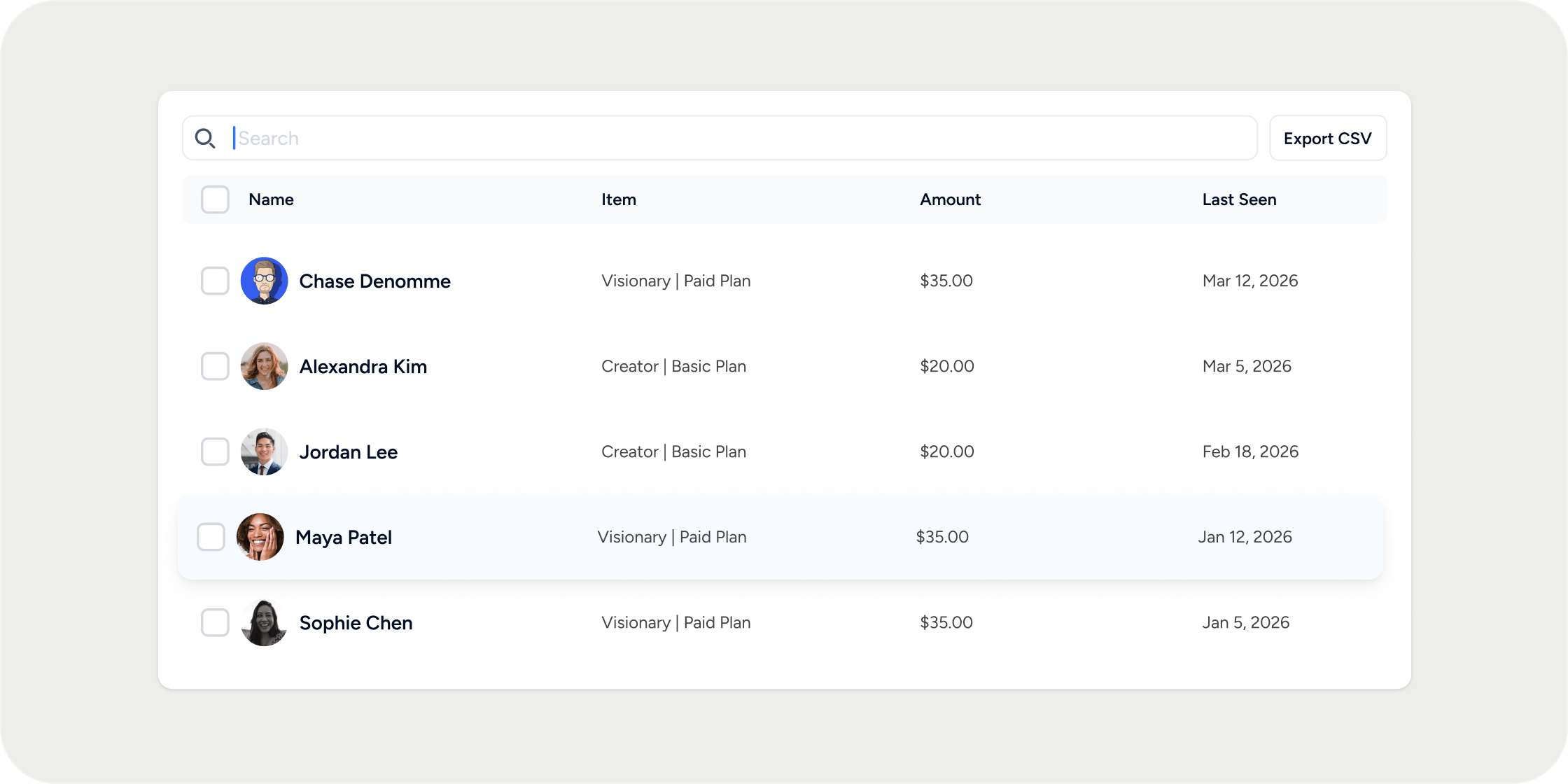
Each row represents one transaction processed by Stripe and links back to the member, the Program, and the payment record. Use the table to:- Confirm payments received.
- Reconcile against your Stripe dashboard.
- Investigate billing questions from individual members.
- Spot patterns in renewals, refunds, or failed payments.
Export the Transaction Report
To download Transaction data, use the export icon at the top right of the Transaction Report. The export includes the data for the selected date range.FAQ
Who can view the Transaction Report?
Who can view the Transaction Report?
Admins with access to Products can view the Transaction Report.
Do I need Stripe connected to use the Transaction Report?
Do I need Stripe connected to use the Transaction Report?
Yes. The Transaction Report relies on Stripe as the payment processor. If Stripe is not connected, the report will have no data to show.
Are refunds shown in the Transaction Report?
Are refunds shown in the Transaction Report?
Yes. Refunds and partial refunds processed through Stripe appear alongside the original transaction record.
Can I filter the Transaction Report by Program or member?
Can I filter the Transaction Report by Program or member?
Use the filters at the top of the Transaction table to scope to a specific Program, member, or date range. The exact filter options visible depend on your Academy’s configuration.
Where do I track churn, renewals, and failed payments?
Where do I track churn, renewals, and failed payments?
Renewal patterns and failed payments are visible inside Stripe’s dashboard, where the underlying subscription objects live. The Transaction Report inside Disco shows the resulting payment events. For deeper subscription analytics, work from your Stripe dashboard or export both reports for side-by-side analysis.