

Overview
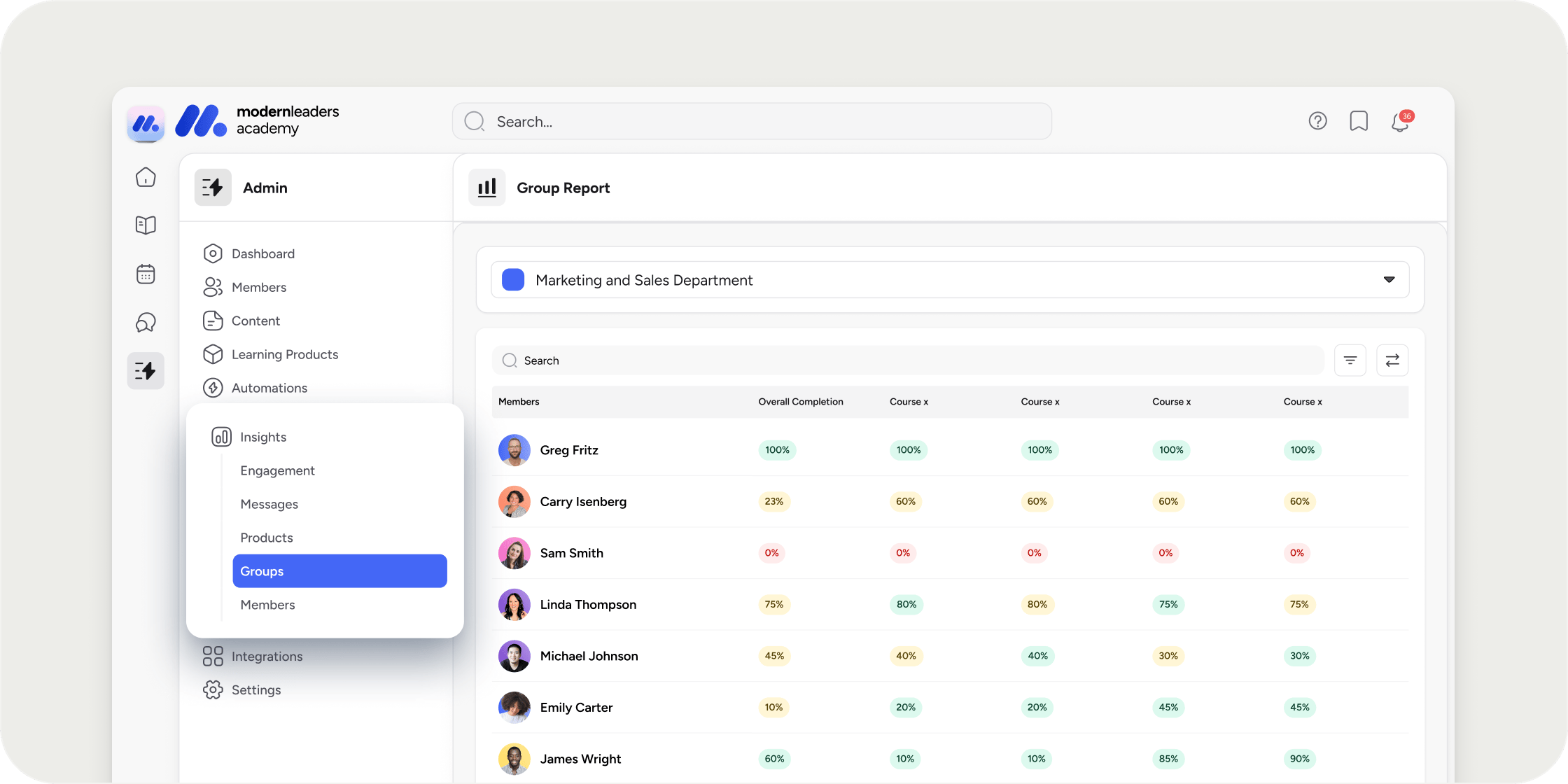
Group Reports surface how a specific cohort, team, or sub-group is progressing through curriculum, registering for Programs, and engaging with content. Admins see all groups they have access to. Group Leads see only the groups they are assigned to. Reports refresh in real time, so each visit shows the latest data.Before you start
- You need Admin access to view all Group Reports, or Group Lead access to view reports for groups you are assigned to.
- Group Leads must be assigned by an Admin before they can pull reports.
- Both custom Academy groups and Program subgroups appear in the group selector.
View a Group Report
- Go to Admin Area → Insights → Groups.
- Select a group from the list. All custom Academy groups and Program subgroups you can access appear here.
- Choose the report tab you want to view.
- Member Progress Report: Shows curriculum completion at a glance for each member of the group.
- Aggregate Member Report: Pick one member to see their progress and activity across the Academy and every Program they have registered for.
- Products Report: Lists registered Programs and Pathways for the group with metrics on registrations, time spent, and average engagement score.
Filter a Group Report by sub-group
If you select a parent group that contains sub-groups, you can drill down further.- Open the group selector and choose the parent group.
- Open the Filters menu.
- Select the sub-group you want to view.
Include Group Leads in the report
By default, Group Leads do not appear in the Member Progress Report. To include them in the data:- Open the Filters menu.
- Select Include Group Leads in report.
Assign a Group Lead
Group Leads are members you give scoped reporting access to so they can monitor their own group without seeing the rest of the Academy. To make a member a Group Lead, follow the steps in the Group Leads article. POV: Use Group Leads when you sell or deliver to multiple companies inside a single Academy. A Group Lead at each customer can pull progress for their own team without exposing data from other customers, and you stay focused on the Academy-wide rollup.FAQ
Can I view a report for a custom Academy sub-group?
Can I view a report for a custom Academy sub-group?
Yes. Select the parent group in the group selector, then filter by sub-group. All statistics will reflect the selected sub-group.
How often are reports updated?
How often are reports updated?
Reports update in real time. Every time you visit the page, you see the latest data.
Why don't Group Leads appear in the Member Progress Report?
Why don't Group Leads appear in the Member Progress Report?
Group Leads are excluded by default so the report focuses on the members they are leading. Open the Filters menu and select Include Group Leads in the report to add them back in.
Can I restrict a manager so they only see reports for their own company or team?
Can I restrict a manager so they only see reports for their own company or team?
Yes. Assign that manager as the Group Lead of the group representing their company or team. They will only see members and Programs tied to that group, with no visibility into other groups.
Can I see a list of every member in a group with their join dates?
Can I see a list of every member in a group with their join dates?
The Member Progress Report shows each member of the group along with their progress and last active date. To pull a more detailed export including member-level account data, use the Member directory under Admin Area → Members, filtered by group.
Is the Engagement Score in a Group Report an average or a total?
Is the Engagement Score in a Group Report an average or a total?
The Engagement Score shown at the top of a Group Report is an average across the members of that group. If a value looks unexpectedly high or low, confirm whether the Group Lead filter is on or off, since including or excluding Group Leads changes the population the average is calculated against.