

Overview
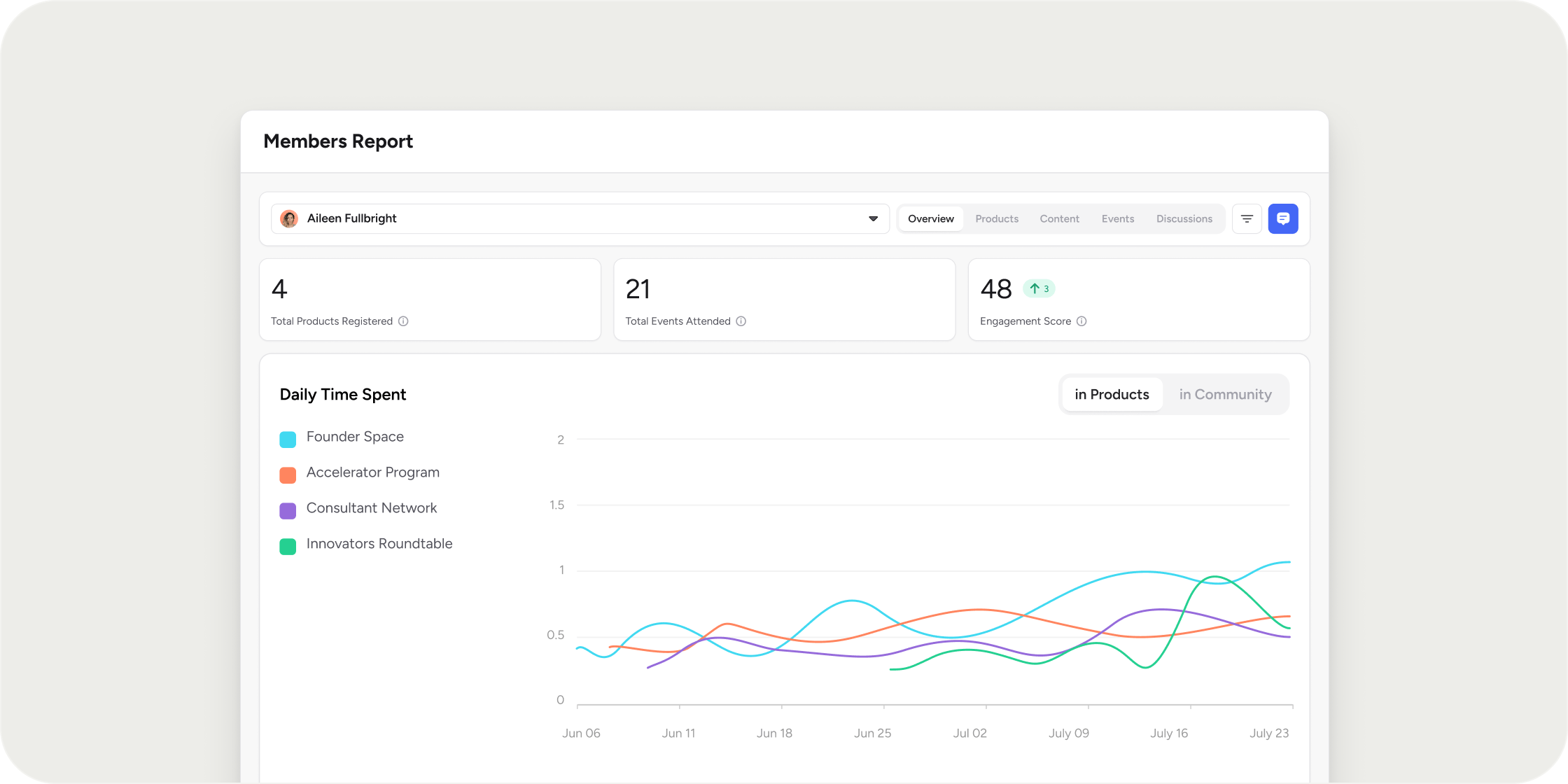
Where the Group Report rolls up activity for a cohort, the Member Report zooms in on one person. It pulls together profile data, time on platform, curriculum progress, content engagement, event attendance, and discussion activity into a single page. Use it to coach individual members, write reference letters, troubleshoot drop-off, or prepare for a check-in.Before you start
- You need Admin access to view any member’s report, or Group Lead access to view reports for members of groups you lead.
- Reports update in real time.
- Custom profile fields appear in the Overview section if they are configured for your Academy.
Open a Member Report
- Go to the Admin area.
- Select the Insights tab, then choose Member.
- Search for the member by name or select them from the dropdown to load their report.
What’s in a Member Report
The Member Report is organized into five sections.Overview
The Overview section sets the baseline for everything else.- Standard and custom profile fields for the member.
- Daily time spent across the Academy and inside individual Programs.
- Last active date.
Programs
The Programs section shows the member’s registration footprint.- Number of Programs the member has registered for.
- Total time spent on curriculum.
- Attendance rate for events tied to those Programs.
Content
The Content section tracks how the member is engaging with the curriculum itself.- Engagement with content pieces such as lessons, quizzes, and articles.
- Video engagement, including how far the member has watched each video.
- The member’s responses to each survey.
Events
The Events section covers live participation.- Total events attended by the member.
- Confirmation and attendance rates.
- Feedback the member submitted for each event.
Discussions
The Discussions section captures community activity.- Total messages sent in channels.
- Comments left on posts and curriculum items.
- Total reactions left by the member.
- Top channels and feeds the member contributes to.
Export a Member Report
- Go to the Admin area.
- Select the Insights tab, then choose Member.
- Search for the member by name or select them from the dropdown to load their report.
- Select Export CSV on the report you wish to export.
FAQ
Who can view a Member Report?
Who can view a Member Report?
Admins can view any member’s report. Group Leads can view reports for members of the groups they lead.
How often is the data updated?
How often is the data updated?
Reports update in real time. Every visit shows the latest data.
Can I export all the data from an individual Member Report?
Can I export all the data from an individual Member Report?
Currently, you can export individual reports from the Member Report, but not a combined aggregate report.
Can I see how a member earned their Engagement Score?
Can I see how a member earned their Engagement Score?
The Member Report breaks down the activity that feeds Engagement Score: time on platform, content engagement, event attendance, and discussion activity. The score itself is a composite, but you can use these sections to understand which behaviors are driving it.
Can I exclude instructors and managers from member-level reports?
Can I exclude instructors and managers from member-level reports?
The Member Report is selected per individual, so you do not need to select staff members. For leaderboards and cohort views, filter or scope the audience to Members only where the option is available.
Can I view a member's progress across both Pathways and Programs in one place?
Can I view a member's progress across both Pathways and Programs in one place?
Yes. The Programs section shows all Programs the member has registered for, including those they reached through a Pathway. For Pathway-specific progress, also check Admin → Insights → Members → Programs tab, which surfaces enrollment date, current progress, engagement score, last active date, and time spent.
Can I pull all of a member's assignment submissions in one place?
Can I pull all of a member's assignment submissions in one place?
The Member Report shows engagement with content pieces, including completion. To download the actual submission files or text for every assignment, export from each assignment individually under the Program. A consolidated cross-Program submission export is not currently available.
Is member progress data available through the API or webhooks?
Is member progress data available through the API or webhooks?
Some progress data is available through the Disco API, and the team is actively expanding coverage of completion and progress events. For the most current list of supported endpoints and webhook events, check the developer documentation or contact support.