

Overview
Product Reports give Program owners a focused view of how one Program is performing. You see revenue, registrations, curriculum progress, content engagement, event attendance, and discussion activity in one place. The tabs that appear inside a Product Report depend on the Apps you have added to that Program.Before you start
- You need Admin access, or Manager or Instructor access on the Program, to view its report.
- Reports update in real time.
- Only published Programs you have access to appear in the Insights Product list.
Open a Product Report
You can reach a Product Report from inside the Program itself or from the Admin area.From inside a Program
- Navigate to the Program you want to report on.
- Select the Reports button in the top navigation bar, or open the overflow icon and select Reports from the dropdown.
From the Admin area
- Go to the Admin area.
- Select Insights → Product from the menu.
- Choose the Program you want to report on from the selector.
What’s in a Product Report
A Product Report has up to five tabs.Overview
The Overview tab gives you a quick read on the Program’s health.- Total earned revenue.
- Number of registered members.
- Number of active members.
- Average engagement score.
- Charts for engagement scores and active members over time.
Member Progress
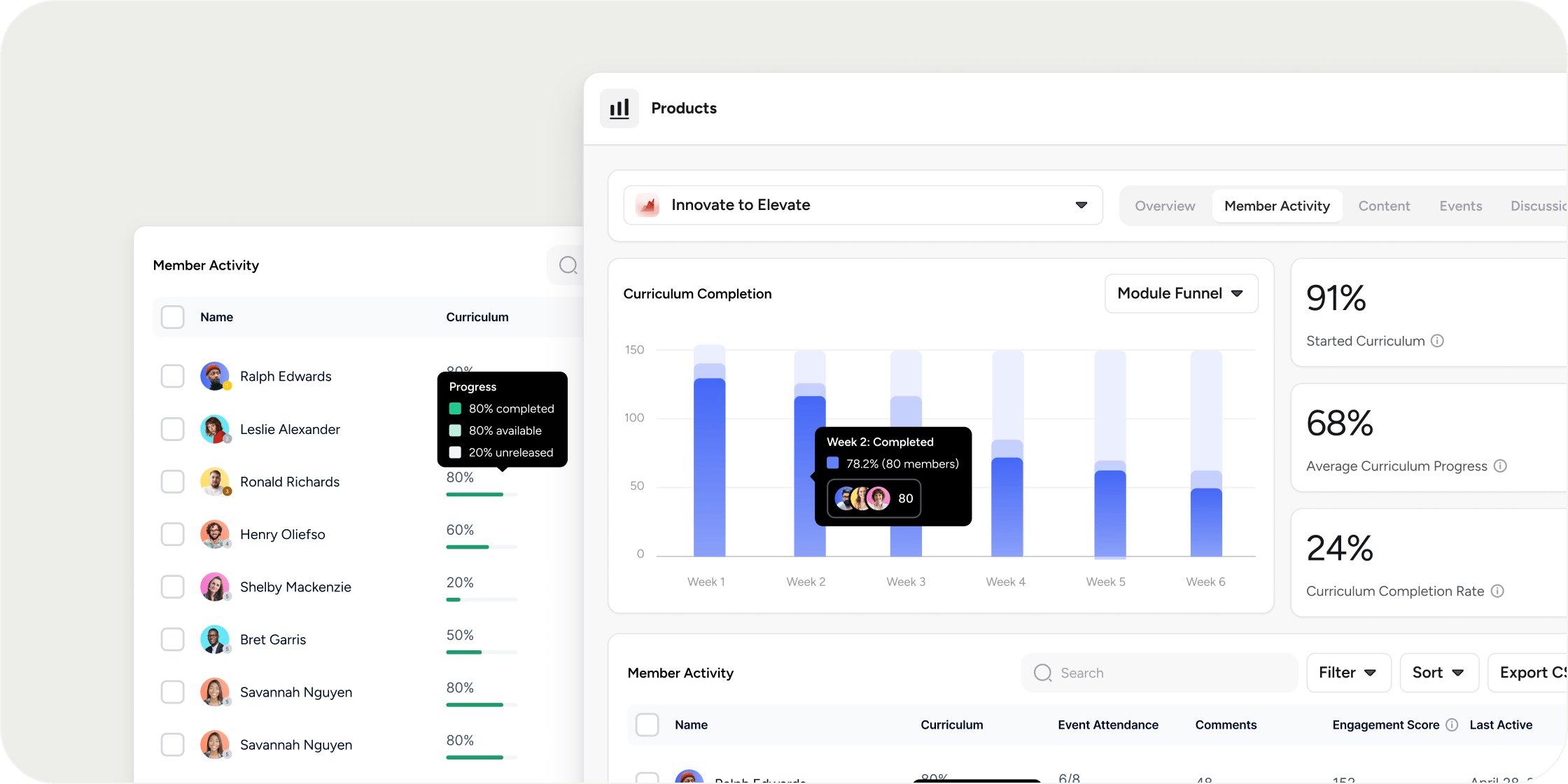
The Member Progress tab is the heart of the report.- Percentage of members who have started the curriculum.
- Average curriculum progress.
- Percentage of members who have completed the curriculum.
- A detailed Member Progress table showing each member’s engagement, curriculum completion, attendance, comments, and last active date.
Content
The Content tab tracks how members are engaging with curriculum items, videos, audio, surveys, assignments, and quizzes.- Number of content items created.
- Percentage of total content viewed across the Program.
- A Content Engagement table with each item’s location, content label, completion rate, and views.
- A Video Engagement table with average watch rate and plays for video content.
- An Audio Engagement table with average listen rate and listens, if audio content is enabled for your Academy.
- Separate tables to view submissions for surveys, assignments, and quizzes.
Events
The Events tab covers live sessions tied to the Program.- Total events hosted.
- Percentage of members who confirmed attendance.
- Percentage of members who actually attended on average.
- A detailed event table with attendees, confirmed attendees, date, and start time for every event.
Discussions
The Discussions tab shows how members are communicating inside the Program.- Total messages sent.
- Top channel contributors.
- Total posts sent.
- Total comments and reactions.
- Top feed contributors.
Filter a Product Report by sub-group
Admins can scope a Product Report to one or more sub-groups.- Open the Product Report.
- Open the Filters menu.
- Select one or more sub-groups.
FAQ
Who can view a Product Report?
Who can view a Product Report?
Admins can view reports for any Program. Managers and Instructors on a Program can view reports for the Programs they are assigned to.
How often does the report update?
How often does the report update?
Reports update in real time. Each visit shows the latest data.
Why doesn't a Program appear in the Product selector under Insights?
Why doesn't a Program appear in the Product selector under Insights?
Only Programs you have access to and that are in a state that supports reporting appear in the selector. Confirm you are an Admin, Manager, or Instructor on the Program, and that the Program is published rather than archived. If a Program you expect to see is missing, reach out to support.
What does the Active Members metric mean?
What does the Active Members metric mean?
Active Members counts members who have engaged with the Program inside the time window shown on the chart. Engagement includes curriculum activity, event attendance, and discussion activity.
Can I filter a Product Report by multiple groups at once?
Can I filter a Product Report by multiple groups at once?
Yes. Selecting multiple sub-groups returns any member who belongs to at least one of those groups. The report’s statistics will reflect that combined population.
Why does Total Time Spent on Curriculum sometimes look different from the sum of Time Spent on individual Programs?
Why does Total Time Spent on Curriculum sometimes look different from the sum of Time Spent on individual Programs?
The two metrics use different time windows and rollup logic, so they are not always identical. If the gap looks unreasonable, contact support and share which Program and which member you are comparing.
Can a Manager or Instructor only see data for the customer they manage?
Can a Manager or Instructor only see data for the customer they manage?
Today, Manager and Instructor roles see all data inside the Program they are assigned to, including members from other companies who are also enrolled. To restrict visibility to a single customer, assign that person as a Group Lead on the customer’s group instead, and pull the Group Report rather than the Product Report.
Can I see Pathway membership inside the Product Report?
Can I see Pathway membership inside the Product Report?
The Product Report focuses on the Program. To see how a member arrived through a Pathway and where they are inside the Pathway, use the Pathway Report or the Member Report.
Why do some assessment metrics show N/A?
Why do some assessment metrics show N/A?
Some metrics only appear after members generate the underlying data. For example, average time spent needs timed submissions, quiz score metrics need scored quiz submissions, and pass rate needs pass/fail results. If there is no applicable data yet, the Product Report shows N/A instead of a percentage or duration.