

The Disco MCP Connector is in public beta and available on all paid plans. Access can be requested during our free trial by reaching out to our team directly. Only Academy Owners and Admins can connect.
What is MCP?
MCP (Model Context Protocol) is a standard way for AI assistants like Claude and ChatGPT to connect with the other apps you use. Think of it like connecting Zoom to Google Calendar: approve the connection once, and the apps can work together seamlessly. Once you connect Disco, simply tell your assistant what you need. It can answer questions about your Academy or make changes for you. No technical skills required.Why connect Disco to your AI assistant
- Get answers fast. No need to remember where things live in Disco. Just ask, “Is John Doe enrolled in the Advanced Coaching Program?”
- Stay in your workflow. If you’re already using Claude or ChatGPT, you don’t need to switch to your Disco Academy. Check who’s in a Group, update a Member’s profile, or deactivate someone right from the same chat.
- Manage multiple Members at once. Type “Add these five Members to the Leadership Foundations Pathway” rather than searching for and adding each one yourself.
- Start from the lists you already have. Paste a spreadsheet or CSV file into the chat, and your assistant can invite everyone or add them to a Program.
What you can do today
The connector currently supports membership management actions.Coming soon
More actions are on the way. Here’s what’s next:- Manage content: create, view, update, and delete lessons, quizzes, assignments, and surveys
- Manage media: upload, rename, and delete files in your media library
- Manage curriculum: create, update, and remove modules, and add content to a curriculum
- View reports
How confirmations keep you in control
Every Disco tool is labeled Read, Write, or Destructive. Your AI assistant uses these labels to decide when to ask for permission before making changes in Disco. Each assistant handles this differently, so check its settings. To approve every change before it happens, set Disco’s connector to “Needs approval” in Claude or “Always ask” in ChatGPT. That way you can catch mistakes before they reach your Academy.Set up the connector
Before you start, you need:- Owner or Admin access to your Disco Academy
- One of these AI assistants:
- Claude (desktop or web) on a plan that supports custom connectors. See Claude’s remote MCP connector guide.
- ChatGPT (web), with Developer Mode turned on. Developer Mode is available on Pro, Plus, Business, Enterprise, and Education plans. On Business, Enterprise, and Education plans, a workspace admin may need to turn it on for you.
1
Copy your MCP server URL
Each Academy has its own MCP server URL.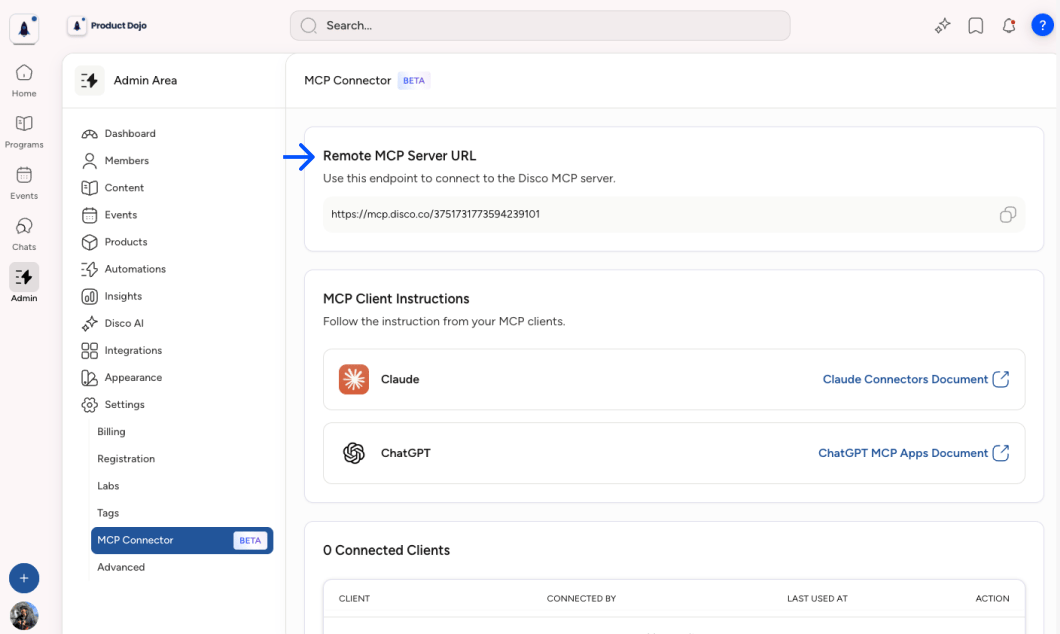
- In Disco, go to Admin Area → Settings → MCP Connector.
- Under Remote MCP Server URL, click the copy button.
2
Add Disco to your AI assistant
- Claude
- ChatGPT
- In Claude, open your connector settings and add a custom connector.
- Enter a name, such as
Disco, and paste your MCP server URL. - Click Connect.
- Claude redirects you to Disco to authorize access. Continue to the next step.
3
Authorize access
Disco shows an authorization screen with: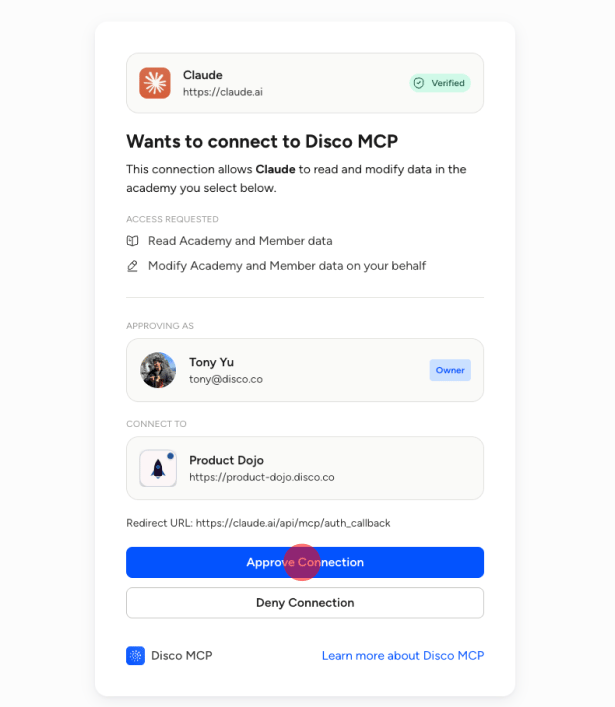
- The AI assistant requesting access
- The read and modify access requested for your Academy and its Members
- The Disco account and Academy you’re connecting
- Where Disco will redirect you after authorization
4
Test your connection
Start a new conversation and ask: “List all Groups in my Academy.” If your assistant returns your Groups, you’re ready to go!
Use the connector
Starter workflows
Enable the Disco connector in a conversation, then describe what you want your assistant to do. Use the examples below for inspiration. You don’t need exact wording, just swap in real names, emails, Groups, and Pathways from your Academy.- Find Members
- Manage accounts
- Manage enrollment
- Manage invites
Tips for better results
Once you’ve tried a few prompts, these tips help you get better results.- Not sure of a name? Ask for a list first. “List all Pathways in my Academy,” then pick from the results.
- Say which thing you mean. Disco has Groups, Pathways, Programs, and Events. “Show me who’s in the Onboarding Mentors Group” works better than “Show me Members.”
- Check your work in Disco. Keep your Academy open in another tab and refresh after a change to see it land.
Manage MCP connections
Owners and Admins can see active connections in Admin Area → Settings → MCP Connector. The Connected Clients table shows the client, the person who connected it, and when the connection was last used.Owners can revoke any connection. Admins can only revoke their own.
- Find the connection in the Connected Clients table.
- Open the Action menu and click Revoke Connection.
- Review the confirmation and click Revoke Access.
FAQ
Getting started
Do I need technical skills to use the connector?
Do I need technical skills to use the connector?
No. Once you connect Disco, describe what you want and your assistant handles it in your Academy, using your access and asking before it changes anything. Just ask in your own words.
Which plans include the MCP Connector?
Which plans include the MCP Connector?
The MCP Connector is in public beta and available on all paid Disco plans. It is not included in the trial but you can contact support to request access. You also need a Claude or ChatGPT plan that supports custom connectors.
Why can't I see MCP Connector in Disco Settings?
Why can't I see MCP Connector in Disco Settings?
Only Academy Owners and Admins can use the MCP Connector. If you don’t see it, check your role in Disco. On a trial, the page is visible but locked, and the server URL is hidden until you upgrade or contact support to request access.
Can I connect an MCP client other than Claude or ChatGPT?
Can I connect an MCP client other than Claude or ChatGPT?
Possibly. Claude and ChatGPT are the AI assistants Disco has tested and supports today. Other assistants that support MCP connections may also work. To try one, follow its instructions for adding a remote MCP server, and choose OAuth as the sign-in method if asked.
Using the connector
Will I accidentally change something just by asking a question?
Will I accidentally change something just by asking a question?
No. Questions like “Who’s in this Group?” only read data. For any request that changes data, your assistant asks you to confirm first, as long as confirmation prompts are on.
Do I need to know the exact names of my Groups, Pathways, and Programs?
Do I need to know the exact names of my Groups, Pathways, and Programs?
No, but it helps. If you’re not sure, ask your assistant to list them first, then pick from the list.
Do changes happen right away?
Do changes happen right away?
Yes. Changes take effect as soon as you confirm them. Refresh Disco to see them.
Can I undo an action?
Can I undo an action?
It depends. You can reactivate a deactivated Member or add someone back to a Group, Pathway, or Program. You can’t undo removing a Member, removing a Group, or canceling an invite.
Can I change a Member's role?
Can I change a Member's role?
Only within a Program. When adding someone to a Program, you can choose the Member, Instructor, or Manager role, and you can raise an existing Program role, for example from Member to Instructor. The connector can’t change Academy roles like Admin or Owner, lower any role, or set Pathway roles. Use the Admin Area for those.
Can I make changes for many Members at once?
Can I make changes for many Members at once?
Yes. List several names or emails in one request. Your assistant works through them one at a time and confirms each change.
Why did my connection stop working?
Why did my connection stop working?
Usually because your access token expired. Reconnect and authorize again. Connections also stop if someone revokes them, if you’re no longer an Owner or Admin, or if your Academy is no longer eligible.