

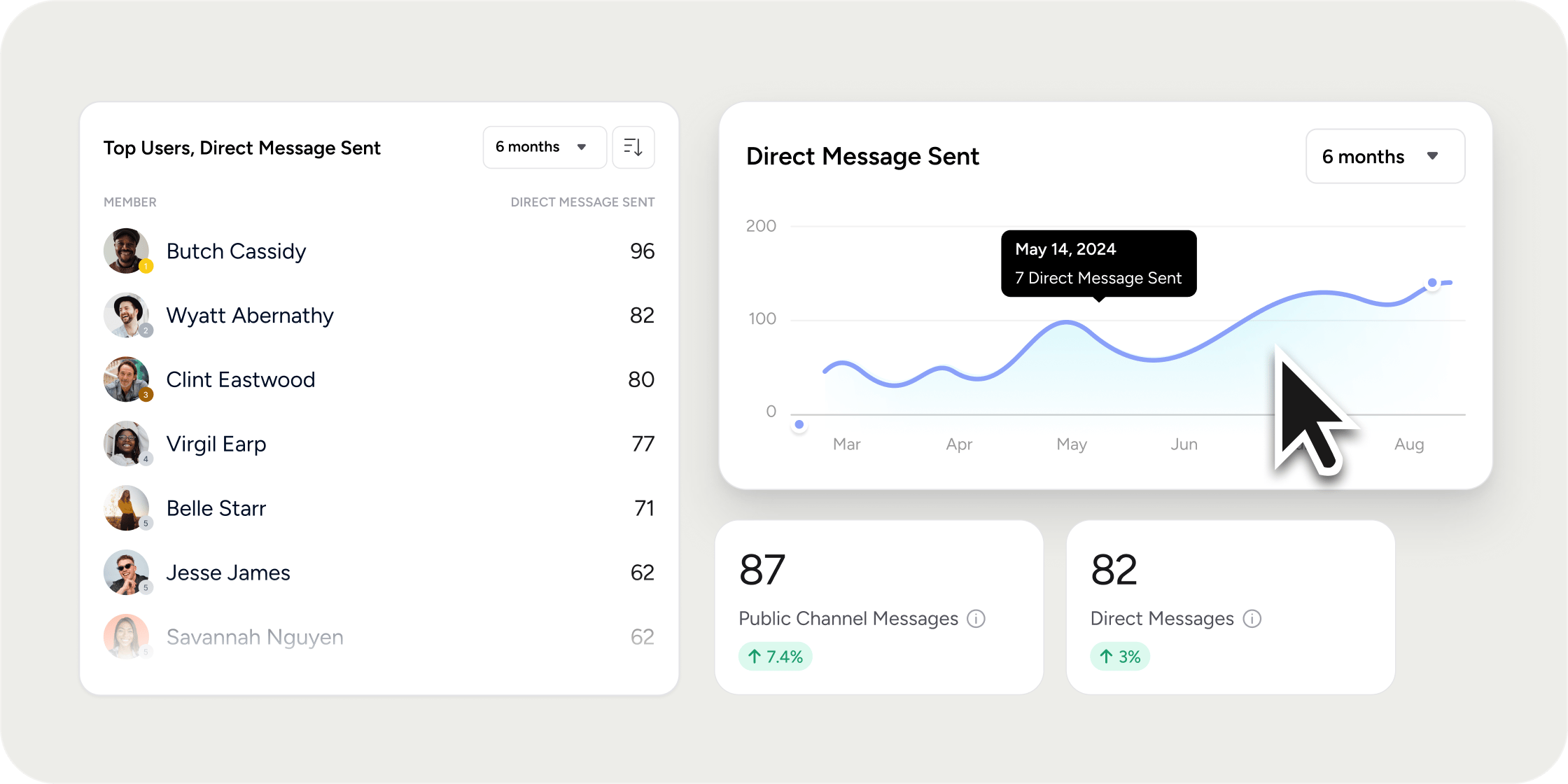
Overview
If channels and Direct Messages (DMs) are the connective tissue of your Academy, the Messages Report is the dashboard. It surfaces who is sending the most messages, where the most active conversations are happening, and how public channel activity is distributed across the Academy. Use it to identify community champions, spot quiet channels that need a prompt, and measure the impact of new communication strategies.Before you start
- You need Admin access to view the Messages Report.
- The report aggregates message counts. It does not display the contents of direct messages.
- Public channel data is included by default. Private channel data is not displayed.
Open the Messages Report
- Go to the Admin area.
- Select the Insights tab.
- Select Messages.
What’s in the Messages Report
The report is built around three sections that together describe messaging activity across the Academy.Top Users, Direct Messages Sent
A ranked list of members by the number of direct messages they have sent. Use it to surface power users who are connecting 1:1 and to spot members who may be running side conversations rather than contributing in channels.Top Users, Channel Messages Sent
A ranked list of members by the number of messages they have sent in channels. These are your most visible contributors and the most reliable candidates for spotlights, ambassador programs, or peer-led discussion threads.Public Channel Messages
Total message volume per public channel. Use it to compare channels, identify which topics are pulling members in, and find channels that may need a prompt or a refresh.FAQ
Who can view the Messages Report?
Who can view the Messages Report?
Admins can view the report. Other roles do not see this section by default.
Are direct message contents visible to Admins?
Are direct message contents visible to Admins?
No. The report shows counts only. The body of any direct message is not surfaced in this report.
Are private channels included?
Are private channels included?
The Public Channel Messages section displays public channels. For private channel activity, check the channel itself.
How often does the data update?
How often does the data update?
Like other Insights views, the data refreshes in real time. Each visit shows the latest counts.
Can I filter by date range?
Can I filter by date range?
Yes, you can filter by date range for a more tailored report.