

Overview
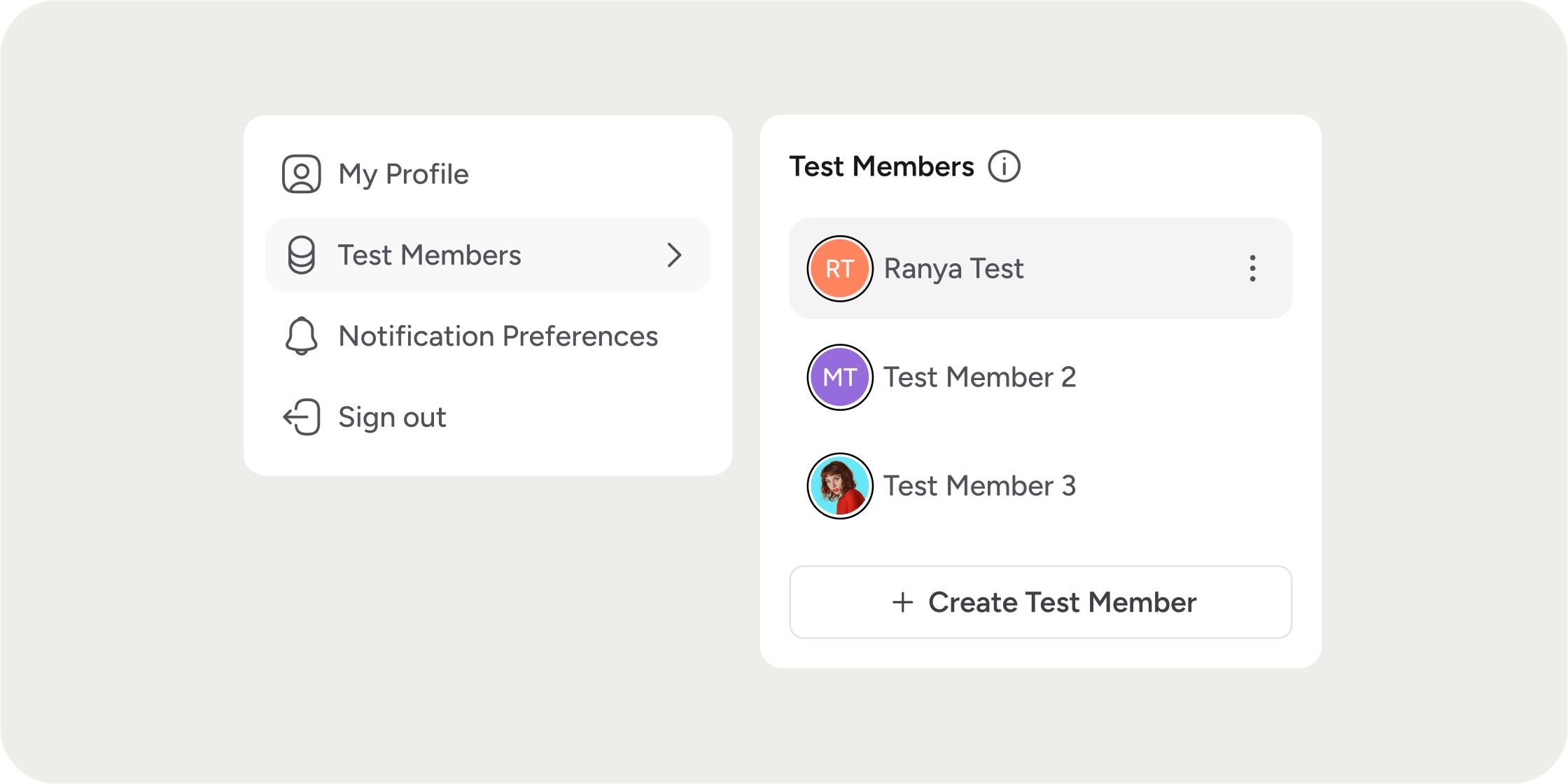
Test Members are linked to your Admin profile and use your Admin email address for all notifications. You can toggle between your Admin profile and a Test Member profile without logging out or creating a separate account. Test Members behave like any other Member in your Academy: they appear in the Member directory, show up in reports, and trigger Automations. Use them to preview the end-to-end Member experience, troubleshoot issues, or validate Automation logic before it runs for real Members.Create a Test Member
- While logged in as an Admin, click your avatar in the bottom left corner to open your Account Profile.
- Select Test Members.
- Click Create Test Member.
- Assign a name, and optionally assign a Group or enroll the Test Member in a Program.
- Click Create Test Member.
Use a Test Member
- Click your avatar to open your Account Profile.
- Select Test Members, then select the Test Member you want to use.
- The Test Member profile opens in a new tab.
- Register for Programs and complete assignments or quizzes
- RSVP to and attend Events
- Participate in discussions and send direct messages
- Trigger Automations
- Hold a Product Manager or Instructor role within a Program
Manage Test Members
After creation, you can enroll or unenroll a Test Member from Programs and Groups the same way you would for any Member. Use the standard enrollment controls in the Member directory. Note: the Assign and Invite to Program options do not work for Test Members because Test Members do not have a standard email address. Use direct enrollment instead.Remove a Test Member
- Click your avatar to open your Account Profile.
- Select Test Members.
- Hover over the Test Member you want to remove.
- Click the three-dot ellipsis that appears.
- Select Delete.
Important Considerations
Visibility. Test Members appear in the Member directory, global search results, Program member lists, and all reports, just like any other Member. If you do not want Test Member data included in reports, remove the Test Member after you finish testing. Draft content. Test Members cannot see Programs in draft or Events that have not been published. To preview a draft Program as a Member, use the Preview as Member feature within the Program editor. Admin removal. When an Admin is removed from the Academy, all Test Members created by that Admin are also removed. Onboarding is required. Each Test Member must complete the onboarding flow the first time it is used. You cannot skip or reset onboarding for an existing Test Member. To re-test onboarding, create a new Test Member. Who can create Test Members. Only Admins can create Test Members. Instructors and Product Managers cannot create Test Members. They can use Preview as Member within a Program to view the Member experience for published content.How Test Members Compare to Similar Features
FAQ
Can I test the checkout process with a Test Member?
Can I test the checkout process with a Test Member?
Yes. You can use a Test Member to go through a paid enrollment flow and test the checkout experience end to end.
Can Product Managers and Instructors create Test Members?
Can Product Managers and Instructors create Test Members?
No. Only Admins can create Test Members. Product Managers and Instructors can preview the Member experience within a Program using Preview as Member.
Can I log in directly to a Test Member account?
Can I log in directly to a Test Member account?
No. You access a Test Member from within your Admin Account Profile. There is no separate login for a Test Member.
Can I reset a Test Member to re-test onboarding?
Can I reset a Test Member to re-test onboarding?
No. To test onboarding again, create a new Test Member. Onboarding cannot be reset for an existing Test Member.
Do Test Members receive email notifications?
Do Test Members receive email notifications?
Yes. All notifications go to your Admin email address, so you can preview exactly what Members receive at each step of the experience.
Does a Test Member have its own email address?
Does a Test Member have its own email address?
Yes. Disco assigns a randomly generated email address to each Test Member. Any email sent to that address is forwarded to your Admin email.
How do Test Members affect reporting?
How do Test Members affect reporting?
Test Members appear in all reports like any other Member. Remove the Test Member when you are done testing if you do not want the data included.
Can I create Test Members if I use SSO?
Can I create Test Members if I use SSO?
Yes. Because the Test Member account is not registered in your SSO authentication server, the toggle experience is seamless and works the same as it would without SSO.
Can I add a Test Member to a Group or Program after creation?
Can I add a Test Member to a Group or Program after creation?
Yes. You can enroll or unenroll a Test Member from Groups and Programs at any time using the standard enrollment options in the Member directory. Note that the Assign and Invite to Program options do not work for Test Members because they do not have a standard email address.
Can I use a Test Member to test the new member public signup flow?
Can I use a Test Member to test the new member public signup flow?
Test Members are linked to an existing Admin account, so they bypass the public signup page. If you need to test how a brand-new visitor signs up through a public event or open enrollment, a Test Member will not replicate that flow. See the Gaps section below for more context on this limitation.
Will a Test Member show up in the Program member list visible to other Members?
Will a Test Member show up in the Program member list visible to other Members?
Yes. Test Members appear in Program member lists just as any other Member would. There is currently no way to hide a Test Member from Program member lists.