

Overview
Member Onboarding lets you configure up to eight steps that every new Member sees when they first join your Academy. You control which steps appear, what each step says, and whether completing the flow is required or optional. Onboarding triggers for new Members whether they register directly to the Academy or through a Program. After a Program registration, the Program dashboard loads first and onboarding opens once the Member begins interacting with the page. Only Academy Owners and Admins can configure onboarding settings.Configure the Onboarding Flow
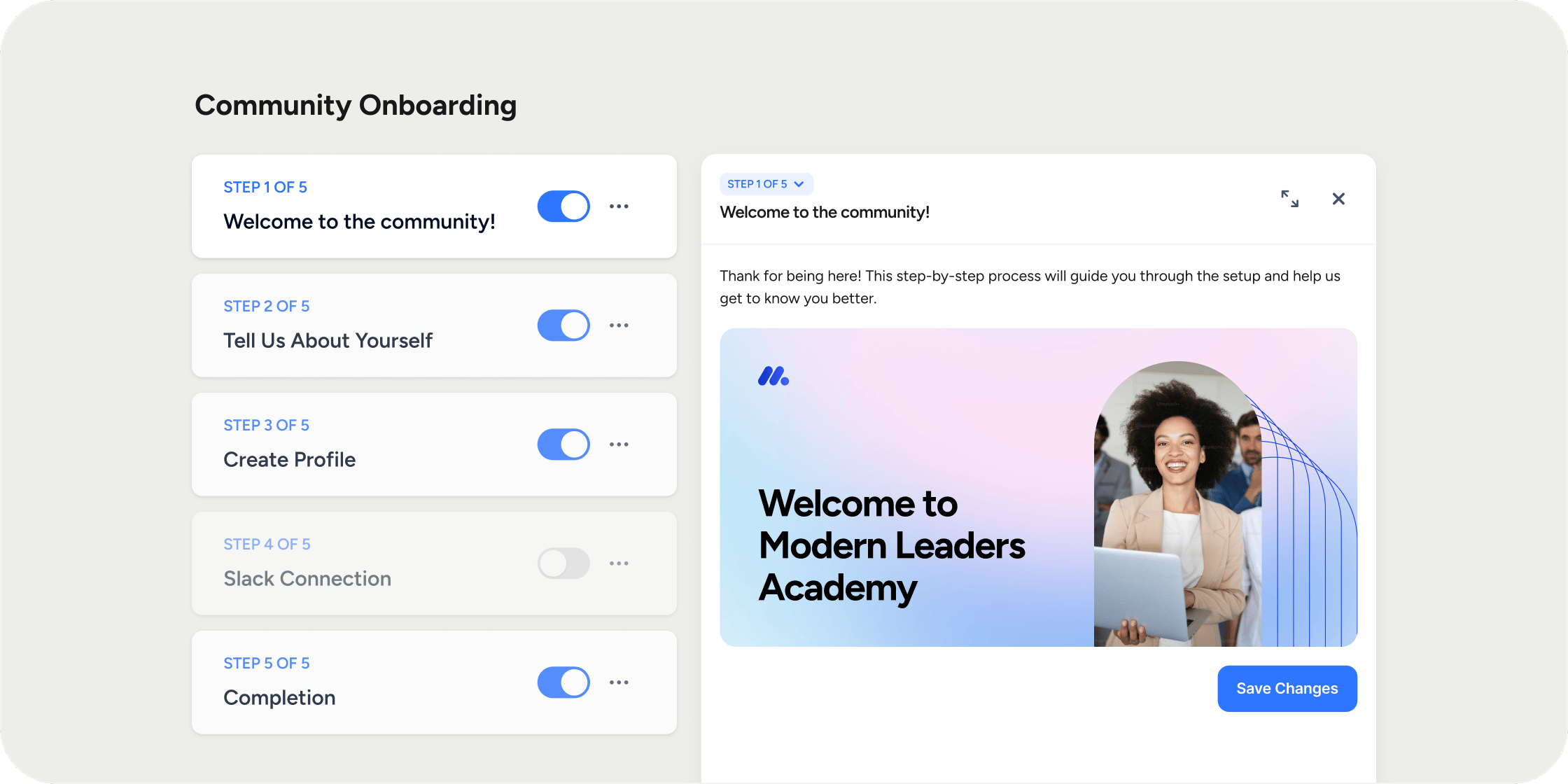
The onboarding configuration page lists all eight available steps, each with a toggle to include or exclude it from the flow.- Go to Admin Area → Members → Onboarding.
- Toggle each step on or off to include or exclude it from the Member experience.
- Review the order of enabled steps. Steps always appear in the fixed sequence shown on the page.
Enable Mandatory Onboarding
When mandatory onboarding is on, every new Member must complete the flow before they can continue using the Academy. When it is off, Members can skip steps.- Go to Admin Area → Members → Onboarding.
- In the Settings section, toggle on Mandatory member onboarding.
Customize Individual Steps
Each step has editable content including a title, sub-header, description, and visual assets. Click any step to open its drawer and edit the content.- Click the step you want to customize to open the step drawer.
- Edit the title, sub-header, and description fields as needed.
- Upload an image or add a video to the visual asset field, if applicable.
- Save your changes.
- Tell us about yourself: Select which custom profile fields to include. Custom profile fields must be created before they appear here. See the Custom Profile Fields article for setup instructions.
- Onboarding Complete: Edit the button label and destination URL to send Members to a specific page in the Academy after they finish onboarding.
Preview the Onboarding Flow
Use preview mode to experience onboarding exactly as a new Member would, before it goes live.- Go to Admin Area → Members → Onboarding.
- Click Preview Onboarding in the top right corner.
- Step through the flow to review each enabled step.
Available Onboarding Steps
Eight steps are available to build your onboarding flow. Enable any combination to create the experience that fits your Academy. Step 1: Welcome to our Academy: A welcome message that can include custom text, an image, or a video. Use this step to set the tone and introduce your Academy to new Members. Step 2: Review and accept the academy guidelines: Presents the Academy guidelines for Members to review and accept before continuing. Step 3: Complete your profile: Prompts Members to upload an avatar and write a bio. Step 4: Tell us about yourself: Collects responses to the custom profile fields you select. Requires at least one custom profile field to be configured before the step can display anything. Step 5: Connect Slack: Automatically sends a Slack workspace invite to the Member via email, or allows them to connect an existing Slack user to their Disco account. Requires a Slack workspace connection under Admin Area → Integrations → Slack. If the Slack connection is later removed, this step turns off automatically. Step 6: Connect Calendar: Prompts Members to connect their Google or Outlook calendar. No Admin-side integration setup is required. Step 7: Download the mobile app: Prompts Members to download the Disco mobile app. Step 8: Onboarding complete: A completion message shown after the final step. Customize the button label and URL to direct Members to the right page in your Academy.FAQ
Does onboarding trigger for existing Members if I enable new steps?
Does onboarding trigger for existing Members if I enable new steps?
No. Onboarding only triggers for new Members. Existing Members who have already joined are not prompted again when you add or change steps.
What happens if a Member closes their browser mid-onboarding?
What happens if a Member closes their browser mid-onboarding?
The Member resumes where they left off the next time they return. Progress is saved automatically.
Why did a new Member see the Program dashboard before onboarding?
Why did a new Member see the Program dashboard before onboarding?
After a Program registration, Disco loads the destination first and then opens onboarding when the Member begins interacting with the page. If onboarding is mandatory, they must complete the flow before they can continue using the Program or the rest of the Academy.
Can Members go back to a previous step during onboarding?
Can Members go back to a previous step during onboarding?
Yes. Members can return to any previous step by clicking Back to previous at any time during the flow.
If I disable a step while a Member is partway through onboarding, what happens?
If I disable a step while a Member is partway through onboarding, what happens?
The step is skipped for any Member who has not yet reached it. Members who already completed that step are unaffected.
Can Program Managers or Instructors configure onboarding?
Can Program Managers or Instructors configure onboarding?
No. Only Academy Owners and Admins can access onboarding settings. Program Managers and Instructors go through the Member onboarding flow themselves when they join the Academy.
Why are the Connect Slack and Connect Calendar steps skipped in preview mode?
Why are the Connect Slack and Connect Calendar steps skipped in preview mode?
These steps require a third-party account connection that Admins cannot complete in preview. They are skipped automatically when you use Preview Onboarding.
Does "Mandatory member onboarding" mean every step must be completed?
Does "Mandatory member onboarding" mean every step must be completed?
No. Mandatory onboarding means the flow itself is required, not that every step must be fully completed. The Connect Slack and Connect Calendar steps are always skippable, even when onboarding is mandatory, because a failed connection should never block a Member from accessing the Academy.