

Overview
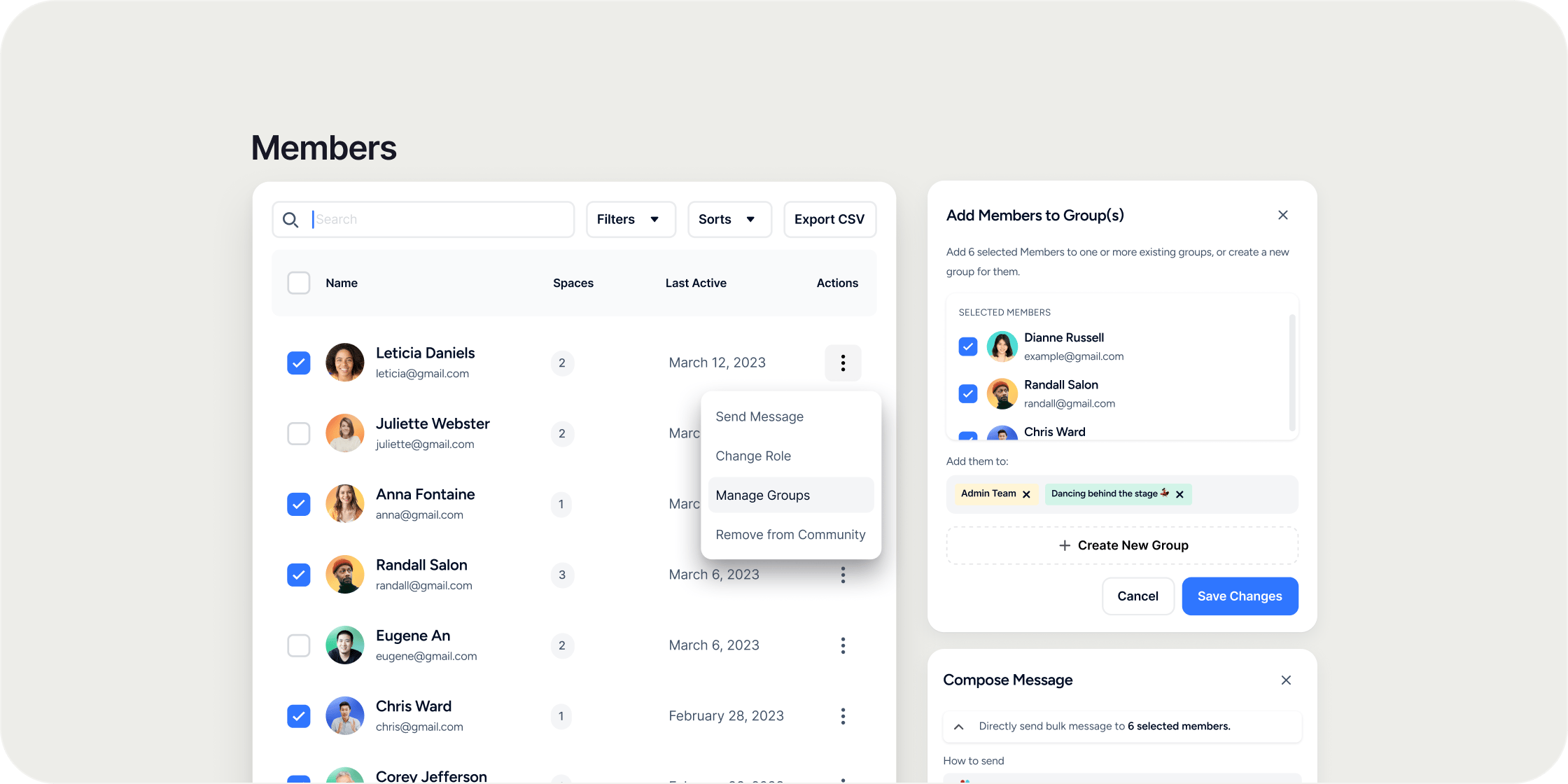
Member Management lives in your admin panel and covers everything related to members across their entire lifecycle, from invite to deactivation. You can view and filter your full member roster, take bulk or individual actions, manage invites and applications, organize members into groups, configure profile fields, set up onboarding, and define roles. All member data is retained even after deactivation, so your reporting stays intact.Navigate to Member Management
All member management tools are accessible from a single location in the admin panel.- Click Admin in the left navigation.
- Select Members from the sidebar.
- Use the sub-tabs to navigate between Members, Invites, Applications, Groups, Profile Fields, Onboarding, Guests, and Roles.
View and Filter Your Member Roster
The Members tab displays a table of every member in your Academy. Columns include role, program roles, membership plan, groups, programs, last active date, join date, email, time zone, and any custom profile field responses. To filter the table:- Click the Filters dropdown.
- Select from the available filter options:
- Role: filter by Owner, Admin, or Member
- Programs: search and select a program
- Events: filter by attended, not attended, or no response
- Groups: filter by system groups, custom groups, or subgroups
- Membership Plan: filter by plan name
- Profile Fields: filter by custom profile field responses
- Status: filter by Active or Deactivated
Message All Members
Use the Message All button to send a bulk email to every member in your Academy.- Click Message All in the top right of the Members page.
- Add a Subject and write your message body.
- Use the user.first_name and user.last_name macros to personalize the email.
- Click Send.
Invite Members to Your Academy
Use the Invite button to bring new members into your Academy individually, by email, or in bulk.- Click Invite in the top right of the Members page.
- Choose your invite method:
- Invite by link: copy and share a join link
- Invite by email: enter an email address and select the role: Member, Admin, or Owner
- Bulk import: download the CSV template, fill it in, and upload
- Send the invite.
Take Action on a Member
Selecting a member from the table surfaces a toast with quick-action options.- Check the box next to a member’s name in the table.
- A toast appears at the bottom of the screen. Choose from:
- Message: send a direct email to that member
- Add to Group: add the member to a custom group
- Add to Program or Pathway: assign the member directly to a program or pathway
- For additional options, open the More dropdown in the toast:
- Make Owner: promote the member to Academy Owner
- Deactivate Member: restrict access while retaining all data
- Remove from Academy: permanently remove the member
Manage Invites
The Invites tab shows a table of everyone who has been invited to your Academy, with details on invite status, role, source, send date, and acceptance date. To filter invites, use the available filters:- Status: Invited or Accepted
- Role: Admin or Member
- Program: All, no programs, or a specific program name
- Source: Email or Link
Review Applications
The Applications tab shows all applications submitted to programs in your Academy that require an application to join. The table includes the member name, email, program name, application date, and status. Statuses are: Pending, Accepted, Rejected, or Payment Failed. To filter applications:- Use the Status filter to narrow by Pending, Accepted, Rejected, or Payment Failed.
- Use the Programs filter to view applications for a specific program.
Organize Members with Groups
The Groups tab lets you segment your Academy members using system-generated and custom groups. The table shows group name, type (System or Custom), visibility, member count, and creation date.Create a Subgroup
- Click the dropdown menu to the right of any group row.
- Select Create Subgroup.
- Enter a Subgroup Name and select a Badge Color.
- Set visibility. Subgroups inherit the parent group’s visibility by default.
- Add members by role using the member table within the subgroup.
Manage Members Within a Group
- Click into any group to open the group detail view.
- View the full member list and filter by role.
- To assign a group lead or remove a member, click the dropdown to the right of their row and select the appropriate action.
Configure Profile Fields
The Profile Fields tab controls what information is collected from members during signup and displayed on member profiles. Disco includes a set of standard fields and supports custom fields.Standard Profile Fields
Standard fields and their default visibility rules:- Email Address: always visible to Admins only; cannot be disabled or shown to other members
- Public Groups: always visible to everyone; cannot be toggled off
- Bio: visible to Admins only or everyone; can be toggled on or off
- Local Time Zone: visible to Admins only or everyone; cannot be toggled off
Create a Custom Profile Field
- Click Add Field on the Profile Fields page.
- Select a field type:
- Single Select: member chooses one option from a list
- Multi-Select: member can choose multiple options from a list
- Written Answer: member provides a plain text response
- Link: member provides a URL (e.g., a portfolio website)
- Name the field and add any required options.
- Set visibility to Everyone or Admins Only.
- Toggle Capturing on or off to control whether the field appears during profile setup.
Set Up Member Onboarding
The Onboarding tab lets you build a step-by-step welcome flow for new members. Onboarding is off by default.- Toggle Onboarding on at the top of the page.
- Configure each of the 8 steps as needed:
- Click Preview Onboarding in the top right to walk through the flow as a member would experience it.
Manage Guests
The Guests tab lists members who joined your Academy as event guests rather than full members. From this tab, you can send invites to guests to bring them into the Academy as full members.Manage Roles
The Roles tab shows all community and program-level roles in your Academy. Community roles are Owner, Admin, and Member. Program roles are Manager and Instructor.View Role Permissions
- Click any role to open the role detail drawer.
- Review the list of access permissions assigned to that role.
Customize a Role
- Open the role drawer by clicking the role name.
- Update the Role Name and add a Role Description.
- View system groups that include all members of that role.
Change a Member’s Role
- Open the role drawer.
- Scroll to the member table showing all members currently assigned that role.
- Click the dropdown to the right of a member’s row.
- Select a different role at the same level (e.g., from Admin to Owner or Member).
Invite Members to a Role
- Open the role drawer.
- Click Invite Role in the bottom right.
- Choose Invite by Link, Invite by Email, or Bulk Import, using the same options available from the main Invite modal.
Deactivate and Activate Members
Deactivating a member restricts their access to the Academy without permanently removing them or their data.Deactivate a Member
- Go to Admin → Members.
- Check the box next to the member’s name.
- Open the More dropdown in the toast and select Deactivate Member.
Activate a Member
- Go to Admin → Members.
- Apply the Status: Deactivated filter to find the member.
- Check the box next to the member’s name.
- Open the More dropdown and select Activate Member.
FAQ
Can I message a subset of members rather than everyone?
Can I message a subset of members rather than everyone?
Yes. Apply filters to the Members table first. For example, filter by a specific program or group, then use the individual member toast to message selected members. The Message All button sends to your entire Academy, but filtering lets you identify the right subset before taking action.
What happens to a deactivated member's progress and reporting data?
What happens to a deactivated member's progress and reporting data?
All data is retained. Deactivated members no longer appear in program member lists or group rosters, but their historical activity, completions, and engagement data remain visible to Admins in the Insights tab.
Can I export a list of just my deactivated members?
Can I export a list of just my deactivated members?
Yes. Filter the Members table by Status: Deactivated, then click Export CSV. The export reflects the current filtered view.
Can a member have different roles in different programs?
Can a member have different roles in different programs?
Yes. A member can have a community-level role (Member, Admin, Owner) and separate program-level roles (Instructor, Manager) within individual programs. These are managed independently.
What is the difference between removing a member and deactivating them?
What is the difference between removing a member and deactivating them?
Deactivating restricts access while keeping all member data, history, and reporting intact. Removing a member permanently deletes their connection to the Academy. Deactivation can be reversed; removal cannot.
Can I bulk import members directly into a specific program?
Can I bulk import members directly into a specific program?
When using the bulk import CSV, you invite members into the Academy with a designated role. To assign them to a specific program, use the Add to Program action from the member toast after they have joined.