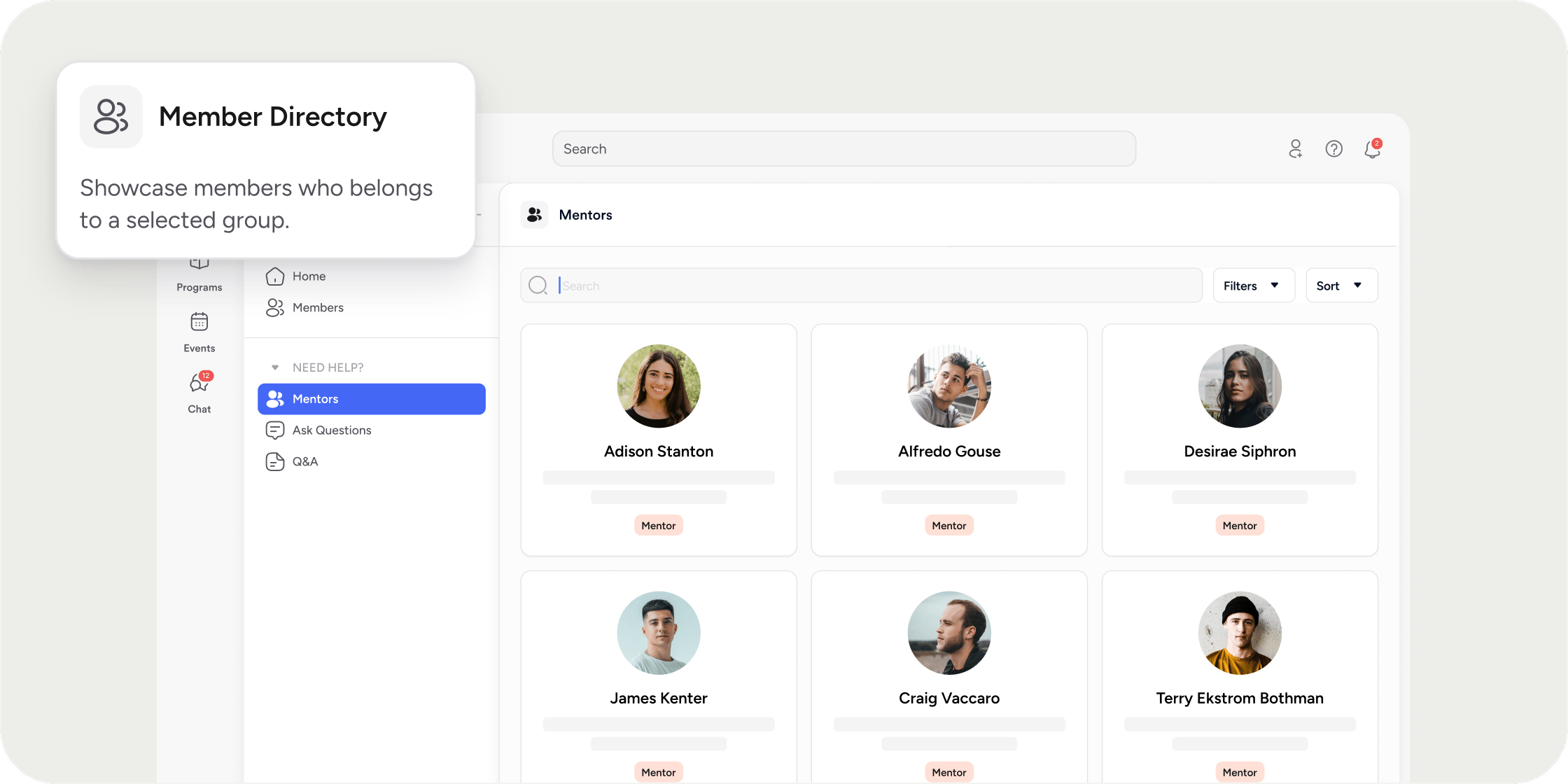
The Member Directory App is a configurable app that displays a curated list of members from a specific group, making it easier for members to find and connect with the right people in your Academy. Member Directory

Overview

The Member Directory App lets admins spotlight selected members within an Academy or Program by tying the directory to a specific group. Each directory shows only members who belong to the group you configure, giving you precise control over who appears. You can add multiple Member Directory Apps to your Academy or within a single Program. This makes it possible to maintain separate directories for different roles or cohorts — for example, one for staff and another for mentors. Access settings are configured per app, so each directory can be made visible to all members or restricted to specific groups.

Create a Member Directory App

In the Academy

  1. Select the + icon in the top right of the left navigation.
  2. Select Add App.
  3. Choose the Member Directory app.
  4. Customize the name, icon, and access settings.
  5. Select a group. Only members in the selected group will appear in the directory.
  6. Click Complete Setup.

In a Program

  1. Hover over the Program where you want the app, then select the + icon.
  2. Select Add App.
  3. Choose the Member Directory app.
  4. Customize the name, icon, and access settings.
  5. Select a group. Only members in the selected group will appear in the directory.
  6. Click Complete Setup.
Note: When adding a Member Directory App inside a Program, only groups created within that Program appear as options. Custom groups and Academy-level groups are not available at the Program level. To use a custom or Academy-level group, add the Member Directory App at the Academy level instead. Members with access can filter, sort, and search within the directory by role, group, or profile field. This makes it straightforward to find the right person within a large or segmented community.

FAQ

Who can see a Member Directory App? Access settings are configured when you create the app. You can make a directory visible to all members in the Academy or Program, or restrict it to specific groups only. Can I create more than one Member Directory App? Yes. You can add any number of Member Directory Apps to your Academy or within a single Program. Each app is tied to a different group, so you can maintain separate directories for staff, mentors, cohorts, and other sets of members. Can I add more than one group to a single Member Directory App? Yes. A Member Directory App may feature members from multiple groups. Simply select all of the desired groups under ‘Featured Members’ in the Members App Setup modal. Why is a member not showing up in the directory even though they are on the platform? The Member Directory only shows members who belong to the group it is configured to display. If a member does not appear, check that they have been added to the correct group. Group membership may depend on completing onboarding steps or being manually added by an admin. Can I use a custom group with a Member Directory App? Yes, with one constraint. Custom groups are available when adding a Member Directory App at the Academy level. When adding the app inside a Program, only groups created within that Program appear as options. If your custom group was created at the Academy level, add the Member Directory App at the Academy level to use it. What is the difference between the Member Directory App and the Group Directory App? The Member Directory App displays individual members who belong to a specific group. The Group Directory App displays a list of available groups that members can browse and join. How do I create a custom group to use in a Member Directory App? Navigate to the Admin Portal and go to Members then Groups. Select + Group in the top right to create a new custom group. Once the group exists, it will be available when setting up a Member Directory App at the Academy level.