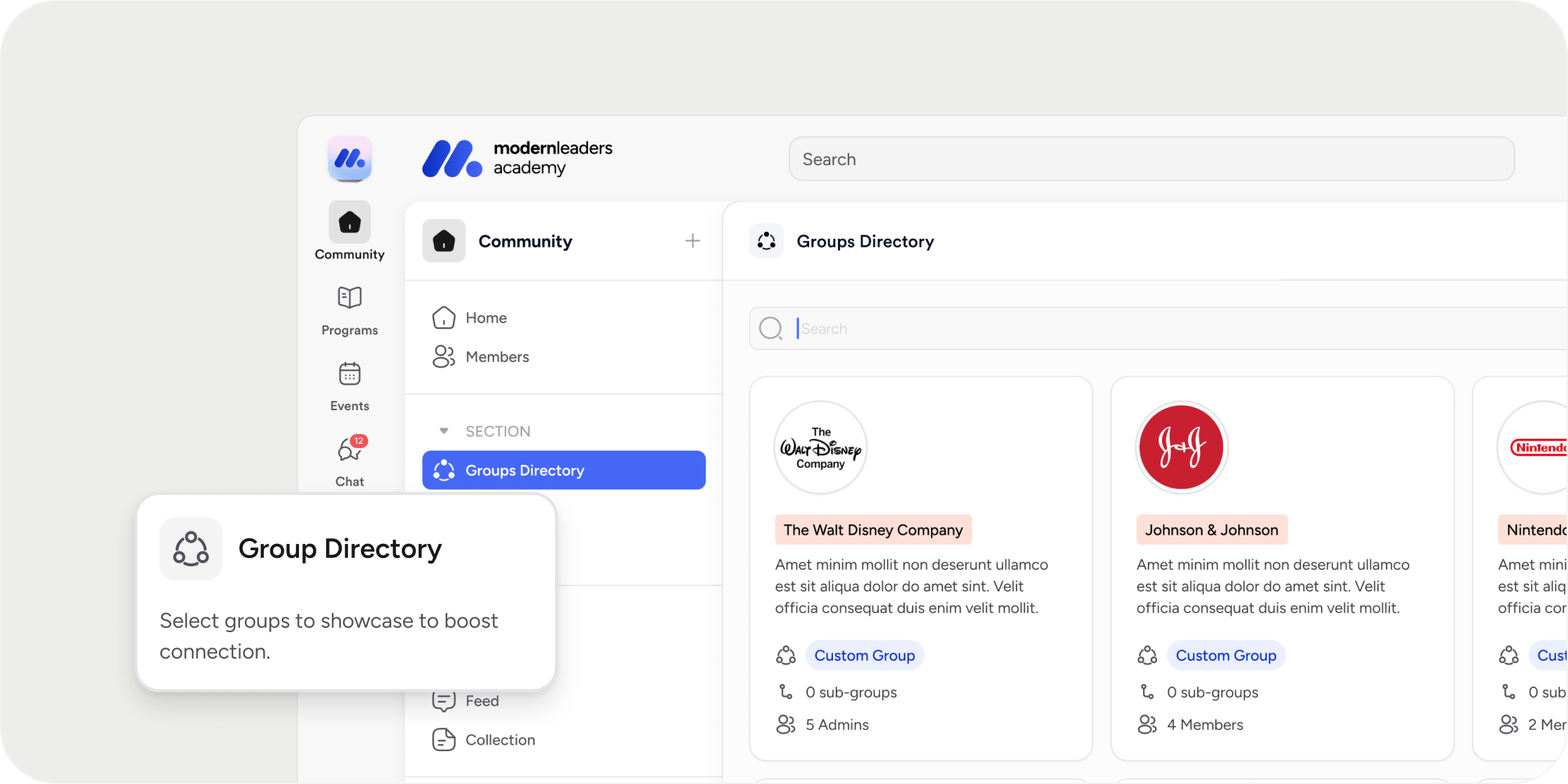
The Group Directory App is a navigation tool that lets members browse, search, and connect with groups inside your community or Program. Group Directory

Overview

The Group Directory App gives members a centralized place to discover the groups available to them. Admins choose which groups appear in the directory: system groups, custom groups, or both. Members can then browse the list, filter by group type, and click into any group to see its details and members. The app can be placed at the community level or inside a specific Program. You can create more than one Group Directory App in the same community or Program, which makes it easy to organize different audiences or use cases into separate directories. Only groups with visibility set to Everyone can be included. Groups set to Admins Only will not appear as an option during setup.

What Members See

Each group appears as a card in the directory list. Members can filter or sort by group type, or search for a group by name. Selecting a group opens a detail view that includes:
  • Group name, displayed with a color-coded tag
  • Description, summarizing the group’s purpose or focus
  • Group avatar (if one has been added)
  • Member list showing who belongs to the group
  • Subgroups (visible to admins only, if subgroups exist)

Create a Group Directory App

At the Community Level

  1. Select the + icon in the top right of the left navigation.
  2. Select Add App.
  3. Choose Group Directory.
  4. Customize the name and icon, and adjust the access settings.
  5. Select the groups or subgroups you want to feature in the directory.
  6. Click Complete Setup.

Inside a Program

  1. Hover over the Program where you want the app, then select the + icon.
  2. Select Add App.
  3. Choose Group Directory.
  4. Customize the name and icon, and adjust the access settings.
  5. Select the groups or subgroups you want to feature in the directory.
  6. Click Complete Setup.
When setting up a Group Directory inside a Program, you can feature groups that exist outside that Program, not just the groups tied to it directly.

Group Directory vs. Member Directory

These are two distinct apps and members sometimes ask about the difference. The Group Directory App displays a list of groups. Members use it to discover which groups exist and find where they belong. The Member Directory App displays a list of members within one or more specific groups. Members use it to find and connect with other people. Use the Group Directory App when the goal is helping members navigate available groups. Use the Member Directory App when the goal is helping members find specific people. POV: For communities with many groups (cohorts, interest tracks, mentor pools), the Group Directory App works well as a standalone navigation hub. Pairing it with a clear naming convention for your groups makes it even more useful.

Examples

Cohort-based learning program: Create a Group Directory featuring each cohort group so members can quickly find their cohort page, see who else is in it, and access group-specific content. Mentor network: Feature a custom “Mentors” group in the directory so members can browse who’s available for mentorship and reach out directly. Accelerator or incubator: Create a Group Directory showcasing each portfolio company or startup team, giving members a clear view of who else is in the program.

FAQ

Who can see a Group Directory App? Access is configured during setup. You can make the app visible to all members in the community or Program, or restrict it to specific groups only. Can I create more than one Group Directory App in the same community or Program? Yes. There is no limit on the number of Group Directory Apps you can create. This is useful if you want separate directories for different audiences, for example, one for cohorts and one for interest-based groups. Why isn’t my custom group appearing in the directory setup? The most common reason is that the group’s visibility is set to Admins Only. Only groups set to Everyone will appear as options when configuring a Group Directory App. Go to Admin > Members > Groups, find the group, and confirm its visibility setting before returning to set up the app. Can I feature groups from outside a Program in a product-level Group Directory? Yes. When creating a Group Directory inside a Program, you can select groups that exist at the community level or in other Programs, not just the groups tied to that specific Program. What is the difference between system groups and custom groups? System groups are created automatically by Disco based on how members join or enroll (for example, all enrolled members of a Program). Custom groups are created manually by admins in Admin > Members > Groups and can represent any segment: mentors, cohorts, alumni, and so on. Both types can be featured in a Group Directory App, as long as their visibility is set to Everyone. Can I edit the Group Directory App after it’s created? Yes. You can update the name, icon, access settings, and the groups featured in the directory at any time through the app’s settings. Can members join a group directly from the Group Directory? The Group Directory is a browsing and discovery tool. Members can view group details and see who belongs to a group, but joining a group is managed separately by admins.