

Overview
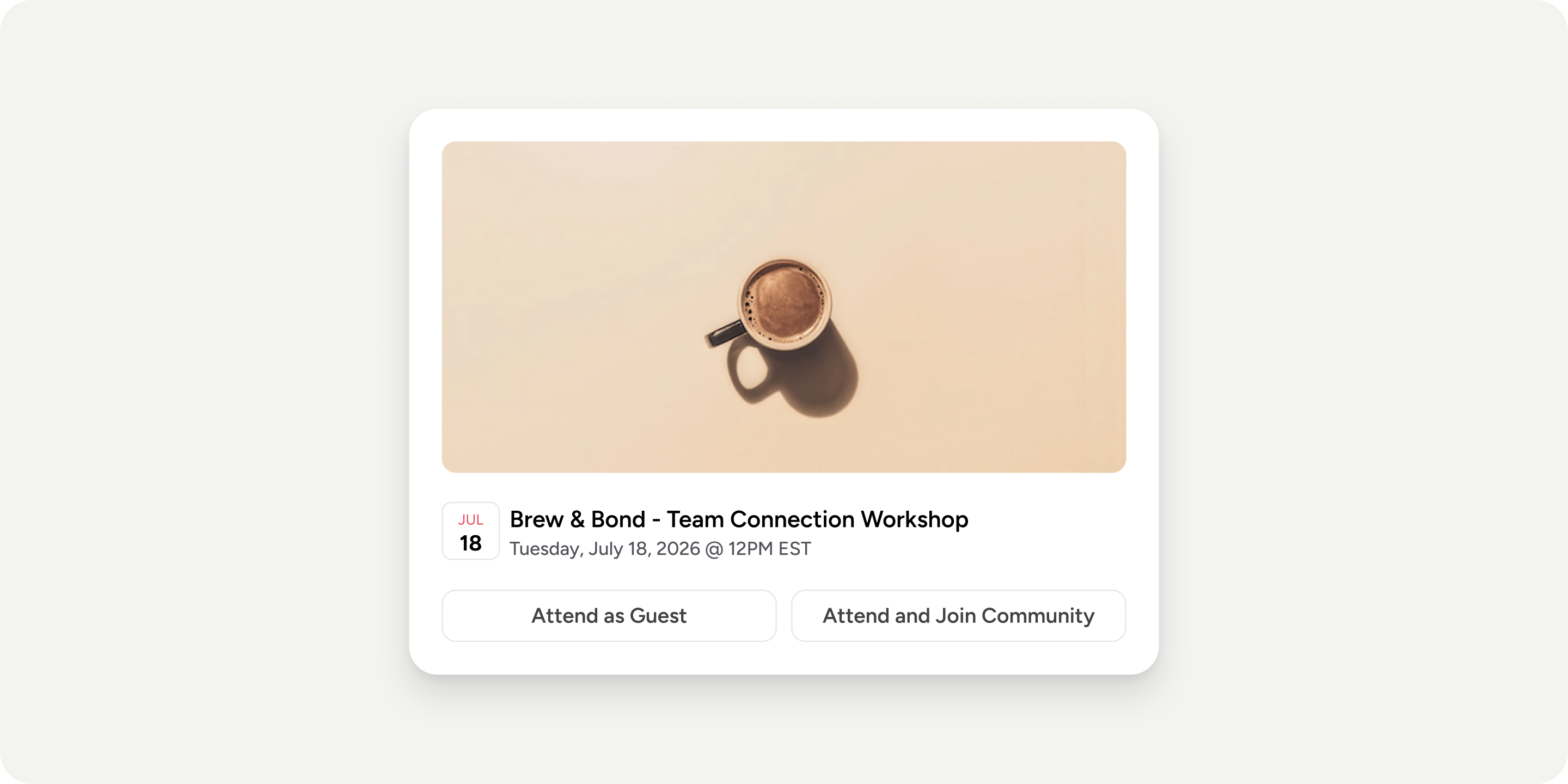
Guest Access turns a public Community Event into a promotable asset you can share on social, email, a website, or any other channel. Non-members who register through the share link attend that one event and nothing else, giving prospective Members a low-commitment way to sample your Academy before joining. It is also useful for hosting external attendees such as a guest speaker, a partner, or a colleague from another team, without provisioning them a full account. Guest Access only applies to Community Events. Events inside a Program are reserved for registered Members of that Program.Enable Guest Access on an Event
Guest Access is configured inside the event itself. You can enable it when creating a new event or when editing an existing one.- Open the Academy calendar or go to Admin → Events and open the event you want to share externally.
- In the event form, scroll to Event Access.
- From the access dropdown, select Public. The other options, All Community Members and Private, do not support guests.
- In the radio group that appears, select Grant limited “guest access” (Recommended). This is the default for Community Events once Public is selected.
- Optional: set a Guest Capacity on the event to cap how many guest registrations are accepted.
- Save the event.
Share the Event Link
Once Guest Access is enabled, the event has a public share URL.- Open the event on the calendar.
- Click the share arrow in the top right of the expanded event card.
- Click Copy link.
Manage Guests from the Admin Area
Every guest across your Academy is listed on the Guests page. To open it, go to Admin → Members → Guests. From this page you can:- Search for a specific guest by name or email.
- Filter by whether a community invite has been sent.
- Sort the list. The default shows the most recently joined guests first.
- Export the full list as a CSV.
- Send a direct message, invite the guest to join the Academy, or remove their guest access from any row.
- Select multiple rows to perform the same actions in bulk.
View Event-Specific Guests
To see who has registered for a single event, open the event drawer and select the Attendees tab. The tab shows two tables separated by a divider: Members who RSVP’d and guests who registered. The badge on the tab counts both combined, so open the tab itself to see the two tables broken out. The guest table offers the same actions as the organization-wide Guests page (message, invite, remove) plus a per-event CSV export scoped to that event’s guests. Once the event ends, the table also records whether each guest attended and when. Removing a guest from the Attendees tab only unlinks them from that event. Removing a guest from Admin → Members → Guests revokes their guest access across the entire Academy.Invite a Guest to Join the Academy
You can convert a guest into a Member through the standard invitation flow.- Open Admin → Members → Guests, or open the event drawer’s Attendees tab.
- On the guest’s row, click the invite action.
- Send the community invitation.
FAQ
Can guests access other content in the Academy?
Can guests access other content in the Academy?
No. A guest’s view is limited strictly to the event they registered for. Enabling Guest Access on one event does not expose the rest of the Academy.
Can I remove a guest?
Can I remove a guest?
Yes. From Admin → Members → Guests, removing a guest revokes their guest access across the whole Academy. From an event’s Attendees tab, removing a guest only unlinks them from that event; if they are registered for other events they remain a guest elsewhere.
Can guests leave event feedback?
Can guests leave event feedback?
No. The Feedback toggle on an event only collects responses from Members who RSVP’d and attended. Guests never see the feedback form, so feedback counts will be lower than total attendance when guests are present.
Can guests opt out of event reminder emails?
Can guests opt out of event reminder emails?
Guests receive the same reminders as Members at the same cadence. There is no setting at registration time and no notification-preferences page for guests. A guest’s only way to opt out is clicking the unsubscribe link in a reminder email.
Do guests need to create a Disco account?
Do guests need to create a Disco account?
Yes. Guests enter a name and email and verify that email before completing registration. There is no fully anonymous attendance path.
What happens if the guest capacity is reached?
What happens if the guest capacity is reached?
The guest registration flow returns “Event is at capacity” even if the event’s overall capacity still has room for Members. Guest Capacity is a separate cap from overall event capacity.
Can I enable Guest Access on a Program event?
Can I enable Guest Access on a Program event?
No. Guest Access only appears on Community Events. Events inside a Program are available only to registered Members of that Program, even if the event’s visibility is set to Public.
Can I have a guest speaker or external presenter without giving them a full account?
Can I have a guest speaker or external presenter without giving them a full account?
Yes. Enable Guest Access on the event, share the link with the speaker, and have them register as a guest. They attend that event without gaining access to the rest of the Academy.
Can I invite a guest who has already registered as a guest for another event in the past?
Can I invite a guest who has already registered as a guest for another event in the past?
Yes. A single guest record can be linked to multiple events in the Academy. Their row in the Guests page lists every event they have registered for.