

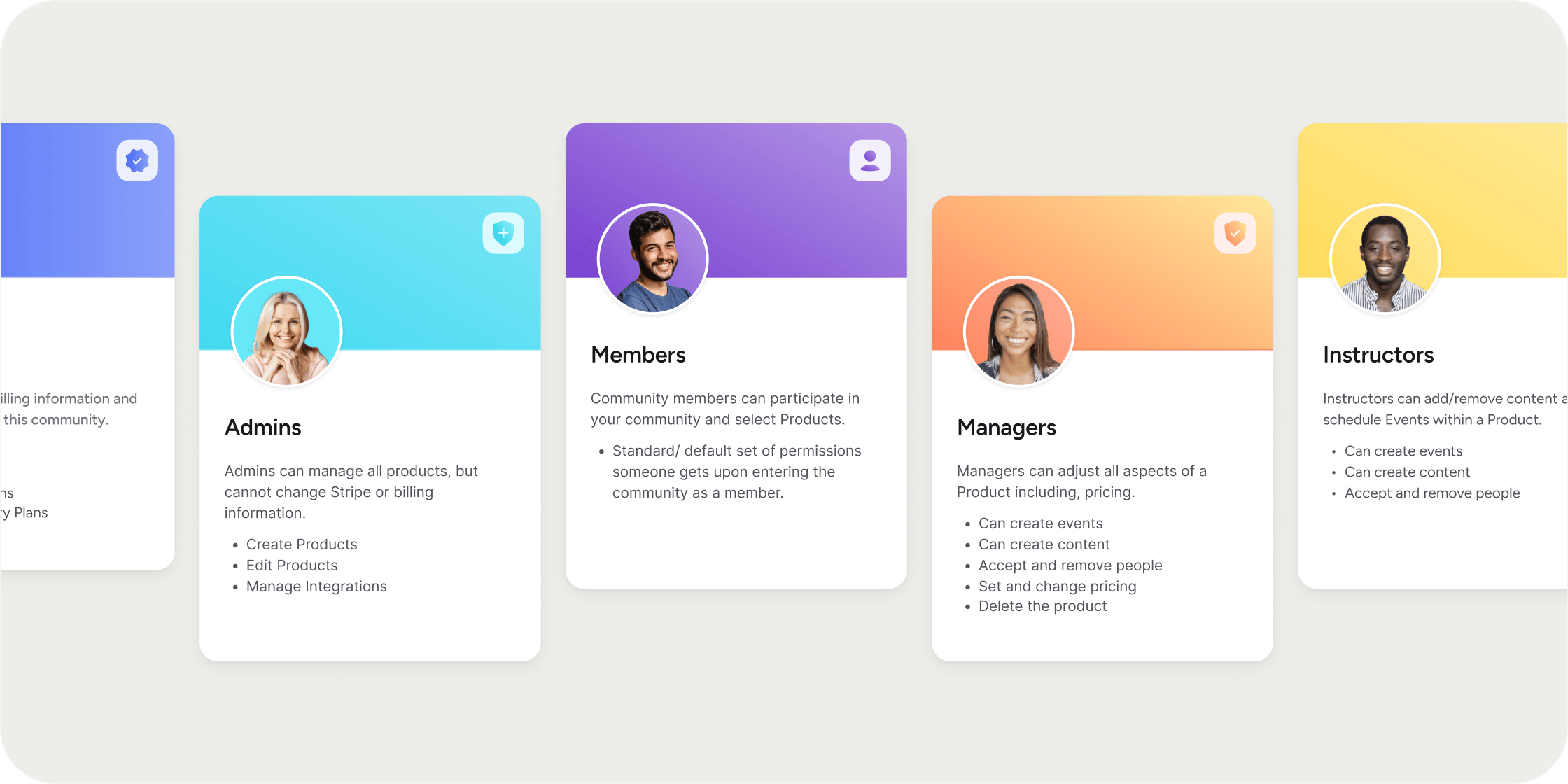
Overview
Disco has two tiers of roles: Academy-level roles that apply across the entire Academy, and Program-level roles that apply within a specific Program. Every Member holds at least one role. A single person can hold multiple roles at the same time, such as being an Academy Admin and a Program Instructor simultaneously. Roles are fixed and cannot be customized or renamed.Academy Roles
Academy-level roles govern access and management across your entire Academy. Owner is the highest Academy role. Owners control all aspects of the Academy, including billing and Stripe settings. There must always be at least one Owner in every Academy. An Owner can:- Create and edit Programs
- Manage integrations
- Change plans
- Manage billing
- Create and edit Programs
- Manage integrations
Program Roles
Program-level roles apply to one specific Program and do not carry over to other Programs in the Academy. Manager has full control over a specific Program. A Manager can:- Edit the Program
- Manage integrations
- Change plans and manage billing for that Program
- Add and remove people
- Create Events
- Create content
- Add and remove people
Group Lead Role
Group Lead is a lightweight elevated role for Members who need visibility into group progress without full admin access. Group Leads can view reports and track Member progress within their assigned group, but cannot edit settings or access other areas of the Academy. To assign a Group Lead:- Go to Admin > Members > Groups.
- Open the group and click Settings.
- Select Assign as Group Lead and choose a Member.
Assign a Role
You can assign roles from several locations in the Admin area. The most direct path is through the Roles page.- Go to Admin > Members > Roles.
- Click the edit icon on the role you want to assign.
- Click the Assign Role tab.
- For Academy roles (Owner, Admin, Member): search for an existing Member, or click + Add Members to invite someone by email address.
- For Program roles (Manager, Instructor): select the Program first, then search for a Member or click + Add to Team.
Update a Member’s Role
To change an existing role assignment:- Go to Admin > Members > Roles.
- Click the edit icon on the relevant role.
- Click Assign Role.
- Select the Member you want to update.
- Click Change to [Role Name].
Remove a Member from a Role
How you remove someone from a role depends on whether it is an Academy or Program role.- For Academy roles (Owner or Admin): change the Member to the Member role rather than removing the role outright.
- For Program roles (Manager or Instructor): either change their role to Member, or remove them from the Program entirely.
Assign Program Roles from Within a Program
You can manage Program-level roles directly from a Program without navigating to the Roles page.- Open the Program in the left-hand navigation.
- Click the overflow menu on the Program.
- Select Settings.
- Click Manage Team in the settings tray.
- Search for a Member or click + Add to Team to assign a Manager or Instructor role.
FAQ
Can I have multiple Academy Owners?
Can I have multiple Academy Owners?
Yes. Owners can assign other Members as Owners. At least one Owner must exist in every Academy at all times.
Can I create a custom role or change what a role can do?
Can I create a custom role or change what a role can do?
No. The roles in Disco are fixed and cannot be edited, renamed, or customized.
Can one person hold more than one role?
Can one person hold more than one role?
Yes. A Member can hold an Academy-level role and a Program-level role at the same time. For example, someone can be an Admin across the Academy and an Instructor within a specific Program.
What is the difference between Manager and Instructor?
What is the difference between Manager and Instructor?
Managers can edit all aspects of a Program, including pricing, visibility settings, and billing. Instructors can create curriculum and Events and manage people within the Program, but cannot access pricing or billing settings.
What is the difference between Admin and Owner?
What is the difference between Admin and Owner?
Both can create and manage all Programs in the Academy. The key difference is billing access: Owners can manage billing and Stripe settings, Admins cannot. Admins also cannot delete the Academy.
Do Program roles carry over to other Programs?
Do Program roles carry over to other Programs?
No. Program roles are scoped to the specific Program they are assigned in. To give someone Manager or Instructor access across multiple Programs, assign the role separately in each Program.
Can I give someone elevated access inside a specific Program without making them an Academy Admin?
Can I give someone elevated access inside a specific Program without making them an Academy Admin?
Yes. Assign them as a Manager or Instructor within that Program. Program roles grant no Academy-wide admin access. If you need someone to have read-only visibility into group progress without any editing rights, use the Group Lead role instead.
Can I assign a role to multiple people at once?
Can I assign a role to multiple people at once?
Yes. You can paste multiple email addresses into the invite modal to send role invitations to several people in one step.
Does changing a Member's role affect their login?
Does changing a Member's role affect their login?
No. Changing a role updates what a Member can access, not how they log in. Login credentials stay the same.