

Overview
Disco gives you three ways to invite members: a shareable link, individual email invites, and bulk CSV imports. Each method works at both the Academy level and the Program level. The method you choose determines what roles you can assign and whether members bypass Program registration requirements. When a member receives an invite email and clicks the link, they still need to register or log in before accessing the Academy or Program.Access the Invite Modal
You can open the invite modal from several places in Disco. All of the following paths open the same Invite to Academy modal:- Academy tab in the left nav → Members App → Invite Member (top right)
- Admin tab → Members → Invite (top right)
- Global Add button (bottom right, above your profile picture) → Invite to Academy
Invite by Link
The Invite Link tab provides a shareable URL that members can use to join your Academy. For public Academies: The link points to your Academy’s join page. Anyone can use it to register without a special access key. For private Academies: The link includes a unique invite key appended to the URL. This key allows recipients to bypass the private access setting and register. Treat it as a secret — share it only with people you intend to let in. The key has no usage limit and does not expire. To reset the invite key:- Open Admin → Members → Invite.
- Select the Invite Link tab.
- Click Reset link to invalidate the current key and generate a new one.
- Go to Admin → Products → Public Pages.
- Find the Community welcome page (tagged “Community welcome”) and click the Page Settings icon at the far right.
- Expand SEO and Social Share settings.
- Upload a Social Share image.
Invite by Email
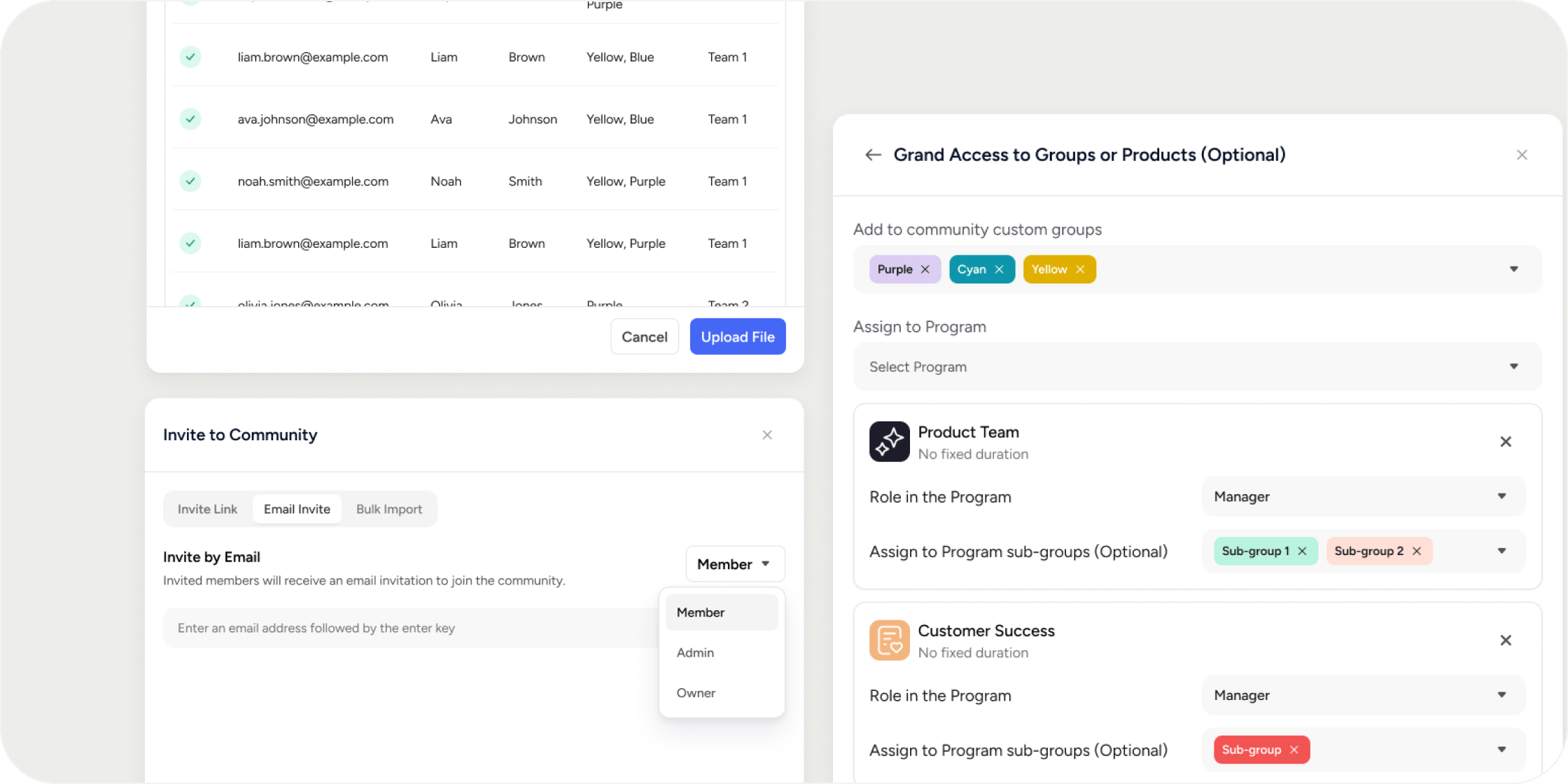
Email invites let you specify a role for each invitee and optionally pre-assign them to groups and Programs before they join. Invite links and bulk imports only allow members to join at the Member role. To invite someone directly as an Admin or Owner, you must use the email invite method. To send an email invite:- Go to Admin → Members → Invite.
- Select the Email Invite tab.
- Choose a role from the dropdown: Member, Admin, or Owner.
- Enter email addresses. Press Enter after each address to add it to the list, or paste a comma-separated list to add multiple at once.
- Resolve any validation alerts before continuing:
- Already a member: Remove this email using the X next to their name before proceeding.
- Previously invited: A checkbox appears at the bottom to resend the invite email. If you uncheck it, remove the email or re-check the box before you can proceed.
- Click Next.
- Optionally, add members to Community Groups or assign them to Programs. Assigning a member to a Program here bypasses all registration requirements, including payment, capacity limits, and applications. Skip this step if you want members to complete Program registration separately.
- Click Next.
- Customize the invite message if desired, or leave the default.
- Click Send Invites.
Bulk Import with CSV
Bulk import lets you invite up to 1,000 members at a time using a CSV file. You can run multiple imports in 1,000-member chunks if you need to invite more. Bulk import only invites members at the Member role. Download the correct template first. There are two separate CSV templates: one for Academy-level invites and one for Program-level invites. They are not interchangeable. Download the appropriate template directly from within the invite modal.CSV columns: Academy-level invite
CSV columns: Program-level invite
- Download the example CSV from within the invite modal and fill it out using the correct template for your use case.
- Go to Admin → Members → Invite → Bulk Import.
- Upload your CSV. A preview of the first 10 rows appears with any formatting errors highlighted.
- Fix any errors shown in the preview, then click Next.
- Optionally, customize the invite message.
- Click Send Invites. Disco emails you when the import finishes and lists any rows that failed.
- Do not add empty rows — they count toward the 1,000-member limit.
- Do not add extra columns or remove required column headers.
- Group and Program names must exactly match what exists in Disco. Copy and paste names directly from the platform to avoid errors.
- Only custom groups can be added via CSV. System groups (shown in grey in the Groups list) are not supported and will cause an import error.
Manage Invitations
View and manage all pending invitations at Admin → Members → Invites. This page lists all Academy-level and Program-level invitations. By default, it shows only invitations that have been sent but not yet accepted. Use the Status filter to change this view. Available filters:- Status: Invited (pending) or Accepted
- Role: Member or Admin (includes Owner, Admin, Program Manager, and Instructor roles)
- Program: Filter to invitations for a specific Program
- Source: Email or Link
- Resend Invite: Select from the action overflow (three-dot menu) to resend the email if a member did not receive it.
- Delete Invite: Removes the invitation so the original invite link in the email no longer works. Deleting an invitation also removes the pre-created member record for that invitee.
How Invited Members Behave
When you send an email invite or run a bulk import, Disco immediately creates a member record for each invitee. These members appear in the Members table when you remove the default Active Members filter, listed as “Invited User” until they complete their profile. Until a member accepts their invitation:- All external notifications (emails and Slack messages) are suppressed to prevent spam.
- Automation-triggered messages for any Programs they have been pre-assigned to are also suppressed.
- Exceptions include direct invitation emails, Program or pathway registration emails, and manual messages sent through the Members table bulk messaging tool.
Program-Level Invitations
Program managers and instructors can invite members to their Programs without needing community admin access. To invite members to a Program as a manager or instructor:- Go to the Learning tab and open the Program you manage.
- Click Members App, or use the Global Add button → Invite to Program.
- Use the Add Members button to send invitations, or click the Invites tab to manage existing ones.
FAQ
Do invitations expire?
Do invitations expire?
What is the fastest way to enroll a large group of members into a Program without them going through registration?
What is the fastest way to enroll a large group of members into a Program without them going through registration?
Will members still need to log in after I invite them via bulk import?
Will members still need to log in after I invite them via bulk import?
Can I invite someone as an Admin or Owner using an invite link or CSV?
Can I invite someone as an Admin or Owner using an invite link or CSV?
My bulk import CSV is giving errors. What should I check?
My bulk import CSV is giving errors. What should I check?
Can I bulk-add members to a community-level custom group via CSV?
Can I bulk-add members to a community-level custom group via CSV?
What does "Previously invited" mean in the email invite flow?
What does "Previously invited" mean in the email invite flow?
Can I resend an invitation?
Can I resend an invitation?
Will invited members receive automated emails or Slack notifications?
Will invited members receive automated emails or Slack notifications?
Can a Program manager invite members without community admin access?
Can a Program manager invite members without community admin access?
Are link invitations listed in the Invites tab?
Are link invitations listed in the Invites tab?
What happens if I delete an invitation?
What happens if I delete an invitation?
Can I assign members to different Programs with different roles in a single bulk import?
Can I assign members to different Programs with different roles in a single bulk import?
Can I bulk invite members into specific academy-level groups?
Can I bulk invite members into specific academy-level groups?