

Overview
Two-factor authentication protects accounts by pairing something the Member knows (their password) with something they have (an authenticator app). Disco uses time-based one-time passwords (TOTP), so any standard authenticator app works — 1Password, Authy, Google Authenticator, Microsoft Authenticator, and others. There is no SMS option. Every Member can turn on 2FA for their own account at any time from their profile settings. Admins can go a step further and require 2FA across the whole Academy. New Members can be prompted to enrol during registration, while existing Members enrol the next time they sign in. When 2FA is enabled, Disco issues single-use recovery codes that let a Member back in if they ever lose access to their authenticator app. Two-factor authentication is separate from Enterprise SSO (SAML). If your Academy authenticates through an identity provider, multi-factor authentication is managed by that provider instead, and Disco’s own 2FA controls are turned off. See How SSO Affects Two-Factor Authentication below.Set Up Two-Factor Authentication
Any Member can enable 2FA on their own account.- Open Profile Settings and go to the Account tab.
- Find the Two-Factor Authentication card and select Enable.
- A four-step setup guide opens.
Sign In with Two-Factor Authentication
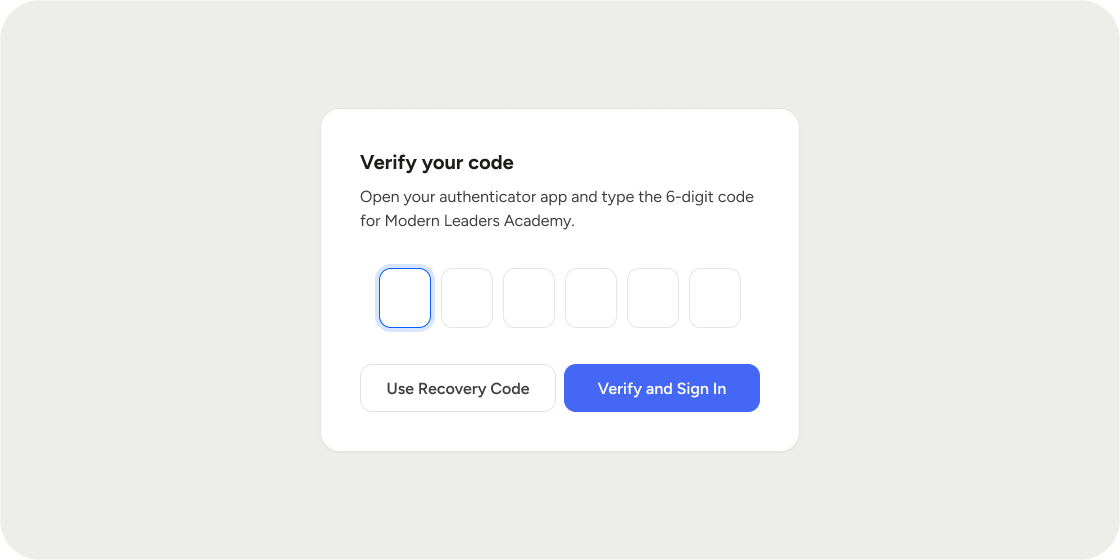
Once 2FA is on, signing in takes one extra step. After entering your email and password, Disco prompts for the 6-digit code from your authenticator app. Enter it to finish signing in. If you don’t have your authenticator app, select the option to use a recovery code instead and enter one of the codes you saved during setup. Each recovery code works only once.Change Your Authenticator App
If you switch phones or authenticator apps, you can move 2FA to the new device without turning it off first.- On the Account tab, find the Two-Factor Authentication card and select Change next to Authenticator App.
- Verify your current setup by entering a 6-digit code from your existing authenticator app, or a recovery code.
- Scan the new QR code with your new authenticator app and verify a fresh code.
- Save the new set of recovery codes. Your previous recovery codes stop working once the change is complete.
Turn Off Two-Factor Authentication
To disable 2FA, select Turn Off on the Two-Factor Authentication card and confirm your identity with a 6-digit code or a recovery code. Turning 2FA off invalidates your recovery codes. A Member cannot turn off 2FA while they belong to an Academy that requires it. In that case the Turn Off action is unavailable, and the Member must keep 2FA enabled for as long as they’re a Member of that Academy.Require Two-Factor Authentication for Your Academy
Admins can make 2FA mandatory for everyone in the Academy.- Go to the Admin Area and open Settings.
- Open the Registration settings.
- Turn on Require two-factor authentication for all Members.
Track Enrollment from the Members List
When 2FA is available, the members list in the Admin Area adds a 2FA column showing On or Off for each Member, so Admins can see who has enrolled at a glance. A 2FA filter lets Admins narrow the list to Members who have 2FA On, Off, or Any. The same status is included when you export the members list to CSV. The 2FA column and filter are visible only to Admins with permission to view private member details, and they’re hidden for Academies that use SSO.How SSO Affects Two-Factor Authentication
When Enterprise SSO (SAML) is enabled, all authentication — including any multi-factor step — is handled by your identity provider, not by Disco. As a result:- Disco’s own 2FA is turned off across the Academy. The Two-Factor Authentication card shows a Managed by SSO label, and Members can’t enable Disco 2FA.
- The Require two-factor authentication setting is disabled and shows a Managed by SSO label. To enforce a second factor, configure it in your identity provider.
- The 2FA column and filter don’t appear in the members list.
FAQ
What kind of two-factor authentication does Disco support?
What kind of two-factor authentication does Disco support?
Time-based one-time passwords (TOTP) from an authenticator app such as 1Password, Authy, Google Authenticator, or Microsoft Authenticator. Disco does not send codes over SMS or email.
What happens if a Member loses their phone?
What happens if a Member loses their phone?
They sign in with one of the single-use recovery codes saved during setup, then change their authenticator app to the new device. If a Member has lost both their authenticator app and their recovery codes, contact Disco support — there is no admin-side reset for another Member’s 2FA.
Can an Admin reset or turn off 2FA for a Member?
Can an Admin reset or turn off 2FA for a Member?
No. Each Member manages their own 2FA. Admins can require 2FA for the Academy and see who has enrolled, but they cannot enable, change, or disable it on someone else’s behalf.
Can a Member turn 2FA off after enabling it?
Can a Member turn 2FA off after enabling it?
Yes, unless they belong to an Academy that requires it. While any of their communities require 2FA, the Turn Off option is unavailable.
Do existing Members get locked out when I turn on the requirement?
Do existing Members get locked out when I turn on the requirement?
No. Members in an active session keep that session. The requirement takes effect at their next sign-in, where they’re prompted to enrol before continuing.
When does a new Member set up 2FA when it's required?
When does a new Member set up 2FA when it's required?
If the Academy requires 2FA and the new Member has not enabled it before, Disco includes the setup prompt during registration. They must finish setup before registration can send them into the Academy.
Are recovery codes reusable?
Are recovery codes reusable?
No. Each recovery code works only once. Changing your authenticator app or turning 2FA off invalidates your existing recovery codes and, where applicable, issues a new set.
Can I see my recovery codes again later?
Can I see my recovery codes again later?
No. Recovery codes are shown only once, during setup or when you change your authenticator app. Store them somewhere safe at that moment. If you lose them, change your authenticator app to generate a new set.
Does 2FA work with Enterprise SSO (SAML)?
Does 2FA work with Enterprise SSO (SAML)?
Disco’s built-in 2FA is turned off when SSO is enabled, because the identity provider handles authentication. Enforce a second factor through your IdP’s own policies instead.
Is 2FA required by default?
Is 2FA required by default?
No. Individual 2FA is always available to Members to turn on themselves, and the Academy-wide requirement is off until an Admin turns it on.