

Overview
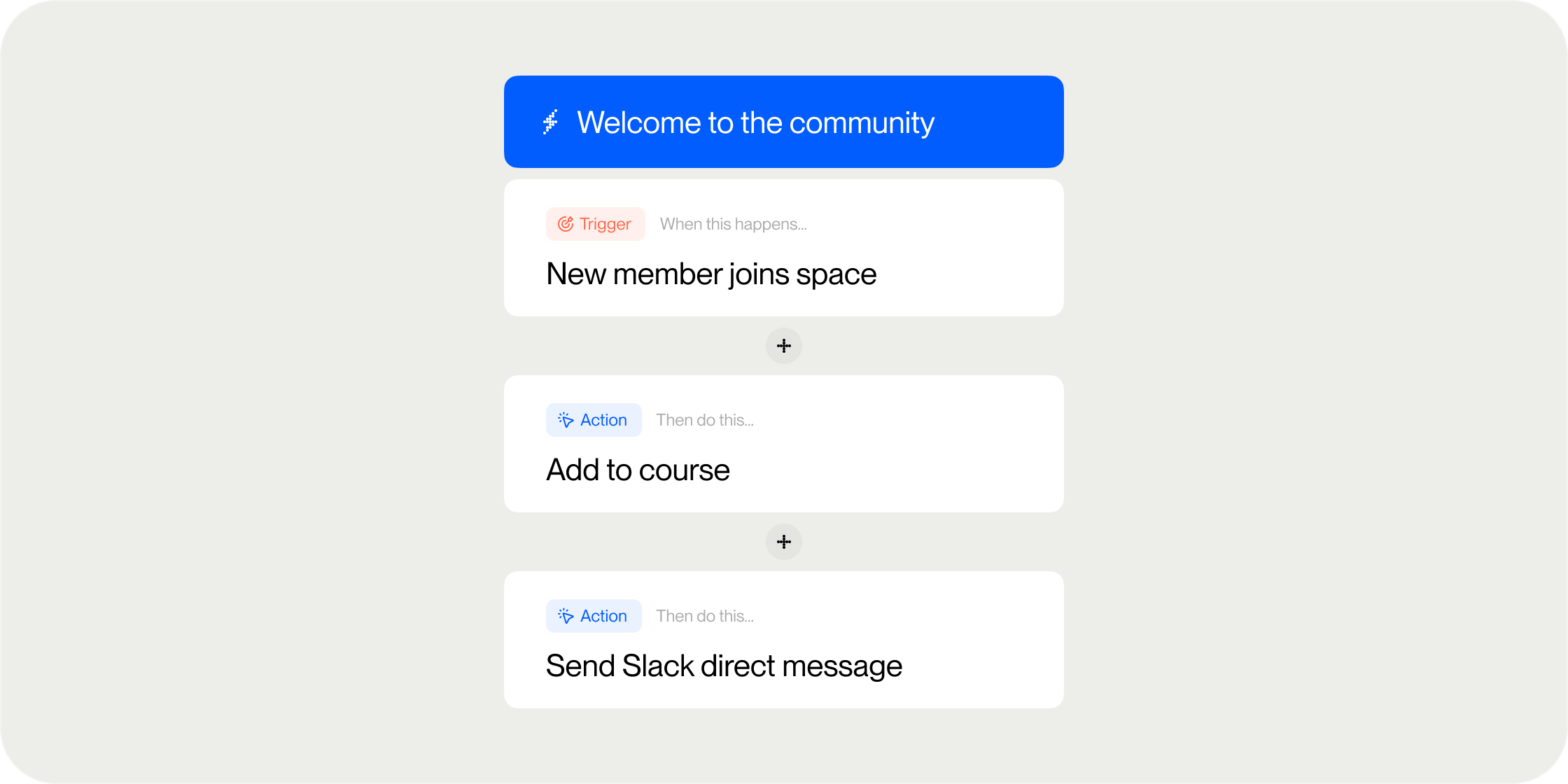
Automations let you define a trigger (something that happens in your Academy) and one or more actions that run as a result. They handle everything from welcome messages to re-engagement nudges to dynamic group management. Automations run at the community level, within a specific Program, or within a curriculum module. You can build from templates for common use cases or create custom automations from scratch.Access Automations
Navigate to Admin in the left sidebar, then select Automations from the admin sidebar. This opens the Automations table, where all of your Academy’s automations are listed.Manage Your Automations
The Automations table gives you a full view of every automation in your Academy and tools to manage them. Search and filter- Type in the search bar at the top of the table to find automations by name.
- Use the Filter dropdown to narrow by status: Active, Draft (created but not yet activated), or Inactive (previously active, now paused).
- Edit: opens the automation builder
- Deactivate: pauses an active automation; it will no longer run
- Activate: re-enables an inactive automation
- Delete: permanently removes the automation
Create an Automation
- Click the + button at the top of the Automations table.
- Choose a starting point:
- Select a template for a pre-configured automation built around common use cases (onboarding messages, curriculum nudges, Program completion actions, inactivity re-engagement, and more).
- Select Custom to build from scratch.
- Choose a trigger (see below).
- Add one or more actions (see below).
- Click Save to save the automation as a draft, or Activate to make it live.
Choose a Trigger
Every automation starts with a trigger, the event that causes it to run. Triggers are grouped by area.Academy-level triggers
Member joins Academy fires when a member completes registration and enters the Academy for the first time (when they land on the home page or begin onboarding). This does not fire at the moment of invitation. Member leaves Academy fires when a member manually leaves via their profile, or when an admin removes them from the Members area. Member onboarding completed fires when a member finishes all steps in your member onboarding flow. See the gotcha below. Gotcha: Slack connection step blocks onboarding completion. If your member onboarding includes a Slack connection step, the automation will not trigger until that step is completed, even if the member skips it and finishes all other steps. Members who skip Slack will not trigger this automation until they later connect Slack. A configuration update to address this is planned.Program-level triggers
Member joins Program fires when a member accepts their Program invitation and enters for the first time. For members assigned to a Program directly (using the Assign feature), the trigger fires immediately upon assignment with no member action required. For instructors and managers added to a Program, the trigger also fires immediately. Member completes Program fires the first time a member completes all modules in a Program’s curriculum. Adding new curriculum items afterward and having the member complete them will not re-trigger this automation. Member completes module fires the first time a member completes a specific module within a Program’s curriculum. Like Program completion, this only fires once per member per module. Member has not recently engaged fires after a configured period of inactivity within a Program. Inactivity means no curriculum completions, posts, comments, or other tracked actions within the Program. You can set the inactivity window from a minimum of 1 day up to 12 months. This trigger fires at 9am in your Academy’s time zone on the day the inactivity threshold is reached. The time zone is set in your Academy settings and cannot be configured per-automation. If a member becomes active again after the trigger fires and then goes inactive again for the full period, the automation will fire again. Gotcha: Program completion does not stop this trigger. If a member completes a Program and has nothing left to do, this automation will still fire after the inactivity window passes. To prevent that, add a conditional branch (see below) that checks whether the member has completed the Program before sending any action. Program start date / Program end date fires on the start or end date of a Program that has defined dates, or a configured number of days, weeks, or months before or after those dates. If you update the Program’s start or end date, the automation timing updates automatically.Member-level triggers
Member joins group fires whenever a member is added to a specified group, regardless of how they were added (manually by an admin, through another automation, etc.). Member leaves group fires whenever a member is removed from a specified group. Profile fields completed or updated fires when a member fills in their profile fields for the first time or updates them later, whether through their profile drawer, onboarding, or a curriculum item.Event triggers
Member confirms attendance to event fires when a member clicks the Attend button on an event listing. This fires from the in-Disco RSVP action, not from accepting a calendar invite. Member joins virtual event fires when a member clicks the Join Event button for a live virtual event inside Disco. This trigger is only available for virtual events; in-person event attendance cannot be tracked.Pathway triggers
Member joins pathway, Member leaves pathway, and Member completes pathway work the same as their Program-level equivalents, scoped to pathways. Pathway completion fires the first time a member completes all Programs within a pathway. Adding a new Program to the pathway later and having the member complete it does not re-trigger pathway completion.Scoping triggers to specific items
For most Program, event, group, and pathway triggers, you can select a specific item the trigger applies to. If you leave the field blank (where supported), the automation will trigger for any item of that type across your Academy. The trigger field will indicate any program or any group when no specific item is selected.Add Actions
After setting a trigger, add one or more actions. Actions run sequentially: each one completes before the next begins. If an action fails, subsequent actions in the sequence will not run. You can reorder actions by dragging and dropping them. You can also duplicate any action by clicking the duplicate icon, or remove it with the delete icon.Messaging actions
Send email message sends an email to the member the automation triggered for. You can optionally add a CC or BCC email address. Supports macros (see below). Send Disco direct message sends a direct message to the member inside Disco. Supports macros. Post channel message posts a message to a specific channel in your Academy. Send Slack DM sends a direct message on Slack, either as the Disco bot or as yourself. Add to Slack channel / Remove from Slack channel adds or removes the member from a specified Slack channel.Membership actions
Add to Program / Remove from Program adds or removes the member from a specified Program. Adding a member this way bypasses all Program requirements, including payments, applications, and capacity limits. Add to group / Remove from group adds or removes the member from a specified group immediately. Add to pathway / Remove from pathway adds or removes the member from a specified pathway.Flow actions
Delay pauses the automation for a set amount of time (minutes, hours, or days) before continuing. Use this to space out messages or time an action relative to the trigger event. After a delay, the member’s state may have changed. For example, if you triggered on a group membership and then added a 24-hour delay, the member might no longer be in that group when the rest of the automation runs. Use a conditional branch after a delay to verify current state before taking action. Conditional branch routes members through different sets of actions based on conditions at the time the automation runs. See the next section for full details.Use Conditional Branches
A conditional branch lets you check whether something is true about a member at runtime and run different actions depending on the result.How branches work
Each conditional branch step contains one or more branches. Branches are checked in order from top to bottom. When a branch’s conditions are met, its actions execute and the conditional branch step ends. No further branches are checked. If no branch matches, the automation continues to the next step below the conditional branch without error. There is no built-in way to stop an automation mid-run. To prevent any action from executing unless a condition is met, place all of your actions inside branches and add nothing below the conditional branch step.Configure a branch
- Add a Conditional branch action.
- Click Add branch to create additional branches. Each branch is color-coded for clarity.
- Click the overflow menu on a branch to rename it, change its color, or remove it.
- Within a branch, add one or more filters. Available filters include:
- Curriculum completion percent: whether a member has completed a specified percentage range of a Program’s curriculum
- Module completion: whether a member has or has not completed a specific module
- Group membership: whether a member belongs to any, all, some, or none of a set of groups
- Profile fields: whether a member has filled in specific profile field values
- When a branch has two or more filters, set the relationship between them:
- And: all filters must match for the branch to trigger
- Or: any one filter matching is enough
- Add actions within the branch by clicking Add branch action inside the branch card.
Reorder branches
Drag and drop branches within the conditional branch step to change their evaluation order. Order matters: the first matching branch wins.Use Macros in Messages
Messaging actions support macros to personalize content dynamically. Insert macros using the syntax shown when hovering your mouse over the Macros indicator below the message editor. Available macros include:- Member’s first name
- Member’s last name
- Academy name
- Program name (for program-triggered automations)
- Module name (for module-triggered macros)
Examples
Cohort course onboarding sequence: Trigger on Member joins Program for your cohort. Add a short delay, then send a welcome email using the member’s first name and the Program name macros. Add a second delay of three days, then send a direct message with a first-week checklist. Alumni channel unlock: Create a group called “Alumni.” Set a trigger on Member completes Program for your flagship Program. Add an Add to group action for the Alumni group, followed by an Add to Slack channel action for your alumni Slack channel. Inactivity re-engagement with smart filtering: Trigger on Member has not recently engaged for a bootcamp Program (inactivity window: 7 days). Add a conditional branch with two branches. Branch 1: filter for curriculum completion under 90%, then send a nudge email. Branch 2: filter for completion at 90% or above, then send a congratulatory check-in instead of a re-engagement prompt.FAQ
Can I use the same automation for multiple Programs?
Can I use the same automation for multiple Programs?
For triggers that support it, leave the Program field blank and the automation will apply to any Program in your Academy. If you need different messaging per Program, use the program name macro to keep it generic, or create separate automations per Program.
Why didn't my Member onboarding completed automation fire?
Why didn't my Member onboarding completed automation fire?
The most common cause is a Slack connection step in your member onboarding. If a member skips that step, Disco does not consider onboarding complete until they connect Slack, even if they finished all other steps. Check whether any members who should have triggered it have a pending Slack connection.
Will the Member has not recently engaged automation keep firing repeatedly?
Will the Member has not recently engaged automation keep firing repeatedly?
No. It fires once per inactivity period. If a member becomes active again and then goes inactive for the full configured window again, it will fire again. It does not fire on a repeating schedule.
Can I stop an automation partway through?
Can I stop an automation partway through?
There is no built-in stop action. To conditionally prevent downstream actions from running, place all of those actions inside a conditional branch. If no branch matches, the automation passes through without executing anything.
Does adding a member to a Program via automation bypass payment and application requirements?
Does adding a member to a Program via automation bypass payment and application requirements?
Yes. Using the Add to Program action bypasses any payment or application that are usually required for the Program. However, it does not bypass capacity limits, a “closed” registration status, or a product that has already ended. It is powerful for granting access to members who qualify via a different path (like group membership).