

Overview
Every Program in a Disco Academy has its own registration and enrollment settings. These settings cover who can see the Program, whether Members can register for it, whether Members need to apply first, how many seats are available, whether a fee is charged, and whether admins and instructors can take the curriculum themselves. Most of the controls live on the Access tab of the Program settings drawer. Pricing lives on a separate Pricing tab and is only available to community-type Academies with monetization turned on.Open a Program’s Registration Settings
Visibility is the only registration setting you can configure when you first create a Program. Every other setting becomes available once the Program exists. To open the settings for an existing Program:- Go to Programs in the admin area.
- Find the Program in the list.
- Click the triple-dot menu on the Program row and select Settings. The Program settings drawer opens.
- Click the Access tab to configure visibility, registration status, applications, capacity, Auto-Add, and Learning Mode.
- Click the Pricing tab to configure fees. The Pricing tab only appears for community-type Academies with monetization enabled, and paid pricing options require a connected Stripe integration.
Set Program Visibility
Visibility decides who can find the Program on the Explore page, and reach its registration page. On the Access tab, use the Visibility dropdown to pick one of four options:- Public: Anyone on the internet can register through the Program’s registration page.
- All Members: Any Member of the Academy can register.
- Private: Only specific Members or groups can register. Selecting Private reveals two multi-select pickers so you can choose member groups, individual Members, or both.
- Invite Only: The Program is hidden from the Explore page. Members can only join through a direct invitation.
Set Registration Status
The Registration Status control on the Access tab decides whether new registrations are accepted at all. Pick one of three options:- Open: Registration is live. Selecting Open reveals the Application Required toggle.
- Closed: No new registrations are accepted.
- Waitlist: The registration page shows that the Program has a waitlist and displays a button that opens an external URL. Selecting Waitlist reveals two fields: Waitlist URL (the external page opened when the button is clicked) and Waitlist CTA Label (the button text shown on the registration page, for example “Join the Waitlist”).
Require an Application
When Registration Status is set to Open, the Application Required toggle appears. Turn it on when you want Members to submit an application and be approved before they gain access to the Program. A question builder appears below the toggle. Use it to add and remove free-text questions. At least one question must remain at all times. If the Program has a fee, the applicant is not charged when they submit the application or when an Admin approves it. After approval, Disco emails them a link to return to registration and complete payment. They are added to the Program only after payment succeeds.Set a Capacity Limit
Enable the Capacity toggle on the Access tab to cap the number of Members who can join. When you turn it on, a number input appears with a default of 50. Once the limit is reached, new registrations are blocked. Two groups do not count against the limit: admins assigned directly to the Program, and Members added through Auto-Add.Auto-Add All Members
Auto-Add automatically enrolls every current and future Member on a selected membership plan, without requiring them to register. Turn on the Auto-Add All Members toggle on the Access tab and pick the eligible membership plan. When Auto-Add is on, the Registration Status, Applications, and Capacity fields are hidden. They do not apply. A few things to know before enabling this:- Auto-Add is not available with Invite Only visibility. If the Program is set to Invite Only, the Auto-Add toggle is hidden.
- Auto-Add bypasses every other registration control, including any fee. All current and future Members on the chosen plan are enrolled immediately.
- The action cannot be undone. Confirm your membership plan selection before turning it on.
Enable Learning Mode
Learning Mode lets admins and instructors take the Program curriculum themselves and have their progress tracked in reports. Enable the Learning Mode toggle on the Access tab. A checkbox appears below: Include admins and instructors in Reports. Turning Learning Mode off removes every admin and instructor completion record from reports. Disco asks for confirmation before saving the change. Enable Learning Mode before admins and instructors start the Program. Turning it on after they have begun does not retroactively record their progress.Configure Pricing
The Pricing tab is only available for community-type Academies with monetization turned on. Use it to set whether a Program is free or requires payment. To charge Members, connect a Stripe integration first. If Stripe is not connected, the tab prompts you to set up the integration before you can configure a fee. If your Academy uses custom membership plans, a Membership Plans section appears on the Pricing tab. You can set which plans include access to the Program and, with per-plan pricing, charge a different fee per plan.How Members Register
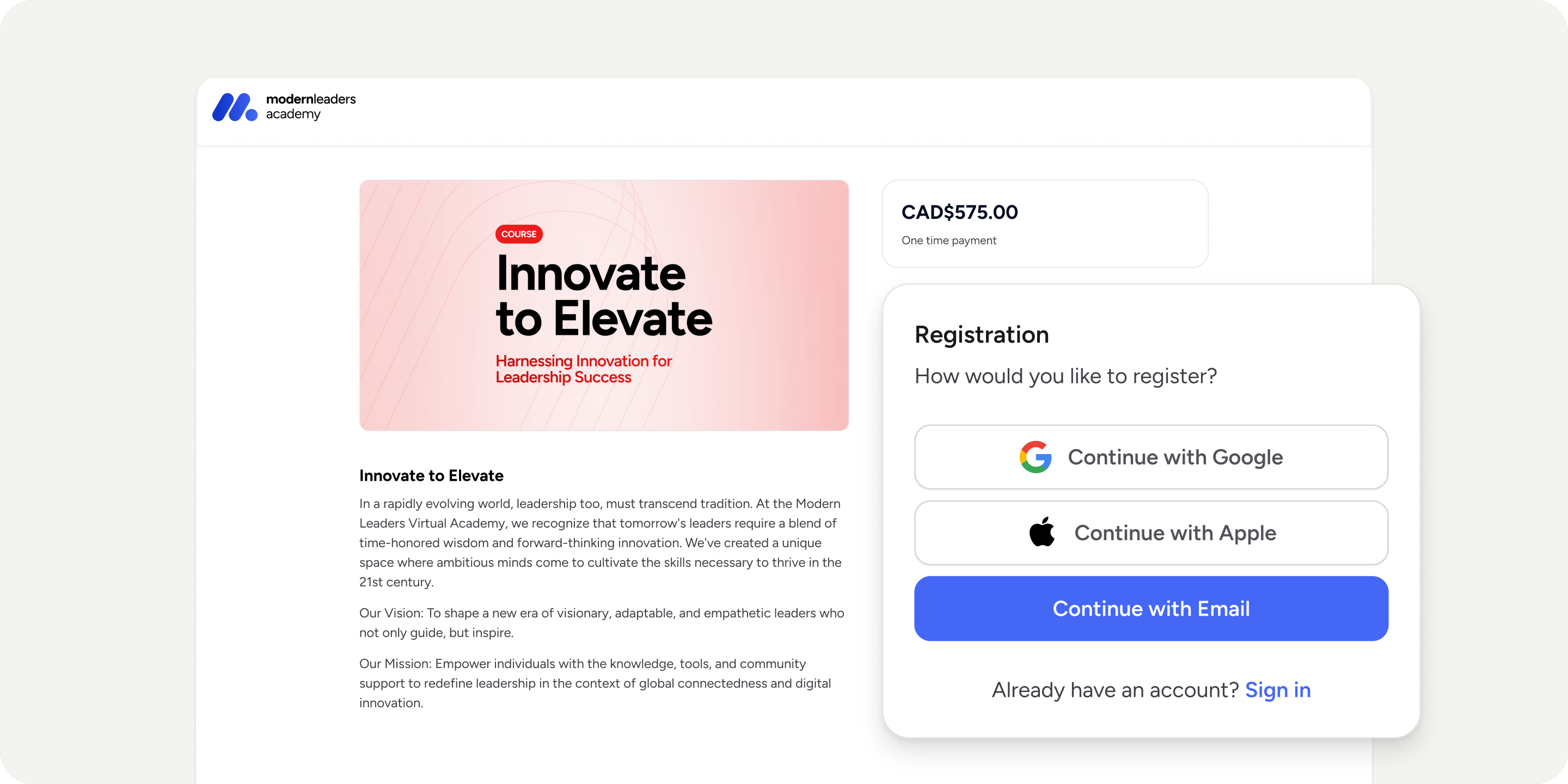
The registration page guides each person through the steps that apply to them:- The Member opens the Program registration page and reviews the Program details. If registration is closed, they are already registered, or they are not eligible for the Program, the page shows that status instead of letting them continue.
- If the Program is available on more than one eligible Membership Plan, the Member selects a Membership Plan before signing in or creating an account. If only one Membership Plan is available, Disco selects it automatically.
- A new Member chooses an authentication method and creates an account. An existing Disco user signs in or confirms registration with their current account. Program details appear on the first registration step and are hidden on later authentication steps.
- If applications are required, the Member answers the application questions and submits them for review. The registration page then shows a pending state until an Admin decides. Once approved, if the applicant still has to complete payment an email with the dependent next step will be sent to them so they can finish registration.
- Free registrations complete without checkout. Paid registrations continue to checkout, and new Members will be prompted to set up two-factor authentication before registration finishes if they haven’t already done so.
- When registration is complete, it shows a confirmation page if they made a payment, or registered for a Program along with a Membership Plan. The Member can then click a button to open the Program. Otherwise, they are taken directly to the Program dashboard.
FAQ
Can I change Visibility on a Program that already has Members enrolled?
Can I change Visibility on a Program that already has Members enrolled?
Why do existing Members still have access after I set a Program to Invite Only?
Why do existing Members still have access after I set a Program to Invite Only?
If I remove a Member from a Program, do they lose access to the whole Academy?
If I remove a Member from a Program, do they lose access to the whole Academy?
Can I edit the application questions for a single Program?
Can I edit the application questions for a single Program?
Can I turn off Application Required after I have already enabled it?
Can I turn off Application Required after I have already enabled it?
Does the Program need to be published for Waitlist to work?
Does the Program need to be published for Waitlist to work?
What URL should I put in the Waitlist URL field?
What URL should I put in the Waitlist URL field?
Can I skip the payment page for free Invite Only Programs?
Can I skip the payment page for free Invite Only Programs?
What happens if I set a Capacity limit after Members have already enrolled?
What happens if I set a Capacity limit after Members have already enrolled?
Do Admins and Auto-Added Members count against Capacity?
Do Admins and Auto-Added Members count against Capacity?
Can I enable applications or a capacity limit on an Invite Only Program?
Can I enable applications or a capacity limit on an Invite Only Program?
When does payment get charged on an application-based Program?
When does payment get charged on an application-based Program?
What happens to admin progress records if I turn Learning Mode off?
What happens to admin progress records if I turn Learning Mode off?
Does enabling Learning Mode record progress that already happened?
Does enabling Learning Mode record progress that already happened?
Why do I see the error "Experience must be available on at least one plan" when I choose Invite Only?
Why do I see the error "Experience must be available on at least one plan" when I choose Invite Only?
Can I auto-enroll Members into multiple Programs at once from a single invite?
Can I auto-enroll Members into multiple Programs at once from a single invite?
Can Admins set a registration deadline on a Program?
Can Admins set a registration deadline on a Program?
What happens to Members already enrolled through Auto-Add if I turn Auto-Add off?
What happens to Members already enrolled through Auto-Add if I turn Auto-Add off?