

Overview
Applications let Admins review who joins a Program instead of admitting everyone at registration. When Application Required is turned on, Disco saves each submission for review, notifies the Admin, and keeps the Member out of the Program until the application is accepted or rejected. Admins can review submissions on the Program’s Members → Applications tab or from the Academy-wide Applications page. If the Program is paid, the Member submits the application first and receives a registration link by email only after approval.Enable Applications on a Program
Turn on applications from the Program Settings drawer.- Open Program Settings, then select the Access tab.
- Expand the Enrollment section and confirm the Program is available for registration.
- Turn on Application Required to make approval part of the entry flow.
- Click Publish to make the change live.
Add Application Questions
All application questions are open-ended and written by you.- Under Application Required, click Add Question.
- Type the prompt in the editor.
- Repeat for each question you want Members to answer.
- Click Remove on any question you no longer need.
- Click Publish to save.
Review Applications for a Program
Use the Program’s Applications tab to manage submissions one Program at a time.- Open the Program and go to Members → Applications.
- Use the search bar to look up an applicant by name or email.
- Use the status filter to narrow the list to Pending, Accepted, or Rejected. The filter also includes Payment Failed for old applications processed through the legacy registration flow.
- Sort by any column header to reorder the list.
- Click Export to download the current list as a CSV.
- Select one or more applicants, then click Email to compose a message to the group.
- Click View Application on any row to open the full response.
Accept or Reject an Application
Opening an application shows the applicant’s name and email at the top of the modal, followed by each question and the Member’s response.- Click View Application on the row you want to review.
- Review the responses.
- Click Accept to admit the applicant, or Reject to decline.
Review Applications Across the Academy
The Academy-wide Applications page gives Admins one place to manage submissions across every Program.- From the left navigation, open Applications.
- Use search to look across every submission in the Academy.
- Filter by status or by Program.
- Sort by name, email, Program, or submission date.
- Select applicants and click Email to message them in bulk.
What the Member Sees
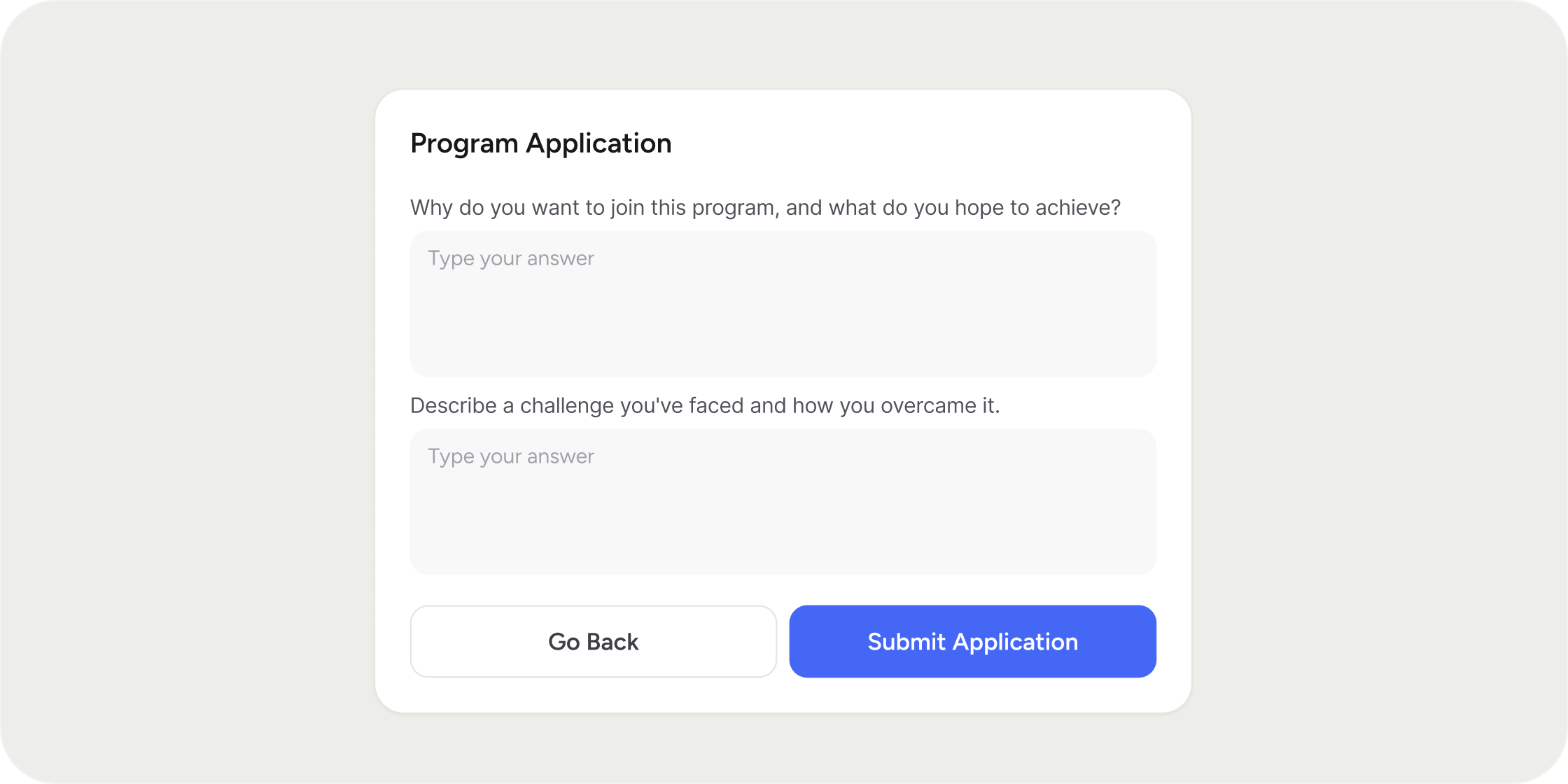
A prospective Member starts at the registration page with registration methods. First, they create an account or sign in. The application questions then appear. Members must answer every question before they can submit. Depending on your Academy setup, the flow can also include required acknowledgments the Member must accept before submitting. After the Member submits their answers, the page shows that the application is under review until an Admin makes a decision. A rejected applicant receives an email notification, and remains out of the Program. For a free Program with no other registration steps required, application approval means the Member is granted access to the Program. For a paid Program or a Program available on multiple Membership Plans, once the application is accepted, Disco emails the Member a link to return and complete the remaining steps before the Member can access the Program.FAQ
Can I turn Application Required off after I have enabled it?
Can I turn Application Required off after I have enabled it?
Yes. Open Program Settings → Access → Enrollment and toggle Application Required off, then publish. Members who have already applied keep their existing application status.
Can I export applicant data?
Can I export applicant data?
Yes. The Applications table on both the Program view and the Academy-wide view includes an Export action that downloads the current filtered list as a CSV.
Can Members upload files or a portfolio in their application?
Can Members upload files or a portfolio in their application?
Not directly. Application questions only accept text. As a workaround, you can embed a Typeform or iFrame on the Program’s registration page to collect file uploads, or ask Members to paste a link to their work in a text answer.
Is there a character limit on application answers?
Is there a character limit on application answers?
Yes. Each open-ended answer accepts up to 10,000 characters, which is long enough for detailed written responses and pasted links.
Can a Member have more than one pending application for the same Program?
Can a Member have more than one pending application for the same Program?
No. Each Member can only have one pending application per Program at a time.
Can a Member resubmit an application after their previous one was rejected?
Can a Member resubmit an application after their previous one was rejected?
No. Each Member can only have one pending application per Program at a time.
What status options appear on the Applications table?
What status options appear on the Applications table?
Each row shows one of Pending, Accepted, or Rejected. You may also see Payment Failed on old applications processed through the legacy checkout flow, when an accepted applicant’s card could not be charged.
Can I email applicants in bulk?
Can I email applicants in bulk?
Yes. Select the applicants you want to reach using the checkboxes on the Applications table, then click Email to compose a message to the group. This works on both the per-Program view and the Academy-wide view.