

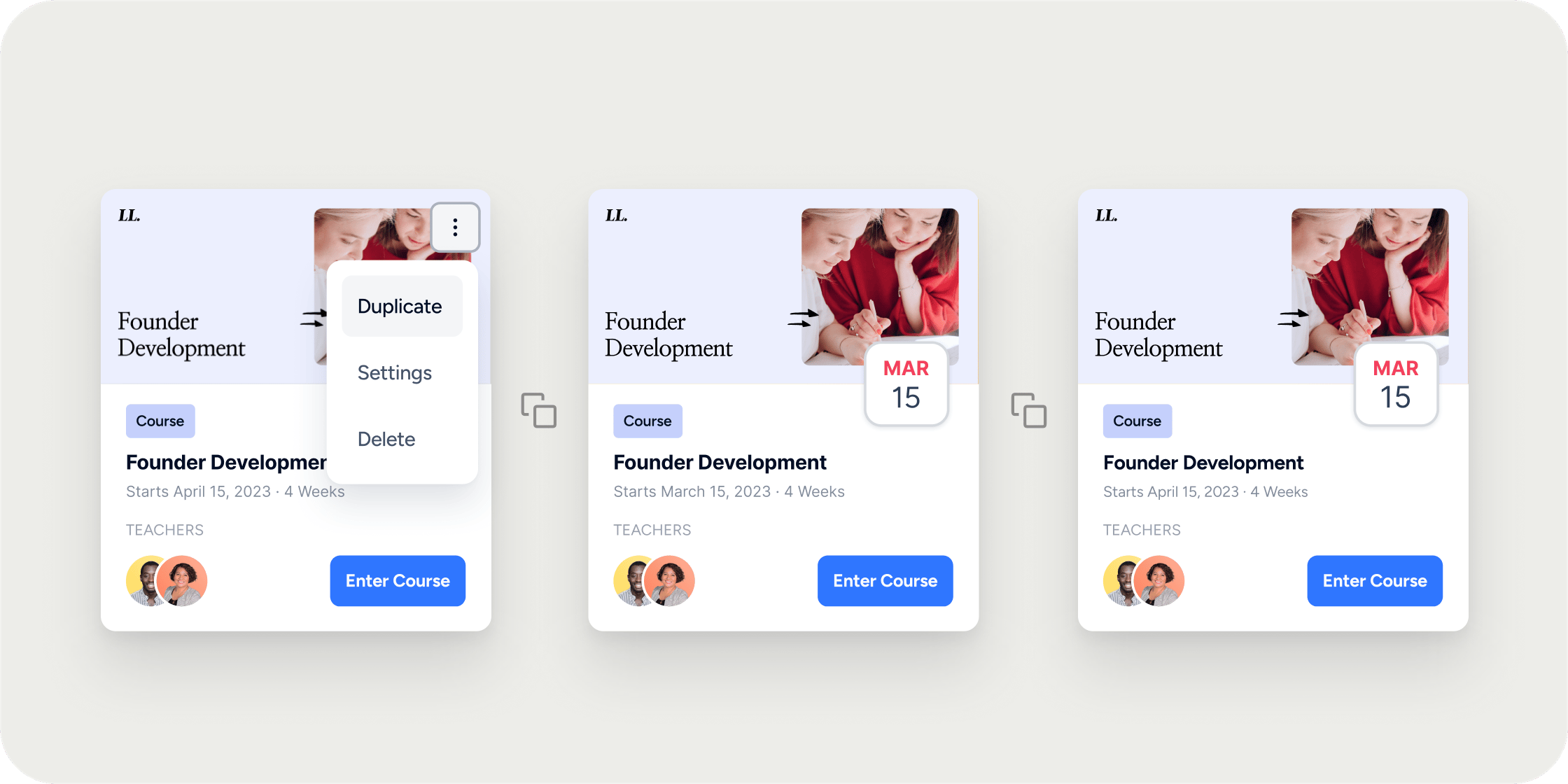
Overview
Creating learning Programs at scale takes time. Program cloning lets you spin up a new Program from an existing one in a few clicks. It is especially useful for teams running recurring cohort-based courses, where each new intake shares the same structure, modules, and events as the last. When you clone, you control which apps carry over and how dates shift for the new Program.How Cloning Works
From anywhere inside a Program, open the overflow menu and choose Clone. You then select which components to bring over, configure dates for events and content releases, and start the clone. Cloning runs in the background, so you can keep working in your Academy while Disco builds the new Program. Cloned Programs stay linked to the source Program’s content by default. When you edit content inside a clone, Disco asks whether you want the change to apply to every Program that shares that content, or only to the clone you are in. This is covered in detail in the Editing Content in a Cloned Program section below.Clone a Program
Follow these steps to clone a Program from any page inside it.- Navigate to the Program you want to clone.
- Click the overflow icon (the three dots in the top right of the page).
- Select Clone.
- Choose which apps you want to bring into the new Program.
- Curriculum
- Events
- Select if you would Managers and Instructors copied over.
- Adjust the start date and review the dates for content releases and events.
- Click Clone.
- Keep working in your Academy. Disco finishes the clone in the background and notifies you when it is ready.
What Gets Cloned
When you clone a Program, you choose which apps come with it. Apps you can bring over typically include Curriculum, Events, Assignments, Channels, and any other apps you have enabled on the source Program. A few things behave differently from the rest of the content:- Settings and branding from the source Program copy over by default.
- Content items stay linked to the original unless you duplicate them later.
- Events copy over with shifted dates based on the new Program start date.
- Members do not copy over unless Auto-add is enabled on the source Program and the Program is set to Public or Members Only.
Event Dates in a Cloned Program
How event dates shift depends on whether the source Program has a fixed duration.- If the source Program has a fixed duration, you can set a new start date when cloning, and event dates shift to match.
- If the source Program does not have a fixed duration, Disco sets cloned event dates to seven days after the original event dates. You will not see the start date picker during the clone flow for these Programs.
Editing Content in a Cloned Program
Cloned Programs keep a link to the source Program’s content. When you save an edit inside a cloned Program, Disco prompts you with two options:- Update All Instances: The change applies to the source Program and every clone that shares that content. Use this when you want a correction or improvement to propagate everywhere.
- Duplicate Content: Disco creates a separate copy of the content inside your cloned Program. The change applies only to the Program you are editing. Use this when you want the clone to diverge from the source.
Members and Cloned Programs
Members from the source Program do not automatically move to the clone. There are two cases to be aware of:- When the source Program is set to Public or Members Only and has Auto-add enabled, Disco adds existing Academy Members to the cloned Program. Those Members only see the Program after you publish it.
- Otherwise, Members on the source Program do not get access to the cloned Program unless they join it directly, either through a Membership that includes the cloned Program or by registering for it.
FAQ
What happens when I update content in a cloned Program?
What happens when I update content in a cloned Program?
Disco gives you two options when saving. Choose Update All Instances to push the change to the source Program and every clone that shares the content. Choose Duplicate Content to apply the change only to the Program you are editing.
Can a Program Manager or Instructor change content in Programs they do not have access to?
Can a Program Manager or Instructor change content in Programs they do not have access to?
Yes. If a Program Manager or Instructor selects Update All Instances while editing content in a cloned Program, the change applies to every Program that shares that content, including Programs they cannot normally access. If you want to prevent this, create a new Program and use Add Content → From Existing Content instead of cloning, or edit each content after cloning and choose the Duplicate Content option upon saving.
Why is there no option to choose a start date when I clone?
Why is there no option to choose a start date when I clone?
The start date picker only appears when the source Program has a fixed duration. Open the source Program’s settings, set a fixed duration, and then start the clone again. For Programs without a fixed duration, event dates default to seven days after the original dates.
Do Members from the original Program get added to the clone?
Do Members from the original Program get added to the clone?
Not by default. They only get added automatically if the source Program is set to Public or Members Only and has Auto-add enabled. In that case, existing Academy Members are added to the clone but only see it once you publish.
Why can old Members still see my cloned Program even after I set it to Invite Only?
Why can old Members still see my cloned Program even after I set it to Invite Only?
This usually happens when the source Program had Auto-add enabled, so they were added to the clone during the clone flow. Check Members on the cloned Program and remove anyone who should not have access, then confirm the Program is set to Invite Only and that the correct Memberships are selected under Available Membership Plans.
Can I keep event dates exactly the same in the cloned Program?
Can I keep event dates exactly the same in the cloned Program?
Only if you set the same start date as the source Program. For Programs with a fixed duration, matching the start date keeps event dates aligned. For Programs without a fixed duration, events always shift seven days after the originals. You can manually edit each event’s date during the clone flow or after the Program is created.
My events did not come through after cloning. What happened?
My events did not come through after cloning. What happened?
First, check that the Events app was selected during the clone flow. If it was and the events are still missing, a third-party connection like Zoom may have become disconnected during the clone. Go to Settings → Integrations, reconnect the affected account using Add Account, and try cloning again. If events are still missing, contact support.
How long does cloning take?
How long does cloning take?
Cloning runs in the background and usually completes in a few minutes, depending on how much content and how many events the source Program has. You can navigate away and keep working while it runs. Disco notifies you when the clone is ready.
Do I have to clone every time I launch a new cohort, or can I schedule multiple cohorts of one Program?
Do I have to clone every time I launch a new cohort, or can I schedule multiple cohorts of one Program?
Today, the supported workflow is to clone your template Program for each new cohort. This keeps each cohort’s Members, events, and progress separate. Scheduling multiple cohorts under a single Program is not currently supported.
What is the difference between cloning a Program and using Add Content from Existing Content?
What is the difference between cloning a Program and using Add Content from Existing Content?
Cloning duplicates the entire Program, including apps, settings, and linked content. Add Content → From Existing Content pulls a single item like a module or lesson into a new Program and breaks the shared link immediately, so edits stay isolated to the new Program. Use cloning when you want the full structure of a Program. Use Add Content → From Existing Content when you want to pull in specific content without linking it back to the original.
Am I notified when the cloning is complete?
Am I notified when the cloning is complete?
Yes, you may continue working while the Program is being cloned. Disco will notify you in-platform and send an email confirmation when the cloning is complete.