

Overview
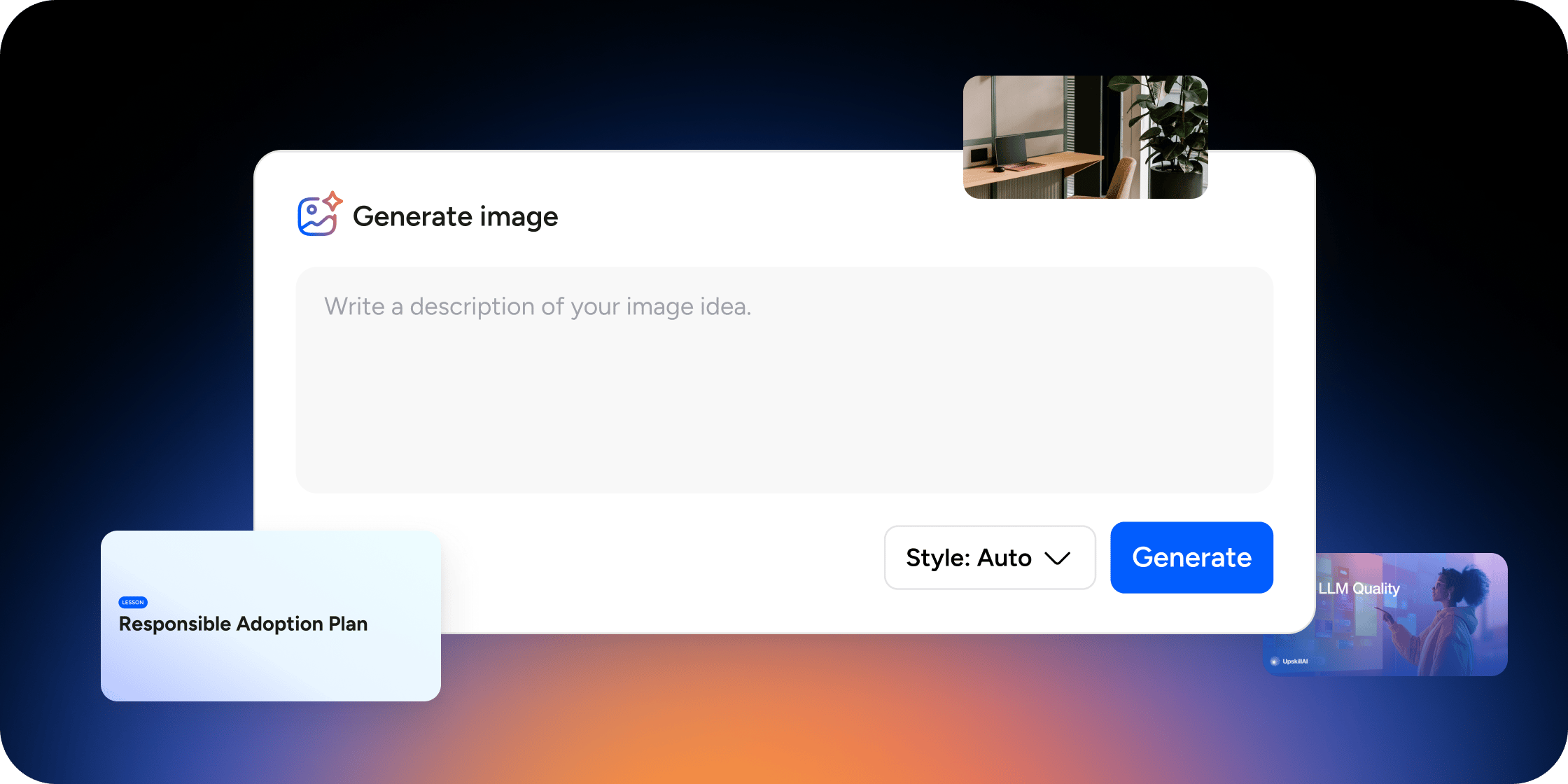
AI Image Generation is available anywhere an image can be uploaded in your Academy, including Program cover images, curriculum thumbnails, posts, and events. Admins and Academy owners have access to all three generation methods. Program managers can generate cover images when creating AI-assisted content and can use the slash command in the content editor. Members cannot generate images. Images render from a text prompt in seconds. Any image you choose to use is automatically saved to your media library and can be reused freely without counting toward your quota again. All plans include a shared monthly quota of 100 AI-generated images per organization.Generate an Image from the Media Picker
The media picker’s Generate tab is available to Academy owners and admins anywhere an image can be uploaded in Disco, including Program cover images and curriculum thumbnails. This is the primary method for creating standalone images on demand.- Open the image upload area for the element you want to update.
- Select the Generate tab in the media picker.
- Enter a text prompt describing the image you want. Prompts must be at least 10 characters.
- Choose a style from the Style dropdown.
- Click Generate and wait a few seconds for the image to render.
- Review the result. Click Use Image to apply it (a crop modal appears where applicable) or Regenerate to try again with the same prompt.
Generate an Image from the Content Editor
The content editor slash command lets you insert an AI-generated image directly into any lesson body, post, or event description without leaving the editor. Academy owners, admins, and program managers can all use this method.- Open the content editor for a curriculum item, post, or event.
- Type / to open the slash command menu and select Generate Image.
- Enter a text prompt describing the image you want. Prompts must be at least 10 characters.
- Choose a style from the Style dropdown.
- Click Generate and wait a few seconds.
- Click Use Image to insert the image or Regenerate to try again.
Generate a Cover Image with AI-Created Content
When you use Disco’s AI to create a new Program or collection, a cover image is generated automatically alongside the content. You do not need to generate the cover separately. Academy owners, admins, and program managers can all use this method.- Open the add content modal from the global add menu, a collection, or a curriculum app.
- Select the Create with AI tab.
- Enter a prompt describing the content you want to generate.
- Click Generate. Disco produces the content and a cover image together.
Cover images generated through this flow count toward your organization’s monthly quota.
Choose an Image Style
The Style dropdown controls the visual treatment applied to your prompt. Choose the option that best matches your Academy’s aesthetic.- Auto: Lets Disco select the most appropriate style based on your prompt.
- General: A balanced, versatile look suitable for most use cases.
- Realistic: Photographic quality, best for lifestyle or people-focused imagery.
- Design: Graphic and illustrative, suited for branded or conceptual visuals.
- 3D Render: Three-dimensional imagery with depth and volume.
Usage and Quota
All plans include 100 AI-generated images per month per organization. This quota is shared across all admins and program managers in your Academy. How quota is counted:- Cover images auto-generated during AI content creation count toward the monthly quota.
- Reusing an image already saved to your media library does not count again.
- Template-generated cover images do not count toward the quota and have no limit.
- There is no in-app indicator of your remaining quota.
- There is no additional cost for image generation on any plan.
FAQ
Can I see how many AI-generated images I have left this month?
Can I see how many AI-generated images I have left this month?
There is no in-app quota indicator. If you believe your organization has reached its limit, contact Disco support to check your usage.
Do AI-generated images use my Academy's brand colours?
Do AI-generated images use my Academy's brand colours?
Images generated from the Generate tab and slash command do not automatically apply your brand colors. The style you select and the language of your prompt control the visual output. Branded cover images generated from your Academy’s appearance settings are a separate feature that applies your uploaded colors and Program title automatically.
Where do generated images get saved?
Where do generated images get saved?
Any image you choose to use is saved automatically to your media library. You can reuse it as many times as you like without it counting toward your quota again.
What happens if image generation fails?
What happens if image generation fails?
Try rephrasing your prompt and generating again. If the problem persists after a few attempts, contact Disco support.
Can I edit a generated image after I use it?
Can I edit a generated image after I use it?
Disco does not include an in-product image editor. Once you use an image, you can replace it at any time by returning to the media picker, generating a new image, or uploading a different one.
Does the monthly quota reset automatically?
Does the monthly quota reset automatically?
Yes, the quota resets each month. Contact Disco support if you have questions about your organization’s specific reset date.
What is the minimum prompt length?
What is the minimum prompt length?
Prompts must be at least 10 characters.
Can program managers generate images from the media picker?
Can program managers generate images from the media picker?
No. Program managers can use the slash command in the content editor and generate cover images when creating AI-assisted content, but the Generate tab in the media picker is available to Academy owners and admins only.
What is the difference between AI Image Generation and the branded image feature?
What is the difference between AI Image Generation and the branded image feature?
AI Image Generation creates a new image from a text prompt you write. The branded cover image feature generates a cover automatically using your Academy’s uploaded colors and the Program title. Both produce cover images, but AI Image Generation gives you much more creative control over the output.