

Overview
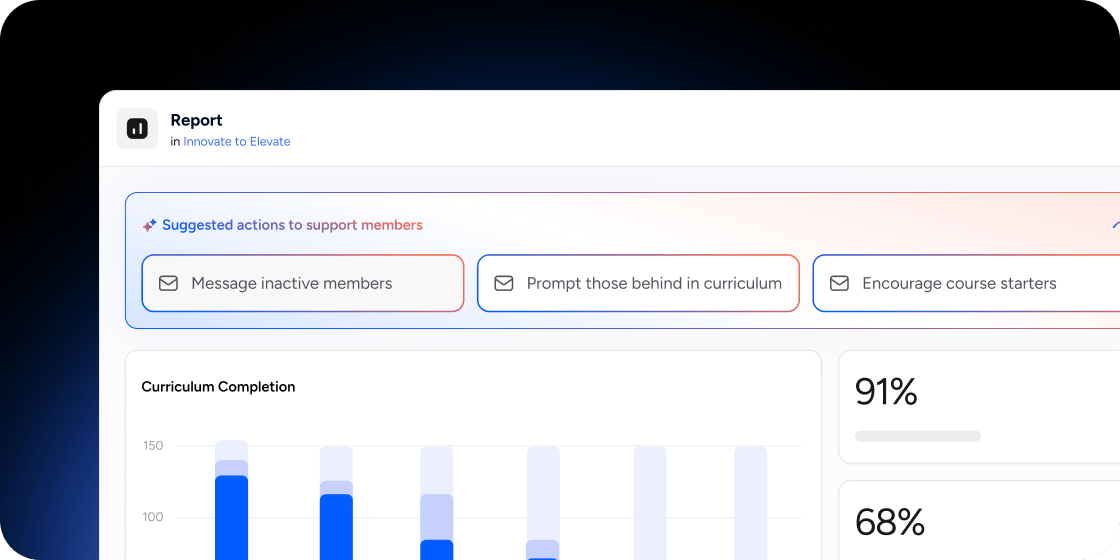
Suggested Actions appear at the top of the Products page in Insights. Each suggestion is generated from real product usage data, such as inactivity, curriculum progress, and course start rates. Use them to spot patterns and act on them in a single click, without digging through reports.Access AI Reports & Suggested Actions
- Go to Admin Area → Insights → Products.
- Review the Suggested actions to support members banner at the top of the page.
- Select a suggestion to see the matching member list and take action.
Use a Suggested Action
Common suggestions include Message inactive members, Prompt those behind in curriculum, and Encourage course starters. Each one opens a pre-scoped audience so you can move from insight to outreach without rebuilding a filter.- Select the suggestion that matches your goal.
- Review the list of members the suggestion applies to.
- Send a message, assign a follow-up, or take the recommended next step.
Examples
A cohort course instructor uses Prompt those behind in curriculum mid-cohort to nudge members who have stalled before live sessions. A membership community manager uses Message inactive members monthly to re-engage members who have not logged in. A bootcamp admin uses Encourage course starters in week one to push members who enrolled but have not opened the first module.FAQ
Where do Suggested Actions come from?
Where do Suggested Actions come from?
They are generated by AI based on product usage data, including curriculum completion, time spent, and member activity in each Program.
Can I see Suggested Actions for a specific Program?
Can I see Suggested Actions for a specific Program?
Yes. The Products page in Insights scopes suggestions to the Programs you select, so you can review actions for one Program at a time.
Do Suggested Actions send messages automatically?
Do Suggested Actions send messages automatically?
No. Suggestions surface the audience and recommend the action, but you choose whether to send the message and what to say.
How often do Suggested Actions refresh?
How often do Suggested Actions refresh?
Suggestions update as new usage data flows in, so the list reflects recent member behaviour each time you open the page.