

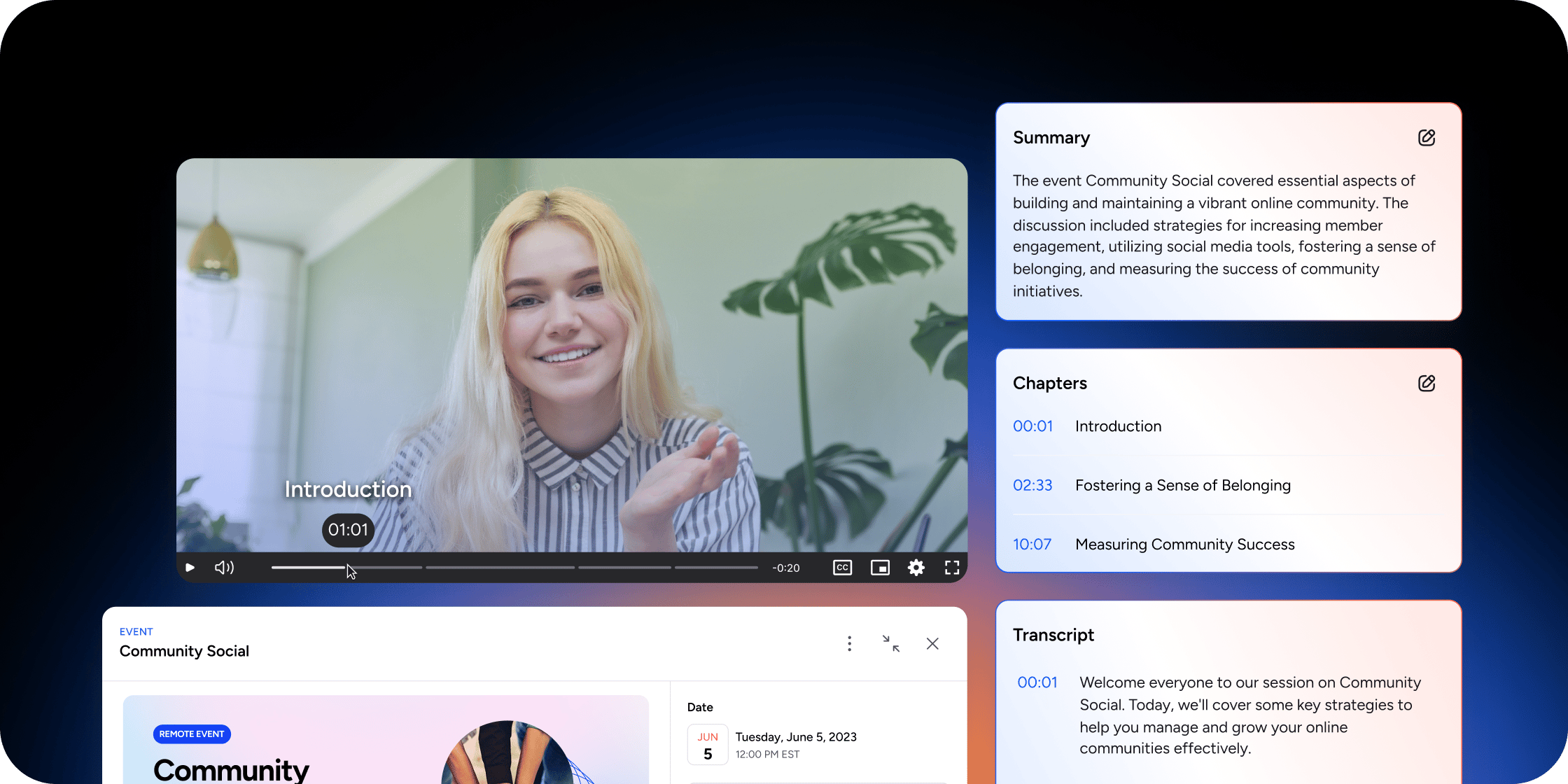
Overview
AI Video Enhancements processes video and audio assets to produce structured learning content without manual effort. For video assets, the workflow generates a transcript, a summary, chapter markers, and an auto-generated subtitle track. For audio assets, it generates a transcript, summary, and chapters. Subtitles are not available for audio. The feature is especially useful when a media asset appears across multiple lessons, pages, or event recordings, because the AI-generated content supports every place that asset is reused.Open a Media Asset
The most direct path to AI Video Enhancements is through the media library.- Go to Admin → Content → Media Assets.
- Use the search bar or file-type filters to locate the target asset.
- Open the row menu for the asset and click Details.
The Details action appears for video, audio, and PDF assets. For AI Video Enhancements, only video and audio assets are eligible.
Generate AI Enhancements
If no AI assets exist yet for an eligible media asset, the player displays a generation button in place of any transcript content.- Open the Details drawer for a video or audio asset.
- Click Generate AI Transcript and Summary.
- Wait for processing to complete. The drawer displays a spinner and a Processing state while the job runs. Processing may take a few minutes. You can check back later or refresh the page.
Review Enhancement Output
Each tab surfaces a different part of the AI-generated content. Overview tab: The main editable area. Displays the AI-generated Summary and Chapters, along with edit controls for admins with the right permissions. Transcript tab: The full transcript reading experience. The transcript is linked to media playback, so clicking a passage navigates to the corresponding timestamp. This tab is for reading and navigation, not direct manual editing. Subtitles tab: Available for video assets. Displays subtitle controls and the auto-generated subtitle output. If no subtitle track existed before generation, the system creates an auto-generated track shell so subtitles have a place to land once processing completes.Edit Summary and Chapters
You can update the AI-generated summary and chapter markers at any time from the Overview tab.- Open the Overview tab in the Details drawer.
- Click the edit icon.
- Update the Summary field or the Chapters field as needed.
- Click Save Changes.
Chapter formatting rules
The chapter editor validates your input before saving. Each chapter must follow this format:- One chapter per line
- A timestamp followed by a chapter title (for example: 01:30 Introduction to Pricing)
- Timestamps in MM:SS or HH:MM:SS format
- Chapters listed in ascending order
- At least two chapters total
Publish or Hide AI Enhancements
The transcription record has a visibility toggle that controls whether members can see the AI-generated content.- Open the Details drawer for the asset.
- Click the eye icon to toggle visibility between Published and Draft.
Understand Eligibility and Access
Several conditions determine whether AI Video Enhancements appear for a given asset. Supported media types: The feature runs on video and audio assets only. Images and documents are not eligible. Synthetic audio: Assets generated from synthetic audio are excluded from transcription generation. Entitlements: The generation button checks for an active entitlement based on media type. Video assets require the ai_video_transcription entitlement; audio assets require ai_audio_transcription. Feature flag: AI Video Enhancements must be enabled for your workspace. If the feature is not active, the enhancement tabs and generation controls will not appear even for eligible assets. Permissions: Only admins with media-transcription management permissions can see the generation button and edit enhancement output.Handle Errors and Retries
AI Video Enhancements surfaces clear feedback when something goes wrong. Generic processing failure: If generation fails, the drawer offers a re-generation action. Click it to retry without rebuilding the asset from scratch. No audio detected: If the media file has no detectable audio, the drawer displays No audio detected and generation is blocked. This is expected behavior for silent video files.FAQ
Does AI Video Enhancements work on audio-only files?
Does AI Video Enhancements work on audio-only files?
Yes. The workflow runs on both video and audio assets. Audio assets generate a transcript, summary, and chapter markers. Subtitles are not available for audio.
Can I edit the transcript directly?
Can I edit the transcript directly?
No. The Transcript tab is read-only. You can edit the Summary and Chapters fields on the Overview tab. If you need to correct transcript text, contact Disco support.
What happens if I edit the summary or chapters?
What happens if I edit the summary or chapters?
Your changes update the transcription record for that asset. Because the record is shared, the updates appear everywhere the asset is used across your Academy.
Can I re-run generation after editing?
Can I re-run generation after editing?
If generation fails, you can retry using the re-generation action in the drawer. Re-running on a successfully processed asset is not available. Edit the existing output instead.
What does "No audio detected" mean?
What does "No audio detected" mean?
It means the video file contains no detectable audio track. Generation cannot proceed. This is expected for silent video files and is not a product error.