

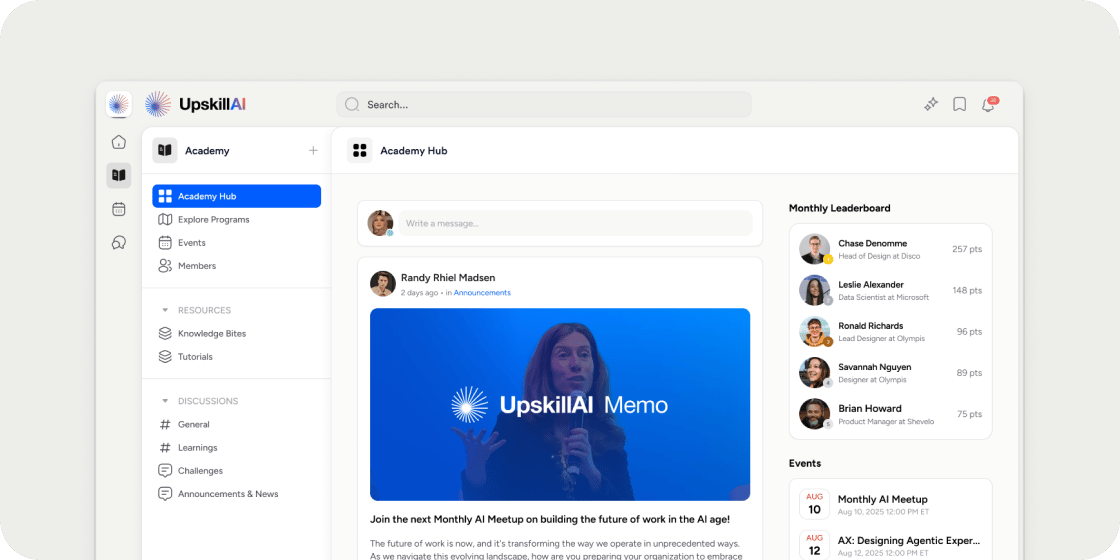
Overview
The Academy Home Page is a block-based dashboard you configure directly in the live member experience. It allows you to use customizable blocks to build a home page that fits your unique Academy goals. This article covers the Academy home page and any additional custom pages you create at the Academy level. Block-based editing works the same way across all of these pages.Access the Academy Home Page
Navigate to Academy > Home from your admin navigation. This takes you directly into the member-facing home environment where the page is edited. You edit the page in place. There is no separate settings screen. When you are in an editable context, you see add and edit controls directly on the page. If you do not see the option to add a block, the page does not support dashboard customization in that context. Tip: Editing is most complete on desktop. Use a desktop browser when building or rearranging your page layout.Create a Custom Academy Page
In addition to the default home page, you can create as many custom pages as you need. Custom pages appear in the community navigation and use the same block-based editor.- In the community sidebar, click Add App. If the page should live inside a specific section, use the add control for that section instead.
- In the Add App modal, select Custom Page.
- Configure the page settings:
- Icon and title
- Section (if you are adding the page from the top-level community navigation)
- Who can access?
- Page Layout
- Click to create the page.
Add a Block to the Page
Blocks are the building units of your Academy page. You add them inline, directly on the live page.- Click Add Block. The control appears between existing blocks and after the last block on the page.
- In the Add New Block modal, choose a block type. Blocks are organized into two categories: Personalized Blocks and Standard Blocks.
- After selecting a block type, the modal switches to that block’s settings. Fill in the form fields and click Save.
Personalized Blocks vs. Standard Blocks
The block picker separates block types into two categories based on intent.- Personalized Blocks tailor the page to each member. What one member sees in these blocks differs from what another member sees. Examples include the hero, feed, upcoming events, Jump Back In, and recently viewed blocks.
- Standard Blocks show the same content to everyone who can access the page. Examples include rich text, content, collection folder, featured items, leaderboard, members list, curriculum, and channels.
Block Restrictions and Dependencies
The block picker enforces rules automatically so you cannot create a broken or duplicate block by mistake. Blocks limited to one per page Some block types can only appear once on a page. If you already have one of these blocks on the page, the picker disables it and explains why. Block types with this limit include: hero, feed, events, curriculum, channels, Jump Back In, and recently viewed. Blocks that require a connected app Some blocks only work when the corresponding app exists in your Academy. If the prerequisite app is missing, the picker disables the block and shows a tooltip explaining what is needed. The dependencies are:- Feed block requires a feed or posts app
- Events block requires an events app
- Curriculum block requires a curriculum app
- Channels block requires a chat-channel app
- Collection folder block requires a collection app
Configure Specific Block Types
Each block has its own form, but the most common configuration patterns are below. Hero block The hero block sits at the top of the page as an anchor. You can configure:- Background mode
- Welcome text
- Hero header
- Hero subtext
- Text color (available in image mode)
Reorder Blocks
You can drag and drop blocks to change their order.- Blocks can move within a column.
- Blocks can move between the main column and the side column.
- Reordering saves immediately. There is no separate save button.
Page Layout
The two biggest factors shaping how your Academy home page behaves are:- Whether the relevant apps are connected. Blocks for disconnected apps are unavailable in the picker.
- Whether the page uses a one-column or two-column layout. This setting is configured when you create a custom page or in the page settings for the home page. A two-column layout adds a side column you can populate with blocks independently of the main column.
FAQ
Can I add the same block type more than once?
Can I add the same block type more than once?
For most blocks, yes. Standard blocks like rich text, content, and featured items can appear multiple times. However, certain block types are limited to one instance per page, including hero, feed, events, curriculum, channels, Jump Back In, and recently viewed. The picker disables these after you add the first one and explains why.
Why is a block grayed out in the Add New Block modal?
Why is a block grayed out in the Add New Block modal?
The block picker disables block types that either already exist on the page (for single-instance blocks) or require an app that is not connected yet. Hover over the disabled block to see a tooltip explaining the specific reason.
Can I move a block from the main column to the side column?
Can I move a block from the main column to the side column?
Yes. On desktop, drag the block from its current position in the main column and drop it into the side column. The change saves immediately.
Does block editing work on mobile?
Does block editing work on mobile?
You can view the page on mobile, but editing support is most complete on desktop. Build and rearrange your page from a desktop browser for the best experience.
How do I create a page that only specific members can see?
How do I create a page that only specific members can see?
When creating a custom page, set the Who can access? field to the appropriate audience. This controls which members see the page in their navigation and can visit it.
Is there a limit to how many custom pages I can create?
Is there a limit to how many custom pages I can create?
No. You can create as many custom pages as you need.
Can I edit the Academy home page from the admin settings panel?
Can I edit the Academy home page from the admin settings panel?
No. The Academy home page is edited in place on the live page, not through a detached settings screen. Navigate to Community > Home and use the on-page editing controls.
What happens if I delete an app that a block depends on?
What happens if I delete an app that a block depends on?
If the underlying app is removed, the associated block will no longer function correctly. It is best to remove the dependent block from the page before removing the app.
Can the Academy Home page layout be changed after the page is created?
Can the Academy Home page layout be changed after the page is created?
Yes, you may change from the one-column to two-column layout after the page is created. This can be changed at any point and the blocks will adjust based on the layout.
Is there a way to preview how the Academy Home Page looks to members before publishing changes?
Is there a way to preview how the Academy Home Page looks to members before publishing changes?
No, changes are applied live as you make them for members, so there is no way to preview prior to publishing.
Can block-level access restrictions be set independently of page-level access?
Can block-level access restrictions be set independently of page-level access?
No, access is applied at the app level and currently can not be set at the block level.