

Overview
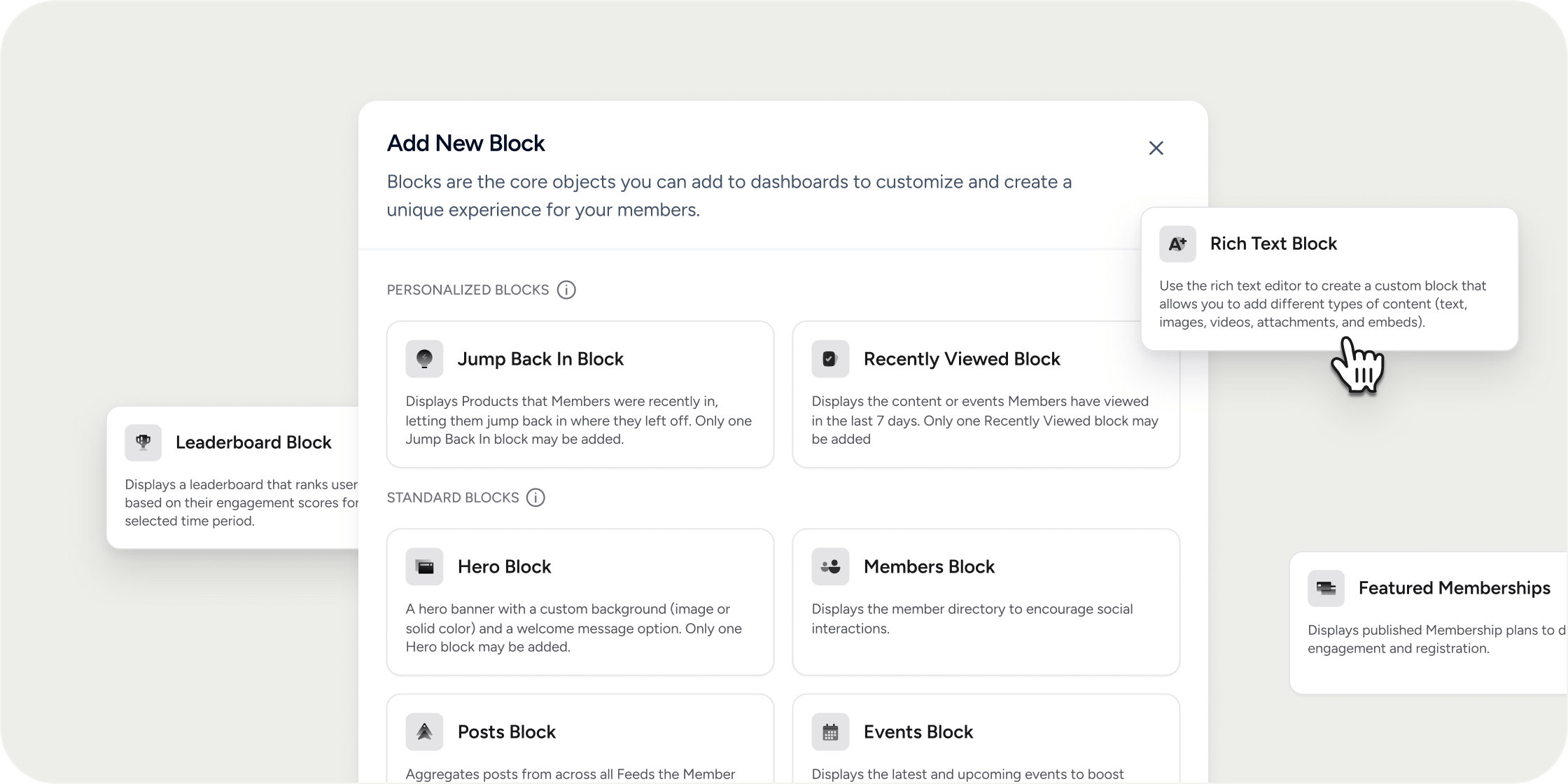
Blocks give you control over what members see when they arrive at your Academy’s home page or enter a Program. You choose which blocks to display, configure their content and layout, and arrange them in the order that best serves your members. Every block goes live the moment you save it. Blocks are divided into two categories: Personalized blocks display content tailored to each individual member based on their activity and progress. Standard blocks display the same content to all members who have access to it. Dashboards support a one-column or two-column layout. A handful of blocks are only compatible with certain layouts. Those exceptions are noted in the block descriptions below.Add, Edit, and Remove Blocks
To add a block:- Navigate to your Community Home or a Program dashboard in admin view.
- Hover between two existing blocks. A blue bar with an Add block button appears.
- Click Add block.
- Select a block type from the panel and configure its settings.
- Click Save. The block is immediately visible to members.
Personalized Blocks
Personalized blocks display content tailored to each member individually. Two members viewing the same dashboard will see different content in these blocks based on their own activity and progress.- Hero Banner Displays a welcome header with a custom background (image, solid color, or no fill) and personalized welcome text. Use macros like user.firstname in the header and subtext to greet each member by name. Only one Hero Banner block can be added per dashboard.
- Jump Back In Shows the Programs each member was most recently active in, along with their completion progress, so they can pick up where they left off. Only one Jump Back In block can be added per dashboard.
- Recently Viewed Displays content and events the member viewed in the last 7 days. Only one Recently Viewed block can be added per dashboard. No content settings are available beyond the mobile visibility toggle.
- Posts Shows posts in a carousel or scrollable (infinite scroll) format. Note that only carousel format is supported on one-column dashboards. You can also choose whether to show post cover images.
- Upcoming Events Highlights the latest and upcoming events to drive attendance. Choose between a carousel or a list view, set how many events to display (default is 3), and toggle event cover image visibility. Only one Upcoming Events block can be added per dashboard.
Standard Blocks
Standard blocks display the same content to all members who have access to it. Any number of standard blocks can be added to any dashboard.- Community Details Displays an overview of your Academy with a title, subtitle, rich text description, and cover image. This block is not recommended for one-column dashboards.
- Members Highlights members of your Academy. Choose to show admins only, members only, or both.
- Leaderboard Shows a ranked list of members based on their engagement score in a selected time period. Customize the title, description, display style (carousel or list), number of members shown, and time period. Available time period options include Last 7 Days, Last 30 Days, Last 90 Days, Last Week, and Last Month.
- Rich Text A fully custom block built with the rich text editor. Add text, images, videos, attachments, and embeds. You can also include a call-to-action button with a custom label and link.
- Featured Programs Spotlights published Programs to drive engagement and registration. Select any number of Programs to feature.
- Featured Membership Plans Showcases membership plans in a card view showing plan details. Select which plans to feature.
- Content Embeds a specific piece of content from your Academy, such as a lesson, quiz, assignment, or survey. Choose between a carousel (multiple items) or full content (single item) view.
- Collection Folder Displays a single collection folder from within a Program or collection app.
Program Dashboard Blocks
Program dashboards include all the standard blocks described above, plus three blocks that are exclusive to Programs. There is one key difference: blocks on a Program dashboard are scoped to that Program. For example, a Posts block on a Program dashboard shows only posts from within that Program, while the same block on a Community Home dashboard draws from posts across the Academy.- Hero (Program-only) Sets a banner image for the Program and surfaces high-level details including the Program title and label.
- Curriculum (Program-only) Shows incomplete and upcoming modules to help members track their progress and stay engaged. Choose between a carousel or list view. This block is only available on Programs that have curriculum.
- Channels (Program-only) Displays all public chat channels within the Program to surface discussions and encourage engagement.
Automatic Blocks
Two blocks appear automatically on Program dashboards and cannot be added, removed, or configured by admins.- Suggested Admin Actions is visible only to admins. It appears as a checklist of setup steps such as publishing the Program, generating curriculum with AI, and inviting instructors. Members never see this block.
- Resume / Start Learning is visible only to members on Programs that have curriculum. It surfaces a button to either resume where the member left off or begin the curriculum from the start. This block appears automatically and is not configurable.
Content Permissions and Block Visibility
Blocks that feature specific content, Programs, or membership plans respect each member’s access permissions. If a member does not have access to a featured item, that item is not displayed to them within the block. The block itself remains visible, but its contents are filtered to match what each member can access. This applies to the Featured Programs block, the Featured Membership Plans block, and the Content block.FAQ
How do I embed a video on a Program dashboard?
How do I embed a video on a Program dashboard?
Add the video as a content item via the admin Content page. Then add a Content block to the Program dashboard, set the view style to Full Content, and select your video. This displays the video directly on the dashboard without redirecting members to an external site.
Can I view past leaderboard scores after the period resets?
Can I view past leaderboard scores after the period resets?
Yes. Open the Leaderboard block settings and set the Time Period to Last Month or Last 30 Days to see scores from the previous period. If you want to display multiple time periods side by side, create a Custom Page App and add one Leaderboard block per time period you want to track.
Can I add the same block type more than once?
Can I add the same block type more than once?
It depends on the block type. Personalized blocks (Hero Banner, Jump Back In, Recently Viewed, and Upcoming Events) are limited to one per dashboard. Standard blocks can be added any number of times.
Who can see the blocks I add?
Who can see the blocks I add?
All members with access to that dashboard can see the blocks you add. Within blocks that feature specific content, Programs, or membership plans, each member only sees the items they individually have permission to view.
How does the mobile visibility setting work?
How does the mobile visibility setting work?
Most blocks include a toggle to hide or show the block on mobile (small screens). This setting applies to browser-based small-screen views. Leave the toggle enabled if you want the block to appear on both desktop and mobile.
What is the difference between a Community Home dashboard and a Program dashboard?
What is the difference between a Community Home dashboard and a Program dashboard?
The Community Home dashboard is the main landing page for your Academy. Program dashboards are the landing pages inside individual Programs. Blocks on the Community Home dashboard draw content from the Academy level, while blocks on a Program dashboard are scoped to that Program’s content.
Will a featured Program appear to a member who doesn't have access to it?
Will a featured Program appear to a member who doesn't have access to it?
No. The Featured Programs block filters its contents based on each member’s permissions. Members only see Programs they have access to within the block. The same applies to the Featured Membership Plans block.
Can I set my dashboard to a two-column layout?
Can I set my dashboard to a two-column layout?
Yes. Community Home dashboards can be set to one-column or two-column layout. On two-column dashboards, you can drag blocks between the left and right columns to control the arrangement. Note that some blocks, such as the Community Details block, are not recommended for one-column layouts.
How do I add events to a Program dashboard?
How do I add events to a Program dashboard?
Add an Upcoming Events block to the Program dashboard. On a Program dashboard, this block is scoped to events within that Program. Navigate to the Program dashboard in admin view, click Add block, and select Upcoming Events from the block panel.