

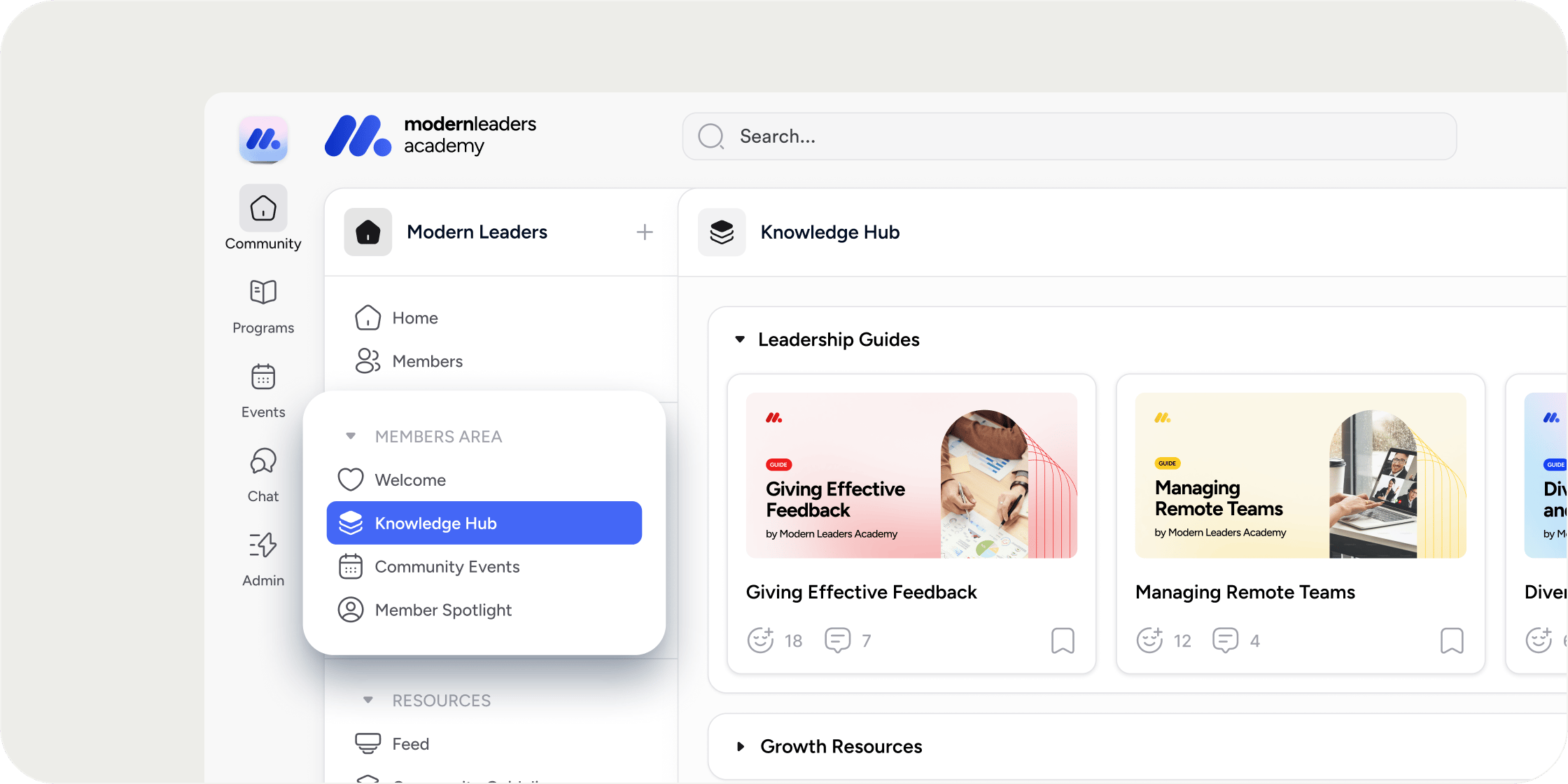
Overview
Sections appear in the left sidebar at both the Academy level and the learning (product) level. At the Academy level, sections group apps. At the learning level, sections group products. Sections are optional. Apps and products can also live at the top level of the sidebar without belonging to any section. Only admins can create, rename, reorder, or remove sections, and any ordering changes are reflected for all members.Add a Section
You can add a section in two ways depending on where you want it to appear. To add a section at the top of the sidebar:- Click the + Add button at the top of the sidebar.
- Select Section.
- Enter a name for the section.
- Click Save.
- Hover over the divider line between existing sections or apps until the + Add Section button appears.
- Click it.
- Enter a name for the section.
- Click Save.
Rename or Remove a Section
- Hover over the section header to reveal the overflow menu (…).
- Click the overflow menu.
- Select Edit to rename the section, or Remove to delete it.
- If editing, update the name and click Save.
Add an App to a Section
There are two ways to assign an existing app to a section. By drag and drop: Drag the app from its current position and drop it into the target section. Through app settings:- Open the app’s settings.
- In the Section dropdown, select the section you want.
- Click Save.
Reorder Sections
Drag sections up or down in the sidebar to reorder them. The new order is applied globally and all members see the updated ordering immediately.Expand and Collapse Sections
Click a section header to expand or collapse it. Disco remembers the expand/collapse state for each section on a per-browser basis. This means your personal collapsed or expanded preferences do not sync across devices or browsers, and member expand/collapse states are independent of your own. POV: Section ordering is the one setting that matters globally and use it to surface your most important content at the top for all members. Leave expand/collapse preferences to each individual; members will naturally collapse sections they use less often.Use Sections at the Learning Level
At the learning level, sections contain products rather than apps. The behavior is otherwise the same: you can add sections using the + Add button or by hovering over dividers, name them, and drag products into them. Note: at the learning level, you cannot assign a product to a section through a settings dropdown. Drag and drop is the only way to place a product into a section here.Folders Within a Product
Inside a product, you can use Folder apps to organize content in the same way sections organize the sidebar. Folders behave like sections but live within a single product. You can add apps into folders, drag and drop apps in and out, rename folders, and remove them. Removing a folder preserves the apps inside it; they move to the top level of the product.Sections in the Chat Sidebar
Sections also organize the Chat sidebar. Under the Channels tab, all chat channels in the Academy are grouped by the same sections and products they belong to in the Academy and learning sidebars. You cannot edit sections or apps from the chat view, but you can collapse and expand section groups there.FAQ
What happens to apps when I delete a section?
What happens to apps when I delete a section?
Apps inside a deleted section are not removed. They move to the top level of the sidebar. No content is lost.
Can members reorder sections?
Can members reorder sections?
No. Only admins can reorder sections. The order admins set is what all members see.
Can I assign a product to a section through its settings?
Can I assign a product to a section through its settings?
No. At the learning level, there is no section dropdown in product settings. Use drag and drop to place a product into a section.
What is the difference between a section and a folder?
What is the difference between a section and a folder?
Sections organize apps or products in the sidebar. Folders are a type of app used inside a product to group that product’s apps. Functionally they work the same way, but the name differs based on where they appear.