

Overview
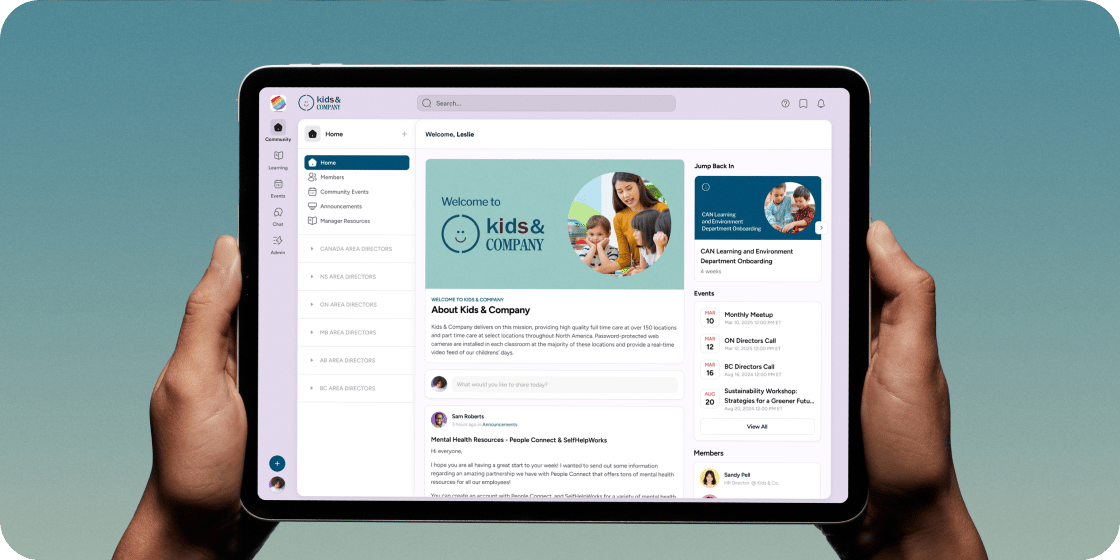
Your Academy is organized around a core navigation hierarchy visible in the left-hand sidebar. The five high-level tabs (Home, Programs, Events, Chat, and Admin Area) give members and admins structured access to every part of the experience. Each tab is customizable, and together they support both structured curriculum delivery and social interaction. Understanding how these pieces fit together makes it easier to build and manage your Academy.Core Building Blocks
Before diving into each tab, it helps to understand the key elements that make up the Disco Academy structure: Apps are the individual modules you add to sidebars, such as Announcements, Members, Resources, or a Q&A space. Apps can live in the Academy Home sidebar or inside a Program. Programs are containers for structured learning. They hold apps, including the Curriculum app, and members must register to access them. Programs can contain modules, lessons, and other curriculum items. Pathways are sequences of programs that guide a member through a defined learning journey. Events are scheduled sessions (live, virtual, or in-person) that can be tied to the Academy Home or to specific programs. Chat Channels are persistent messaging spaces that can be scoped to the whole Academy or to individual programs.The Home Tab
The Home tab is your Academy’s front door. It features a customizable left-hand sidebar with apps that members see when they first arrive. By default, the Home sidebar includes:- For You: a personalized dashboard with blocks that pull in content and activity from across the Academy. This app cannot be removed.
- Members: a filterable directory of all Academy members.
- Announcements: a shared feed where you and members can post updates.
- Q&A: a dedicated space for questions and answers.
- Events: an upcoming events view for members.
- Resources: a place to share lessons, videos, and uploaded files.
- Mobile App Links: quick links to download the Disco mobile app.
The Programs Tab
The Programs tab is where members access structured learning. A program is a container that can include the Curriculum app, which holds modules and curriculum items, along with other apps like events, channels, or resources. Members must register for a program before they can access its contents. This allows you to control pacing, visibility, and audience. The Programs tab has its own left-hand sidebar anchored by an Explore page:- Owners and admins see all programs and pathways, including unpublished drafts.
- Members see only the programs and pathways they have registered for or are eligible to register for.
The Events Tab
The Events tab surfaces a combined calendar view of all events a user has access to.- Owners and admins see all events in the Academy.
- Members see events from all Academy apps they have access to, and from programs they have registered for.
The Chat Tab
The Chat tab provides a centralized view of all messaging activity across the Academy. Users can toggle between DMs, Channels, and Threads. Chat channels can be created as apps in the Academy Home or within individual programs. All channels are surfaced in the Chat tab for a global view of messages and activity. The Chat tab may be disabled by default if you selected an employee training use case during Academy creation. It can be re-enabled at any time in Admin Area → Appearance → Sidebar.The Admin Area
The Admin Area is the control center for your Academy. It is visible only to owners and admins; members cannot see it. Inside the Admin Area, you have access to:- Getting Started: a setup checklist for new Academy owners.
- Dashboard: high-level analytics for your Academy.
- Members: manage your member roster, roles, and groups.
- Content: manage resources and uploaded materials.
- Events: manage all Academy events.
- Programs: manage programs and pathways.
- Automations: build automated workflows.
- Insights: view engagement and learning analytics.
- Disco AI: manage AI-powered features.
- Integrations: connect third-party tools.
- Appearance: customize the look, layout, and navigation of your Academy.
- Settings: configure general Academy settings, billing, registration, and more.
Customizing the Navigation Tabs
The five high-level tabs can be renamed and reordered to match your Academy’s terminology and brand. To customize them, go to Admin Area → Appearance → Sidebar.FAQ
What's the difference between an app and a program?
What's the difference between an app and a program?
Apps are individual modules you add to sidebars, like Announcements or Resources. Programs are structured learning containers that hold apps and curriculum, and require member registration.
Can members see draft programs?
Can members see draft programs?
No. Members only see programs and pathways that are published and available for registration. Drafts are visible only to owners and admins.
What can a program manager see in the Admin Area?
What can a program manager see in the Admin Area?
Program managers have restricted access. They can only view the Insights page for the programs they are assigned to manage.