

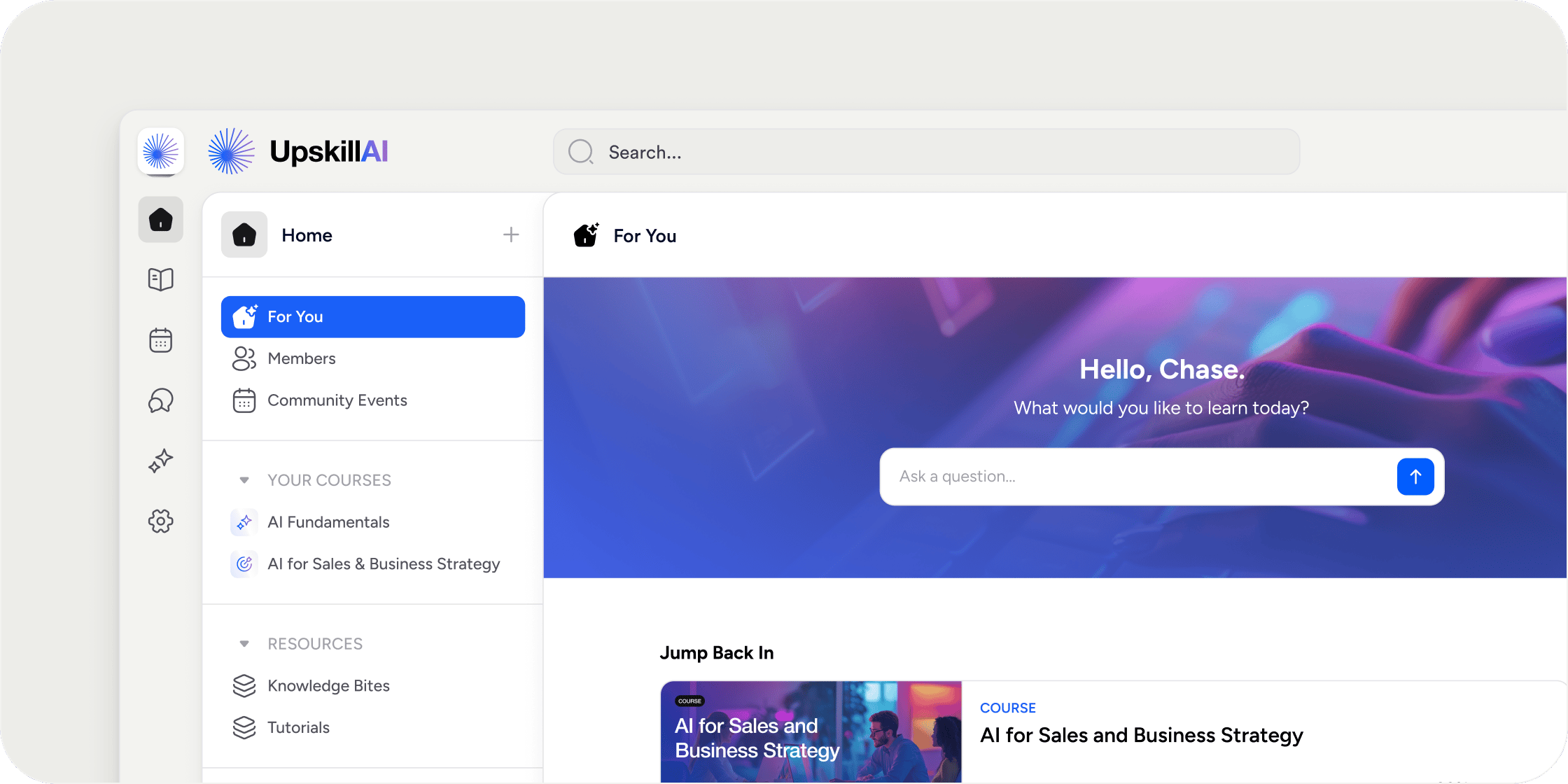
Overview
The For You page replaces the previous Home page with a streamlined, single-column layout that adapts to each member’s activity and enrollment history. Admins configure the page using Disco’s drag-and-drop editor, selecting from blocks that surface personalized content, showcase branding, and highlight upcoming learning. Members see a page tailored to their own progress rather than a generic landing screen. All academies have been migrated to the For You page. Any academy that had not manually migrated before April 8, 2025 was automatically migrated with a default set of blocks.Set Up and Publish the For You Page
The For You page is created through the admin editor. You can configure and preview it fully before members see it.- Go to your Academy Home page. At the top of the page, click Start Customizing. This creates the For You page in draft mode, visible only to admins.
- Use the drag-and-drop editor to add, remove, and reorder blocks. Click the + icon anywhere on the page to open the block picker and select a block.
- Once you are satisfied with the layout and content, click Publish Page to make the For You page the new home page for all members.
Hero Block
The Hero block lets you brand the top of the For You page with a banner image or color, paired with a personalized greeting for each member. The Hero block is always pinned as the first block on the For You page. To edit it, hover over the block and click the three dots in the top-right corner. From the edit panel, you can:- Set the background to an image, a brand color, or No Fill
- Choose a greeting from the preset options
- Add optional custom subtext beneath the greeting
Recently Viewed Block
The Recently Viewed block displays content that a member has recently accessed across Programs and Collections, making it easy to pick up where they left off. Content appears in this block once a member has viewed it for at least 3 seconds. This includes lessons, collection materials, and other learning resources. When a member clicks an item in the Recently Viewed block, the content opens immediately for viewing. The system loads the item’s original location in the background at the same time (for example, clicking a lesson also loads its parent Program’s curriculum behind it).Jump Back In Block
The Jump Back In block shows each member the Programs they are enrolled in but have not yet completed, helping them stay on track with their learning. A Program appears in the Jump Back In block when the member has at least one module, assignment, or quiz remaining. Clicking a Program takes the member directly to that Program’s curriculum page, with the in-progress module automatically expanded. A Program is removed from the block once the member reaches 100% completion, or once the end date passes for a fixed-time Program. The block also surfaces upcoming assignments and incomplete quizzes as reminders. Admins see all of their own incomplete course enrollments in the block. You can rename the block directly in the editor to better fit your Academy’s language and tone.Adding Other Blocks
Beyond the Hero, Recently Viewed, and Jump Back In blocks, the For You page supports the full range of blocks available in the drag-and-drop editor. This includes an Events block for showcasing upcoming events, a Featured Memberships block, a Posts block, and others. To add a block, hover over the page and click the + icon to open the block picker, then select and configure the block you want. Note: When using a single-column layout, the Posts block is restricted to carousel view. If you want a scrollable feed, switch the page layout to two columns to unlock the scrollable option.FAQ
Can I add an events block to the For You page?
Can I add an events block to the For You page?
Yes. Open the drag-and-drop editor, click the + icon, and select the Events block from the block picker to add upcoming events directly to the For You page.
Can admins preview the For You page before publishing it to members?
Can admins preview the For You page before publishing it to members?
No. Updates appear for members live as they are made. You can not preview your changes before publishing.
Can admins customize the layout of the For You page after publishing?
Can admins customize the layout of the For You page after publishing?
Yes. Admins can return to the editor at any time to add, remove, or reorder blocks. Changes take effect immediately after saving.
What image size should I use for the Hero block?
What image size should I use for the Hero block?
Use an image that is 1600px wide by 400px tall for the best result.
Why does the posts feed only show as a carousel in single-column layout?
Why does the posts feed only show as a carousel in single-column layout?
In single-column layout, the Posts block is restricted to carousel view. To enable a scrollable feed, switch the For You page layout to two columns in the editor.
Can I remove specific blocks, such as events or channels, from the For You page?
Can I remove specific blocks, such as events or channels, from the For You page?
Yes. Use the drag-and-drop editor to remove any block you do not want on the page. Removing a block from the For You page does not remove that content from the Academy; members can still access it through the sidebar navigation.
What do members see in Recently Viewed or Jump Back In if they have not engaged yet?
What do members see in Recently Viewed or Jump Back In if they have not engaged yet?
Both blocks display content based on member activity. A new member who has not yet viewed content or enrolled in a Program will see those blocks empty. The blocks populate automatically as the member starts engaging with Programs and Collections.
Can I rename the Jump Back In block?
Can I rename the Jump Back In block?
Yes. Click the block in the editor to access its settings and rename it to match your Academy’s language.
What happens when a member completes all their Programs?
What happens when a member completes all their Programs?
The Jump Back In block only shows incomplete Programs. Once a member completes all enrolled Programs, the block will not display any items.
My home page appears blank. What should I do?
My home page appears blank. What should I do?
Try clearing your browser cache and restarting your browser. If the issue persists, contact Disco support.