

Overview
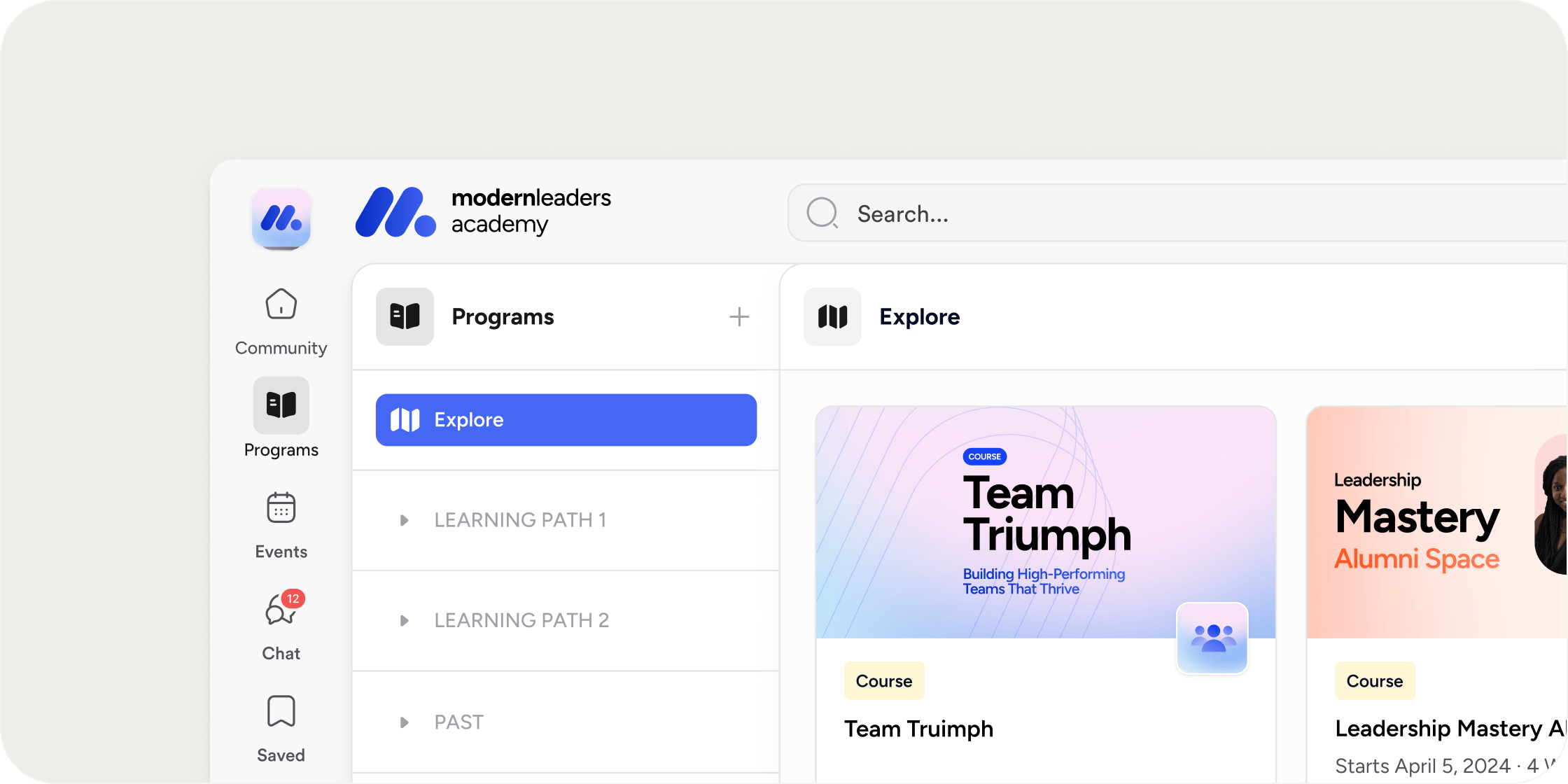
The Explore page lives in the Learning tab of your academy’s left sidebar. It gives members a way to browse available content and start the registration process on their own, without requiring admin action. Owners and admins see all programs and pathways across the academy; managers and members see only the content their role and registration settings permit.Access the Explore Page
Members and admins can reach the Explore page two ways:- Select Learning in the left sidebar of your academy.
- If you are already inside a program or pathway, select the Explore tab in the Learning area sidebar.
Browse Programs and Pathways
The Explore page organizes content across up to four tabs. Which tabs are visible depends on a member’s role and the academy’s content.- All: displays all programs and pathways together. Only visible to members if the academy has at least one pathway.
- Programs: displays programs only.
- Pathways: displays pathways only. Like the All tab, this is only visible to members if the academy has at least one pathway.
- Drafts: displays programs and pathways still in draft status. Visible to owners and admins only. Managers can see their own draft programs in the Learning area sidebar but do not have access to this tab.
- Not yet registered: opens a details drawer with information about the program or pathway and an option to start the registration process.
- Already registered: navigates directly to the program or pathway dashboard.
Filter and Sort Programs
Use filters to narrow what you see on the Programs or Pathways tabs. Filters are not available on the All or Drafts tabs. Available filters:- Status: All, Upcoming & Active, or Past
- Registration: All, Registered, or Available (programs you can register for but haven’t yet)
- Tags: customizable labels managed by owners and admins under Settings > Tags in the Admin area
- Order in Left Nav: matches the drag-and-drop order set in the Learning area sidebar
- Alphabetical: sorted by program name
- Date published
Add Programs and Pathways
Owners and admins can create new programs and pathways directly from the Explore page. Select the Add button in the upper right.- On the All or Drafts tab, the primary action is Add Program, with a dropdown option to add a pathway instead.
- On the Programs tab, the button adds a program.
- On the Pathways tab, the button adds a pathway.
Understand Who Sees What
What a member sees on the Explore page depends on their role and each program’s registration setting. By role:- Owners and admins see all programs and pathways in the academy.
- Managers see programs they manage, are registered for, or are available for them to register for.
- Members see programs they are registered for or can register for.
- Public: visible to all members and to the public
- All Members: visible to all members in the academy
- Private: visible only to specified members or groups
- Invite-Only: requires an invitation to register; not shown on the Explore page
Configure Explore Page Settings
Access these settings from the overflow menu on the Explore tab in the sidebar, or from the three-dots menu on the page. Hide for Members Selecting Hide for members removes the Explore tab from all members’ view. The tab remains visible and accessible to owners and admins, and can be re-enabled at any time from the same menu. When the Explore page is hidden:- Members who select Learning see only programs and pathways they have already registered for.
- The registration filter is removed from the page’s filter options.
- Members can only join programs through auto-join or direct registration links shared by an admin.
FAQ
Is my Explore page publicly accessible?
Is my Explore page publicly accessible?
No. Only members of your Academy can view your Explore page.
Why don't filters appear on the All tab?
Why don't filters appear on the All tab?
Filters are only available on the Programs and Pathways tabs. Switch to the relevant tab to use the Status, Registration, or Tags filters.
Why can't a member see a program I published?
Why can't a member see a program I published?
Check the program’s registration setting. Programs set to Invite-Only do not appear on the Explore page at all. If the setting is Private, confirm the member belongs to the specified group or member list.
Can I hide the Explore page to prevent members from registering without going through my payment process?
Can I hide the Explore page to prevent members from registering without going through my payment process?
Yes. Hiding the Explore page removes self-service registration for members. After hiding it, share direct registration links with members who have completed payment, or use auto-join rules to grant access automatically.
Can managers see the Drafts tab?
Can managers see the Drafts tab?
No. The Drafts tab is visible to owners and admins only. Managers can see their own draft programs in the Learning area sidebar but do not have access to the Drafts tab on the Explore page.
Is the Explore page available on mobile?
Is the Explore page available on mobile?
No. The Explore page is not available in the Disco mobile app. Members using mobile can only view programs and pathways they have already registered for.
Can I reorder how programs appear on the Explore page?
Can I reorder how programs appear on the Explore page?
Yes. Open the overflow menu on the Explore tab in the sidebar or the three-dots menu on the page, select Sort by, and choose Order in Left Nav. Then rearrange programs using drag-and-drop in the Learning area sidebar to update the display order.