

Overview
Every Program set to public access automatically gets a Public Page. These pages are indexed by search engines, making them a key tool for organic discovery. You can customize the cover image, description, and SEO settings for each Program independently. Public Pages live at a unique URL tied to your Program. Prospective Members who land on the page can register directly from it. Private Programs do not have a Public Page.Customize a Public Page
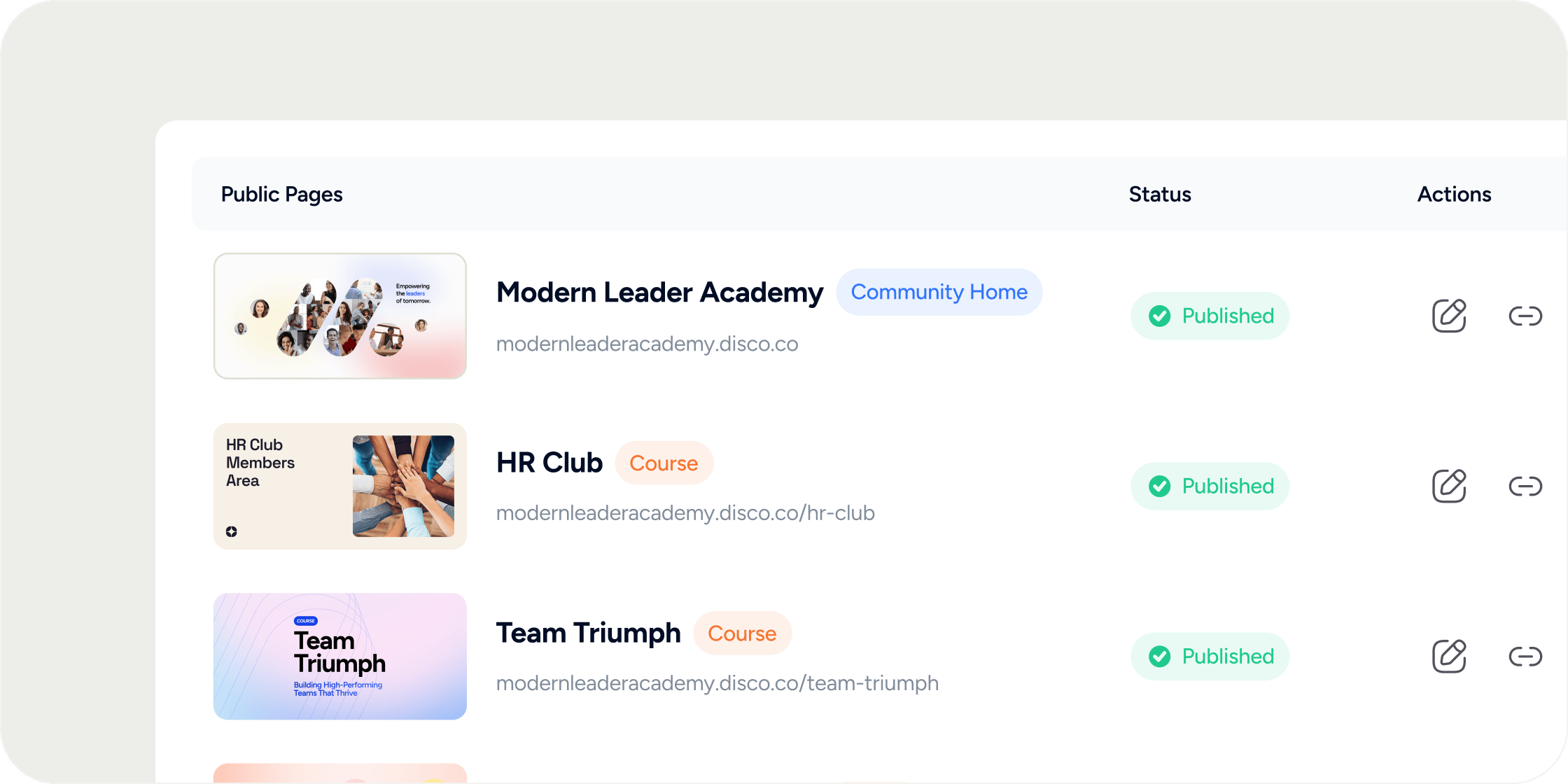
Each Program’s Public Page has its own inline editor where you control the cover image and description. Changes made here are what visitors see when they land on the page. Note that edits made in your general Program settings will not automatically update the Public Page content; you need to use the inline editor described below.- Navigate to Admin > Products > Public Pages.
- Locate the Program you want to edit in the table.
- Click the Edit icon to open the public-facing page.
- Click directly on the cover image to upload a new one, or click on the description text to edit it using the inline editor.
- Click Save when you are done.
Modify SEO and Social Share Settings
Disco automatically generates meta titles and descriptions for each Public Page, but you can override them with your own copy. You can also upload a dedicated social share image so that links shared on social media render with the right visual.- Navigate to Admin > Products > Public Pages.
- Locate the Program whose SEO settings you want to update.
- Click the gear icon to open the settings drawer.
- Scroll to the SEO & Social Share Settings section.
- Update the meta title, meta description, and social share image as needed.
- Click Save.
FAQ
Does every Program automatically get a Public Page?
Does every Program automatically get a Public Page?
Only Programs set to public access get a Public Page. If your Program is set to private (invite-only), it will not have a publicly accessible page.
Why is my Public Page description not updating when I change the text in my general Program settings?
Why is my Public Page description not updating when I change the text in my general Program settings?
The Public Page description is managed separately through the inline editor on the Public Pages tab (Admin > Products > Public Pages). Changes made in other settings areas do not automatically sync to the Public Page. Open the Public Page editor directly and update the description there.
Can I edit the text on the checkout or registration page, such as "one time charge"?
Can I edit the text on the checkout or registration page, such as "one time charge"?
The checkout page includes some hard-coded text that cannot be edited, including payment frequency labels like “one time charge.” You can add a description to the product you are selling, but the payment terminology is fixed and reflects how the Member will be charged.
Will my Public Page show up in Google search results?
Will my Public Page show up in Google search results?
Yes. Public Pages are crawled by search engines. To improve discoverability, set a clear and specific meta title and meta description in the SEO settings for each Program.
Can I add custom intake or onboarding questions to the registration flow for a specific Program?
Can I add custom intake or onboarding questions to the registration flow for a specific Program?
Onboarding questions in Disco are set at the Academy level, meaning they apply globally to anyone who signs up. Program-specific registration intake questions are not configurable per Program. Contact Disco support if you need guidance on how to collect additional information from new Members.
Can I add a Facebook Pixel or third-party tracking scripts to the Public Page?
Can I add a Facebook Pixel or third-party tracking scripts to the Public Page?
Yes. The Facebook Pixel ID set in the integration settings drops the pixel on Public Pages, as long as the end user has consented to the cookie banner.