

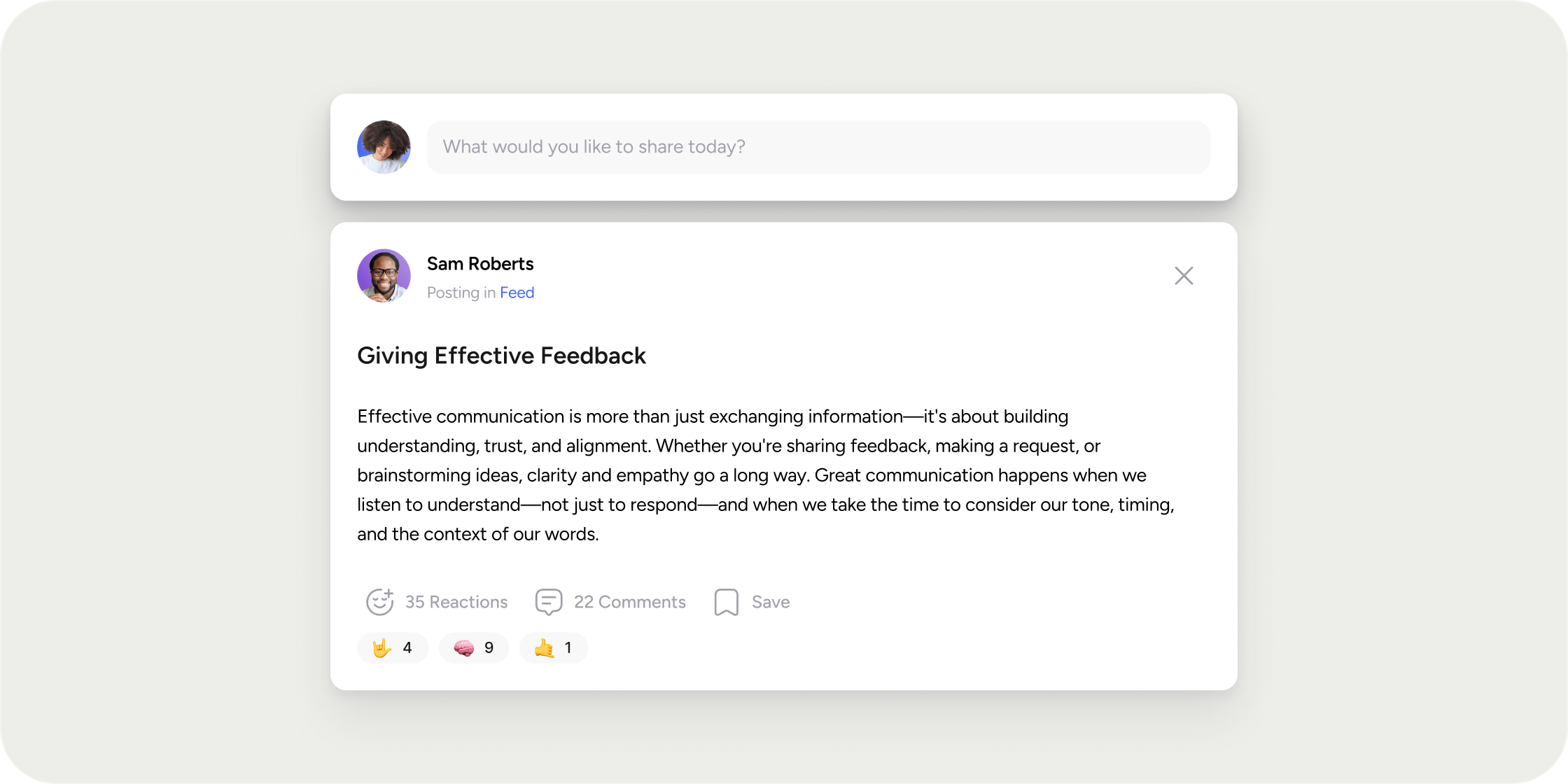
Overview
Each Feed you add appears as its own app in the left navigation and opens into a running list of posts. Feeds can live at the Academy level for site-wide updates, or inside a specific Program for targeted conversations with enrolled Members. When you create a Feed, you control two things separately: who can access it and who can publish in it. That makes Feeds flexible enough for one-way announcements, open discussion spaces, or targeted cohort conversations.Add a Feed
You add Feeds from the left navigation of either your Academy or a specific Program.- Click the + icon in the left navigation.
- Select Add app.
- Choose Feed.
- Set the icon, Title, section placement, and a description for the Feed.
- Configure who can access the Feed and who can post in it (see the next section).
- Click Complete setup.
Set access and posting permissions
Each Feed has two permission settings, configured independently when you create or edit the Feed. Access controls who can see the Feed app in the navigation. Choose between:- All Members (default): every Member of the Academy or enrolled in the Program
- Private: specific custom or system groups, or specific Members you select
- Admins and Owners only
- Everyone who can access the Feed
- Custom: specific groups (custom or system) or specific Members
Create a post
Open any Feed and click the Share a post field at the top to open the post modal.- Add a Title and Body. Both are required.
- In the header dropdown, confirm which Feed the post will publish to. You can switch to any Academy-level or Program-level Feed you have permission to post in.
- Toggle comments on or off using the control next to the close icon.
- Click Post in the bottom right to publish.
- Events, Programs, Content, Surveys, or Pathways
- Images placed at your cursor position
- Buttons, videos, audio, or polls
- AI-generated copy via Write with AI, where you enter a prompt and drop the result into the body
- File attachments via the paperclip icon
Schedule a post
Scheduling is available only in Program-level Feeds. Create your post as usual, then click the dropdown arrow next to the Post button and select Schedule.- Review the email body preview.
- Choose the Date and Time you want the post to publish. Time uses your local time zone.
- Update the Email subject if you want a different line in the notification email.
- Click Send preview to email yourself a test, or click Schedule to queue the post.
Manage scheduled posts
You can view, edit, or cancel a scheduled post from the Feed it is queued in.- Open the Feed.
- Under the Share a post field at the top, look for the line that reads You have [N] scheduled posts.
- Click that link to open the scheduled posts drawer.
- Click the three-dot overflow icon on any card to Edit or Delete it.
Manage published posts
Every published post has a three-dot overflow menu in the top right. Click it to:- Pin the post, which adds it to the pinned posts sidebar on the Feed dashboard
- Share a direct link to the post
- Edit the post (if you own it)
- Delete the post
- Flag the post if it violates Academy guidelines
Add a Feed block to a dashboard
You can surface posts on any Academy or Program dashboard using the Feed block.- Open the dashboard and click Add block.
- Choose Feed from the Add new block modal.
- Select a format: Carousel or Scrollable.
- Optionally edit the block title, enable Hide on mobile, or (for carousel) enable Show post cover image. Both toggles are off by default.
Post Views
Disco records a Post View when a Member is exposed to a published post. These placements can record a Post View:- The Feed block on a dashboard, in Scrollable presentation
- The Feed app itself
- The post drawer, which opens when a Member selects a post
What counts as a view
A post is considered viewed after it has remained visible on the Member’s screen for at least 3 seconds. The body of the post must be shown. A dashboard carousel card does not count because it only shows post title and metadata. Cards that sit off screen do not count. These do not record a Post View:- Scheduled posts, including the scheduled posts list
- The preview shown while creating or editing a post
- The pinned posts sidebar, which lists post titles rather than the posts themselves
- Reading a post in a New Post notification email. Opening the post from the email does record a Post View.
How repeat views are counted
Disco can count more than one Post View for the same Member and post. For example, a Member who sees a post in the Feed app and then opens it in the post drawer can record two Post Views, as long as the post stays visible for 3 seconds each time.Post Views are available from the point Disco started recording them. Views that happened before then are not backfilled, but every post records views from that point on, including posts published earlier.