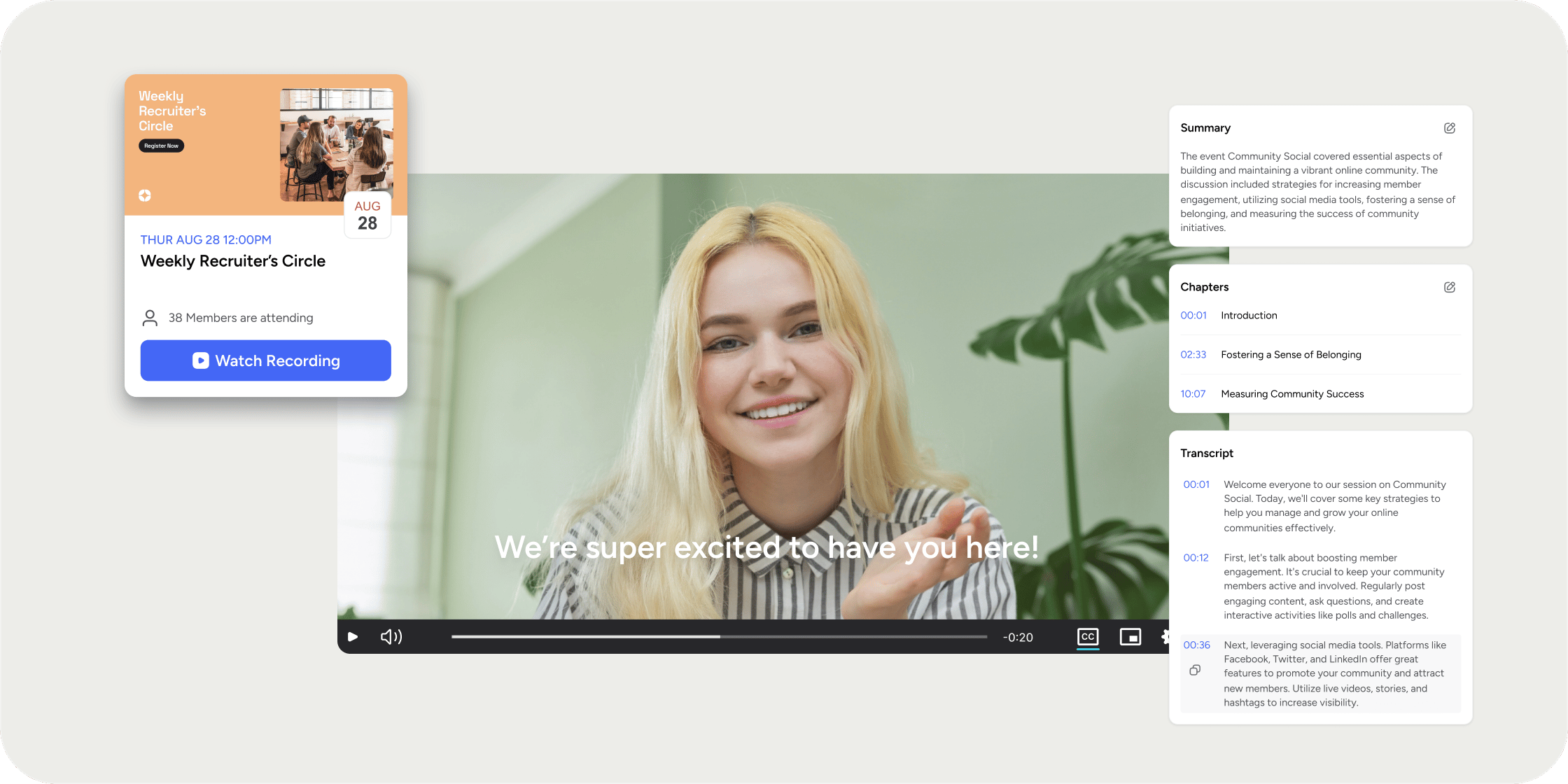
Keep event recordings on record for members to continue to experience when the event is over. Event Recording Event recordings can be uploaded directly to the Event page and will remain visible on the Events sidebar tab under Event with Recordings. To upload an event recording, you can either:
  1. Manual upload: Owners and admins can upload a video recording to any past event from the event drawer.
  2. Zoom auto-upload: Enable auto-upload for a Zoom integration from Admin > Integrations. Once an event ends, if cloud recordings are available for the connected Zoom meeting and overlap with the event’s scheduled time, the longest recording is automatically uploaded and attached to the event. The recording is stored in the media library.

FAQ

How do I set up Zoom recording auto-upload? Go to Admin > Integrations, find your Zoom integration, and enable auto-upload. Before creating events, confirm that the Zoom account has the “Use Personal Meeting ID (PMI) when scheduling a meeting” setting disabled in Zoom. Auto-upload does not work with personal meeting rooms. Only the user who originally connected the Zoom account can toggle this setting.