

Overview
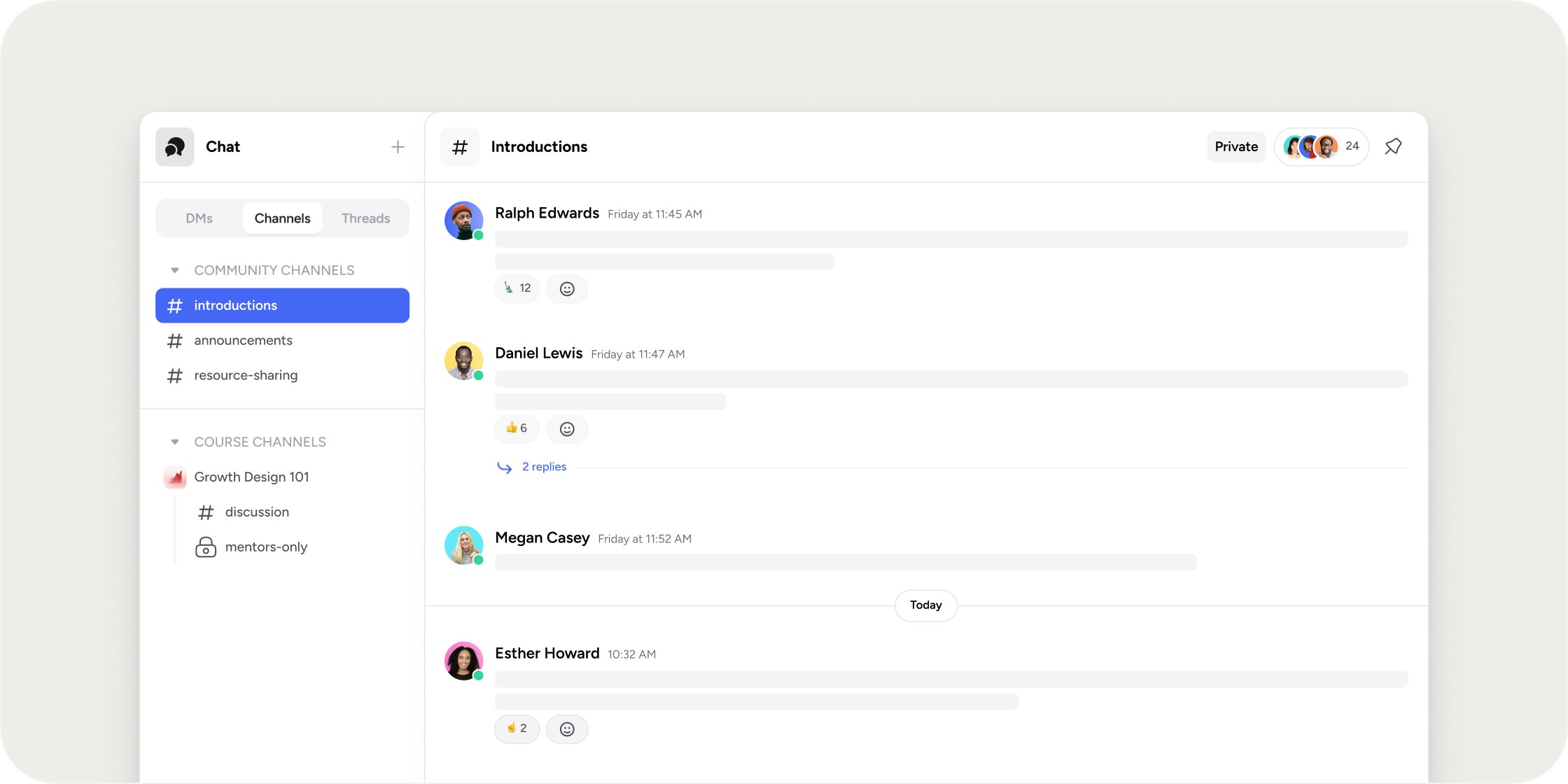
Each Channel has a name, a running message history, threaded replies, and @-mentions. Admins control who has access instead of Members self-selecting. Channels can live at the Academy level or inside an individual Program, making it easy to separate broad academy-wide conversation from Program-specific discussion. At either level, a Channel can be open to everyone in scope or restricted to specific Members and Member Groups. Channels are enabled by default. If they have been turned off on your Academy, an Admin can turn them back on under Admin → Appearance → Sidebar by enabling the Channels toggle and clicking Save.Create an Academy-Level Channel
- From the Academy Home page, click the + icon at the top of the left sidebar and select Add App.
- Select Channel from the modal.
- Configure the Channel:
- Icon and title: shown in the sidebar.
- Description: tells Members what the Channel is for.
- Access: choose All Members to open the Channel to everyone in the Academy, or restrict it to specific Members and Member Groups.
- Click Save Changes.
Create a Program-Level Channel
- Open the Program and click the + icon on the Program tab, then select Add App.
- Select Channel from the modal.
- Configure the Channel. Access can be opened to every Member enrolled in the Program or restricted to specific Members and Member Groups.
- Click Save Changes.
Post Messages
Open any Channel to load its message history, its header, and the message input at the bottom of the page. From the input, post messages with rich text (bold, italic, strikethrough, links, bulleted and numbered lists), emoji, and file, image, or video attachments. The input also lets you attach other Disco content. Attach an Event, a piece of Content, a Program, or a Survey and it posts as a link card Members can click to open the attached item. For help drafting a message, click Write with AI in the input. Describe what you want to say and Disco generates a draft dropped directly into the input. Review the draft and send it manually. Write with AI never posts a message on its own. POV Set a clear purpose in the Channel description before inviting Members in. A Channel with an obvious topic (“Week 3 cohort discussion”) draws better participation than a generic one (“general”).Mention Members and the Channel
To pull attention to a message, type @ in the input and select a Member to mention them directly, or type @channel to notify everyone in the Channel. Individual @-mentions are always available. Use of @channel can be restricted to Admins under Admin → Settings.Start a Thread
Reply to any message to start a thread. Thread replies open in a thread pane to the right of the main feed, keeping follow-on conversation attached to the message that started it and out of the main Channel timeline.Pin a Message
Hover any message and select Pin from its options bar. Pinned messages collect in a pane opened from the pin icon in the Channel header. Use pinning to surface announcements, rules, or links Members should be able to find quickly. Unpin a message from either spot. Pinning is Admin-only. Members can react, reply in threads, and post, but they cannot pin.Per-Message Actions
Hover a message to reveal its options bar. Anyone in the Channel can:- Add a reaction
- Reply in a thread
- Quote reply
- Copy a link to the message
- Mark as unread
Manage a Channel’s Settings
Open the 3-dot menu in the Channel header to open the Channel Settings drawer. It includes five tabs:- Details: edit the Channel’s name, icon, and description.
- Access: visibility is locked after creation. For private Channels, add or remove Member Groups and individual Members here. If a removal would leave the Channel without any Admin, Disco blocks the save and shows a warning.
- Notifications: sets your own notification preference for this Channel: All New Messages, @ Mentions (default), or Off.
- Members: a read-only list of everyone with access, grouped by Member Group, Admins, and Members.
- Pins: the list of pinned messages.
Delete a Channel
From the 3-dot menu, select Remove. Disco warns you that deletion is permanent before proceeding. There is no archive. Removing a Channel wipes its message history, and Disco cannot recover it. If you want a Channel out of the sidebar without losing the conversation, restrict access to a smaller group rather than deleting.Settings and Configurations
Channels Enabled (Academy-Wide)
Channels are on by default. Turn them on or off for the whole Academy under Admin → Appearance → Sidebar. Turning Channels off hides them for everyone without deleting existing Channels or their history.@channel Permissions (Academy-Wide)
Under Admin → Settings, choose who can use @channel across the Academy:- Admins Only: only Owners and Admins (including Program Managers and Instructors) can notify everyone in a Channel.
- Everyone: any Member in a Channel can use @channel.
Per-Channel Settings
Each Channel’s identity and access is editable from the Channel Settings drawer:- Name and icon: displayed in the sidebar for every Member with access.
- Description: shown as a tooltip when hovering the Channel name in the header. Use it to clarify what belongs in the Channel.
- Access: visibility (public or private) and, for private Channels, the list of Members and Member Groups that can see and post.
Notification Preferences (Per Member)
From the Notifications tab of any Channel Settings drawer, a Member can set their own email and push notification preference for that Channel:- All New Messages: notifications for every new message.
- @ Mentions (default): notifications only when the Member is @-mentioned or when someone replies in a thread they are part of.
- Off: no email or push notifications for that Channel.