

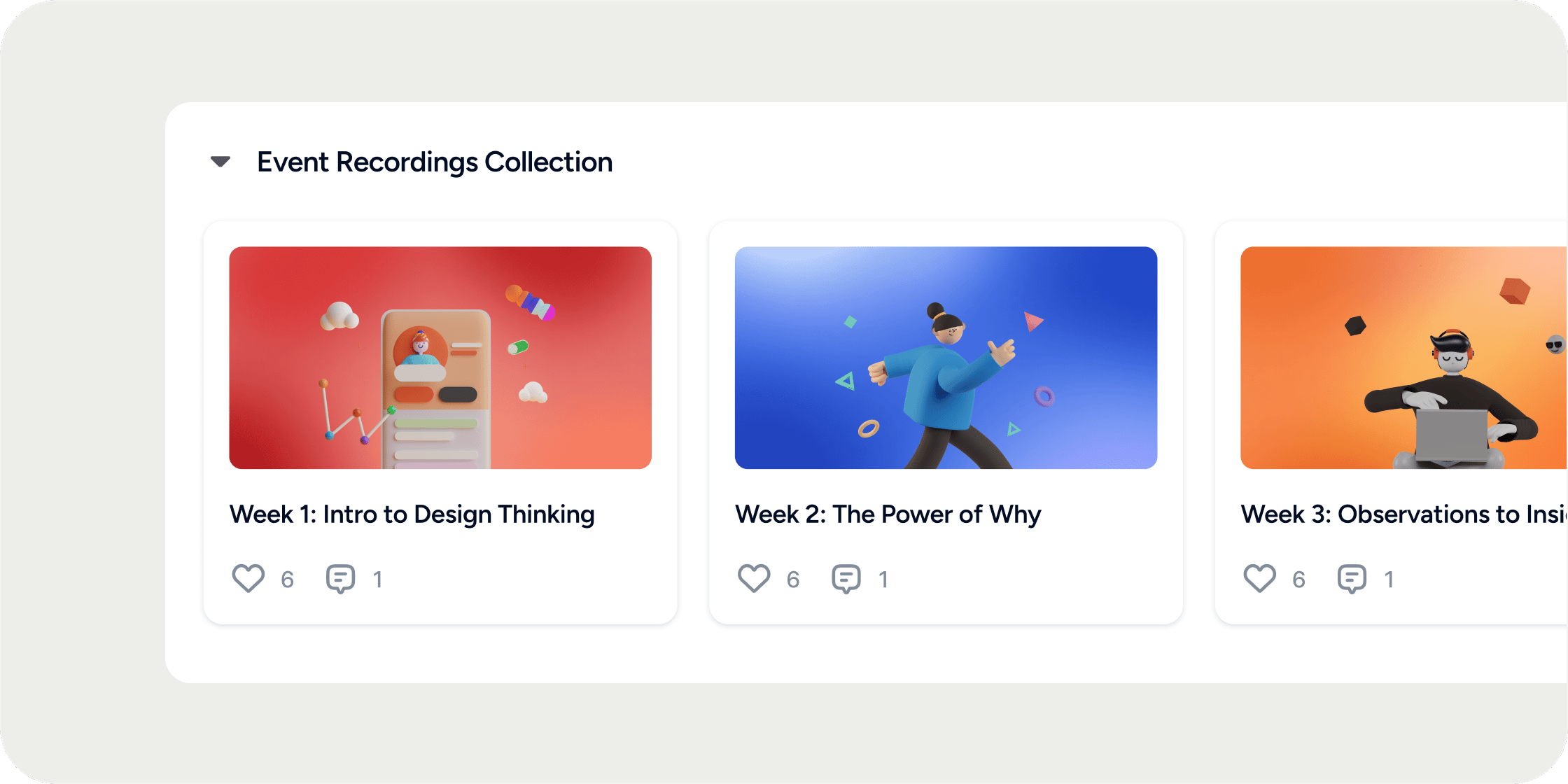
Overview
Collections are designed for resource libraries, directories, and grouped assets like partner discounts, recorded webinars, and document stores. Unlike a Curriculum, a Collection is not sequential and does not track lesson completion. You can add a Collection to a Section or to a Program, and organize its contents into Folders for easier navigation.Add a Collection
Follow these steps to add a new Collection to your Academy.- Hover over a Program or Section in the left navigation.
- Click the + icon.
- In the modal, select Collection.
- Configure the settings:
- Icon & title: Appears in the left navigation. Keep it short.
- Description: Explains the purpose of the Collection to Members.
- Access: Choose which Members or Groups can view the Collection.
- Save your settings and start adding content.
Add Content to a Collection
Open the Collection and click + Add Content. Choose a content type such as text, video, file, or embed. Fill in the details and save to publish. To embed a YouTube video, create a new content item, select the Text type, and paste the YouTube URL into the editor. The video renders as an embedded player for Members.Organize Content with Folders
Folders group related content inside a Collection.- Open the Collection.
- Click + and select Folder.
- Name the folder and save.
- Drag content items into the folder to group them.
Copy a Link to a Folder
Hover over the Folder, click the overflow icon (…), and select Copy Link. The link opens the Collection with that Folder expanded and in view.Control Access
Use the Access setting when creating or editing the Collection to choose who can view it. Grant access to individual Members or to Groups. Admins and Managers keep edit access inside the Programs and Sections they are assigned to.POV: Curriculum vs. Collection
Reach for a Curriculum when Members need to complete lessons in a set sequence and you need progress tracking and completion rates. Reach for a Collection when the content is a reference library, resource set, or directory that Members browse on their own terms. If you need tracked completion for an asset that also lives in a Collection, re-add that asset to a Curriculum lesson so completion data shows up there.FAQ
Does a Collection track completion or progress?
Does a Collection track completion or progress?
No. Collections do not have a Complete & continue button or a Member-facing progress bar. Only Curriculum Apps track lesson completion. If you need tracked completion for a specific piece of content, re-use it in a Curriculum lesson.
Can I see who has viewed Collection content?
Can I see who has viewed Collection content?
Yes. The Analytics tab on a Collection shows which Members have opened each item. Only Admins can view Analytics. A view is different from a Curriculum completion.
Can I embed a YouTube video in a Collection?
Can I embed a YouTube video in a Collection?
Yes. Create a new content item, choose the Text type, and paste the YouTube link into the editor. The video embeds as a player.
Can I reorder content or Folders inside a Collection?
Can I reorder content or Folders inside a Collection?
Yes. Drag content items or Folders to rearrange them. If an item disappears during a drag, refresh the page and try again.
Can I save Collection content as a draft or schedule it to publish later?
Can I save Collection content as a draft or schedule it to publish later?
Not at this time. New content publishes as soon as you save it. Draft status and scheduling are open feature requests.
Can Collection content also appear in a Curriculum?
Can Collection content also appear in a Curriculum?
Yes. When you add Collection content to a Curriculum lesson, it becomes a separate lesson entry and shows completion data inside the Curriculum. The original entry in the Collection still shows no completion status.