

Overview
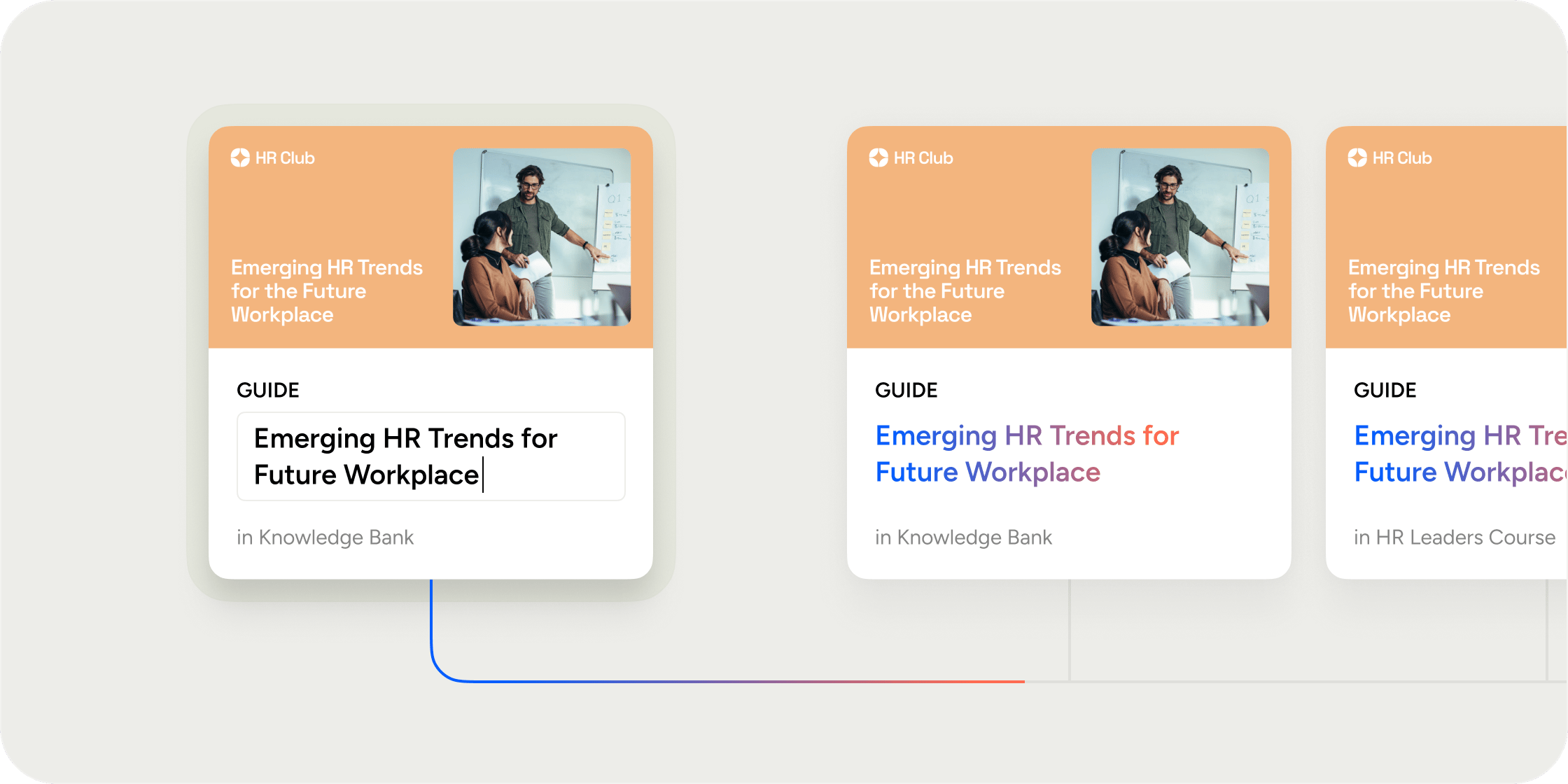
Content is Disco’s central system for creating and managing reusable learning material. You create a piece of content once, add it to as many programs or collections as you need, and any edits to the original automatically apply everywhere it’s used. Two types of content exist: reusable content (lessons, assignments, quizzes, surveys, tasks) that can be shared across your Academy, and non-reusable content (posts, comments) that lives in one place. Admin access is required to create and manage content.Understand the Content Library
The Content Library is your central hub for all reusable content across your Academy. Access it by navigating to Admin Area → Content. The library displays a table with each content item’s name and type label. From here you can:- Search content by name
- Filter and sort to narrow results
- Hover over the instances count to see every program or collection where a piece of content is in use
- Select multiple items and use Bulk Delete to clean up content at scale
Create Content from the Content Library
Creating content from the library is the best starting point when you plan to reuse it across multiple programs.- Navigate to Admin Area → Content.
- Select Add Content.
- Choose a content type: Lesson, Assignment, Quiz, Survey, or Create with AI.
- Add a title and description using the rich text editor. Type / to access block commands, embed media inline, or mention events, programs, or other content.
- Add a Featured Media to the top of your content. See the “Featured Media for Lesson Content” section below.
- Upload any attachments and reorder or remove them as needed.
- Under the content Settings, add a custom label if your Academy uses different terminology. Labels are cosmetic, they indicate what the content is called but not how it behaves.
- Add a custom thumbnail if you want a distinct image to appear in content listings.
- Select Save.
- Add Content as instance to:
- a Program > Curriculum > Module
- a Collection app > under a Folder
Add Existing Content to a Program or Collection
Once content exists in your library, you also add it to from within a program or collection app:- Open the program or collection where you want to add the content.
- Navigate to the Curriculum app or Collection app.
- If you’re working in a curriculum, select or create a module first.
- Select Add New > From Existing Content.
- Find the existing content item and select Use.
- Navigate to the specific instance and adjust any instance-level settings, such as enabling comments or adding prerequisites.
- Select Save to apply the instance settings.
Create NEW Content from Inside a Program
You can create new content directly within a program or collection without going to the library first.- Open the program and navigate to the Curriculum app or Collection app.
- Select or create a module if you’re in the curriculum.
- Select Add New or a “+” icon from a module.
- Choose a content type:
- Content: Lesson, Assignment, Quiz, Survey
- Product Tasks: Complete Profile, Event RSVP, Connect Slack
- Create with AI.
- Add a title, upload media, and use the rich text editor to build the content.
- Upload any attachments and reorder or remove them as needed.
- Configure settings such as prerequisite, content label, thumbnail,…
- Select Save. The content is created and added to the program simultaneously.
Featured Media for Lesson Content
For each Lesson Content, you have a choice of featuring a media on top of the lesson as a cover. This can be:- An image, a video, or an audio uploaded from your device.
- An image using our branded template, generated with AI, or from Unsplash.
- A SCORM .zip file
- An embed hosted on various sources, such as: YouTube, Loom, Google Doc, Typeform, Miro, PDFs, and many more.
- A custom HTML or generic iFrame code.
FAQ
What is the difference between reusable and non-reusable content?
What is the difference between reusable and non-reusable content?
Reusable content, including lessons, assignments, quizzes, surveys, and tasks, can be shared across multiple programs and collections as instances. Non-reusable content, like posts and comments, lives in one place and cannot be shared this way.
If I edit the original content in the library, will instance-specific settings like prerequisites or comments be affected?
If I edit the original content in the library, will instance-specific settings like prerequisites or comments be affected?
No. Edits to the root content (title, description, media) update across all instances. Settings you configure at the instance level, such as prerequisites or comment toggles, remain unique to each instance.
Can I change the content type after I've created it?
Can I change the content type after I've created it?
No. Content type is set at creation and cannot be changed afterward. If you need a different type, create a new content item.
Can I customize the branded cover image template?
Can I customize the branded cover image template?
Not yet. Each location has one template designed for its dimensions and layout. You can update your brand color in Admin Area → Appearance → Theme → Primary Color. Changing your brand color will not automatically regenerate images that were already created. But we made it easy for you to regenerate easily in each content by just clicking a button.
What happens if I delete content that is used in multiple places?
What happens if I delete content that is used in multiple places?
Disco shows an impact preview listing every instance that will be affected. Review it before confirming the deletion, as removing the root content removes it from all instances.
Can I see where a piece of content is being used before I edit or delete it?
Can I see where a piece of content is being used before I edit or delete it?
Yes. In the Content Library, hover over the instance count next to any content item to see a list of every program and collection where it currently appears.