

Overview
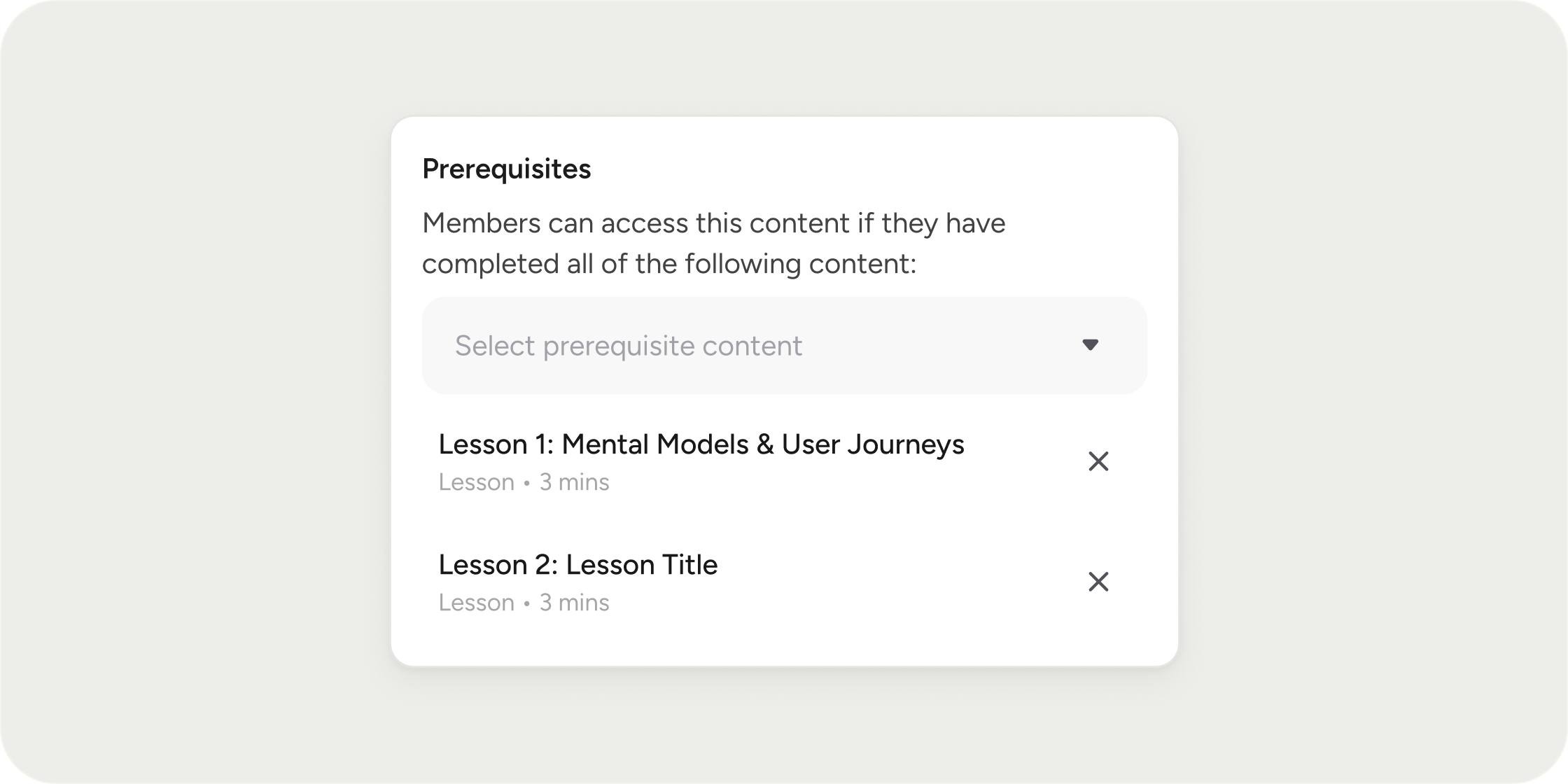
Prerequisites give you control over the sequence in which Members move through a curriculum. You can lock an entire module and all of its lessons, or lock individual lessons within a module, until Members complete the content you specify. This prevents Members from skipping ahead and ensures they build knowledge in the right order. Prerequisites are available exclusively in the Curriculum app. No other apps support this feature.Set Prerequisites on a Module
Module-level prerequisites lock an entire module and all lessons within it until Members complete one or more earlier modules. To enable prerequisites on a module, your curriculum must already contain at least one other module. If the curriculum is empty, the prerequisites toggle will be unavailable. To add prerequisites when creating a new module:- Navigate to your Program, then open the Curriculum app.
- Click Add Module.
- Enter a required module title.
- Toggle on Set up Prerequisites.
- Select one or more modules from the dropdown. Each selected module appears as a list item below the dropdown.
- To remove a prerequisite, click the X icon next to the module name.
- Click Create Module.
- Navigate to your Program, then open the Curriculum app.
- Click the module you want to edit and select Edit Module.
- Toggle on Set up Prerequisites.
- Select one or more modules from the dropdown.
- To remove a prerequisite, click the X icon next to the module name.
- Click Save Changes.
Set Prerequisites on a Lesson
Lesson-level prerequisites lock a single lesson until Members complete specific other lessons within the same module. This gives you fine-grained control over sequencing within a module, independent of module-level rules.- Navigate to your Program, then open the Curriculum app.
- Select the lesson you want to lock.
- Open its Settings panel in the right-hand sidebar.
- Toggle on Set up Prerequisites.
- Select one or more lessons from the dropdown. The dropdown lists all other content within the same parent module.
- To remove a prerequisite, click the X icon next to the lesson name.
- Click Save.
Examples
Bootcamp: A coding bootcamp locks Module 3: Advanced JavaScript behind completion of Module 2: JavaScript Fundamentals. Members cannot access advanced topics until they have worked through the foundational content. Cohort course: A leadership development course locks a final reflection lesson behind completion of all prior readings and a graded quiz within the same module. Members must engage with source material before writing their reflection. Professional community: A compliance training Program locks the certification module behind three prerequisite modules covering policy, ethics, and process. Members follow a defined credentialing path from start to finish.FAQ
Can I set lesson-level prerequisites that reference lessons in a different module?
Can I set lesson-level prerequisites that reference lessons in a different module?
What happens if a Member has only completed some of the required prerequisites?
What happens if a Member has only completed some of the required prerequisites?
Can I select a later module as a prerequisite for an earlier module?
Can I select a later module as a prerequisite for an earlier module?
Will I see locked content when using View as Member?
Will I see locked content when using View as Member?
Do Members need to mark content as complete to satisfy a prerequisite?
Do Members need to mark content as complete to satisfy a prerequisite?
Can I combine prerequisites with a release date on the same module?
Can I combine prerequisites with a release date on the same module?
Is there a way to gate video content specifically so Members must finish watching before continuing?
Is there a way to gate video content specifically so Members must finish watching before continuing?
What do Members see when they try to access locked content?
What do Members see when they try to access locked content?
If I duplicate a course, do the prerequisite settings carry over?
If I duplicate a course, do the prerequisite settings carry over?
Is there a limit to how many prerequisites I can select?
Is there a limit to how many prerequisites I can select?
Can I remove prerequisites from a module after the course has already launched?
Can I remove prerequisites from a module after the course has already launched?
How can I check a Member's completion status to troubleshoot a locked module?
How can I check a Member's completion status to troubleshoot a locked module?