

Overview
Media Assets gives admins a single place to upload, manage, and reuse files across all content in your Academy. Every file you upload is stored here, whether added directly to the library or attached while building content. The library tracks how many times each asset is referenced, making it straightforward to identify and clean up files you no longer need.Find Your Media Assets
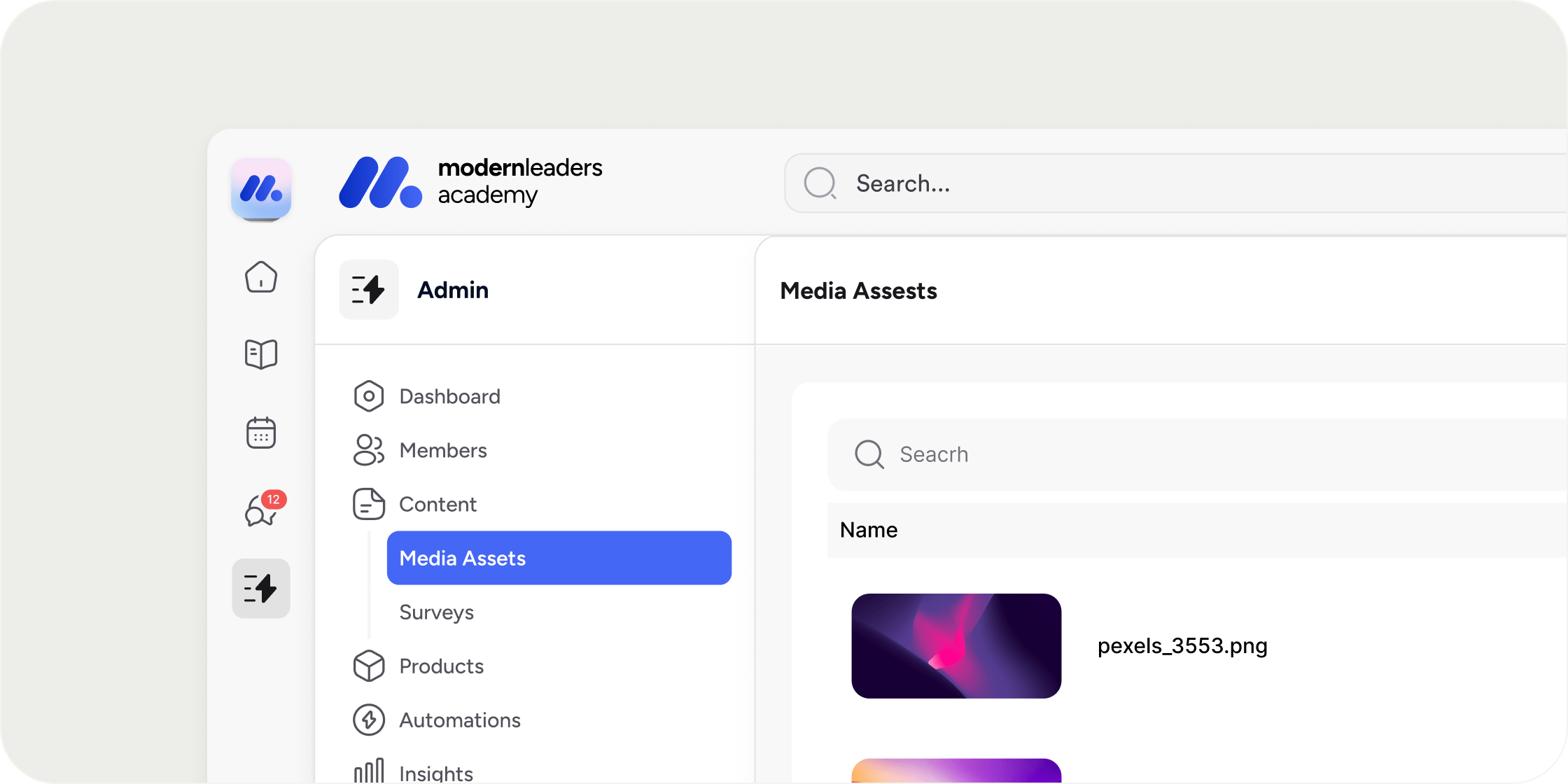
Navigate to Admin → Content → Media Assets from the left navigation. The media library displays a table of all files in your Academy. For each asset you can see:- Name: the file’s display name
- Size: the file size
- Kind: the file type (image, video, audio, document)
- Used: the number of times the asset is referenced across your Academy
Filter and Sort Your Media Library
Use the toolbar at the top of the table to filter the library to a specific file type: Images, Video, Audio, or Documents. Sort the table by any column: Name, Size, Used, or Upload Date. Use the Used column to quickly identify assets that are actively in use or sitting unused.Upload Media Assets
You can add files to your media library in two ways: directly from the Media Assets page, or inline while creating content.Upload from the Media Assets page
- Go to Admin → Content → Media Assets.
- Click Add Media.
- Select one or more files from your file explorer.
Upload while creating content
When building any piece of content in Disco, you can upload or select media files inline without leaving the editor.- Open any content editor. For example, click the global + in the bottom left and select Lesson.
- Click Cover Image, Cover Audio, Cover Video, or Attachment depending on the media type you want to add.
- In the popover that opens, drag and drop a file, click to browse your computer, or select an existing file from the grid of available assets.
Supported File Types
The file types available depend on the media slot you are filling.- Cover Images: PNG, JPEG, GIF, and other common image formats
- Cover Audio: MP3, MPGA, WAV, OGG, OGA, AAC, M4A
- Cover Video: MP4
- Attachments: PNG, JPEG, GIF, MP4, MP3, CSV, TXT, MD (Markdown), PPTX (PowerPoint), XLSX (Excel), ZIP, subtitle files, and other common document and media formats
Crop an Image to Fit
When you select an image that is larger than the recommended dimensions for a given placement, Disco opens a crop tool automatically. Adjust the framing in the cropper before saving to ensure the image displays correctly.Generate an Image with AI
From any Cover Image popover, you can generate a brand-new image using AI instead of uploading one.- Click Cover Image on any content type.
- Click Generate in the popover.
- Enter a prompt describing the image you want.
- Select the generated image to apply it.
FAQ
Can I delete an asset that is currently in use?
Can I delete an asset that is currently in use?
Yes. Open the overflow menu on any asset and select Delete. Be aware that deleting an asset that is actively referenced in content will remove it from those placements. Check the Used column before deleting to understand the scope of the change.
Why does an asset still show as "in use" after I deleted the content that referenced it?
Why does an asset still show as "in use" after I deleted the content that referenced it?
The Used count reflects all active references across your Academy, including cover images, lesson attachments, pinned resources, and other placements. If the count remains above zero after deleting content, the asset may still be referenced elsewhere. Search for other locations where it may have been added and remove it from those placements to clear the count.
Can I bulk delete unused assets?
Can I bulk delete unused assets?
Not currently. To remove assets with zero uses, sort the library by the Used column to surface unused files, then delete them individually using the overflow menu.
What audio file formats does Disco support?
What audio file formats does Disco support?
Disco supports MP3 and other audio formats for cover audio. The Attachment slot accepts a broader range of file types. The supported list is shown inside each popover when you open it.
Why does my image look stretched after uploading?
Why does my image look stretched after uploading?
If an image appears distorted, it likely does not match the recommended dimensions for that placement. Use the built-in crop tool that appears automatically during upload to adjust the framing to fit. If the image is already placed and looks off, remove it and re-upload it to access the cropper.
Can I rename an asset after uploading it?
Can I rename an asset after uploading it?
Yes. Open the overflow menu on any asset in the media library and select Rename.
Can I download a copy of an asset from the library?
Can I download a copy of an asset from the library?
Yes. Open the overflow menu on any asset and select Download.
Does uploading a file inline while editing content also save it to my media library?
Does uploading a file inline while editing content also save it to my media library?
Yes. Any file you add through a content editor popover is automatically saved to your media library and available for reuse, whether uploaded from your computer or generated with AI.