

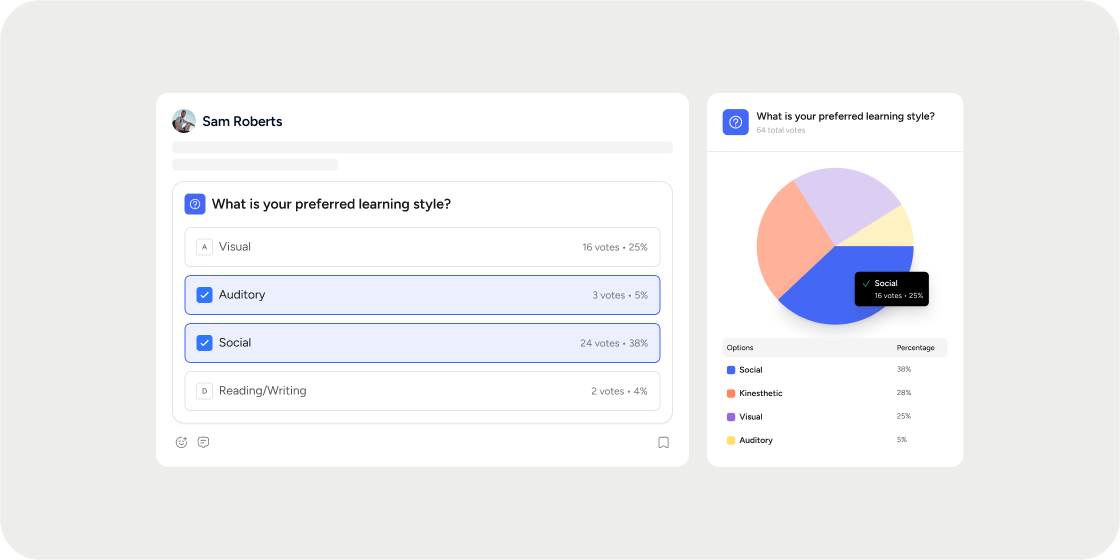
Overview
Surveys give admins a flexible way to gather feedback, run self-assessments, or check in with members at any point in their experience. Unlike quizzes, surveys are not scored and questions are not required by default. You can use surveys academy-wide via a share link or embed them directly inside a Program’s curriculum. A survey can have multiple instances across your academy, and each instance tracks its own results independently.Access the Surveys Page
The Surveys page is your central hub for creating, searching, and managing all surveys in your academy.- Click Admin in the left navigation.
- Select the Content tab.
- Click Surveys.
Create a Survey
There are two ways to create a new survey:- From the Surveys page: click Add Survey in the top right corner.
- From anywhere in the academy: click the global + button, select Content, then choose Survey.
- Enter a title.
- Add a body using the rich text editor. Text, images, embeds, and other content blocks are all supported, the same as other content types.
- Click Setup Questions to begin adding questions.
Add and Configure Questions
Surveys support five question types. Click Add Question to get started, then select the type you want. Single Select Members choose one option from a list. Add options one at a time using the Add Option button, drag the handle to reorder them, or click X to remove one. You can also click Create options with AI to generate options automatically based on your question text. Note: AI option generation replaces any options you have already typed. Use it before adding manual options, not after. Multiple Select Members choose one or more options from a list. Configuration works the same way as Single Select. Rating Members rate on a numeric scale. Choose from 1-5, 1-10, or 0-10. Add an optional label at the low and high ends (for example, “Very poor” and “Very good”) to guide responses. Ranking Members order all options by dragging and dropping or by selecting a number from a dropdown. The order you set in the editor is the default display order shown to members. Options are not randomized. Written Answer Members type a free-form response with no predefined options.Require a question
Survey questions are not required by default. To require a member to answer a question before advancing, toggle Required on for that question. A member cannot continue past a required question without answering it.Duplicate or delete a question
Use the buttons in the bottom right of each question card to duplicate or delete it. When you are done building questions, click Done to save them, then click Save Changes to save the full survey.Share a Survey Academy-Wide
Every survey has one community share link instance. This is the primary way to distribute a survey to your full academy membership. When you save a survey for the first time, a share popup appears automatically. Copy the link and share it anywhere: a chat message, a post, an email, or any other channel you use to reach members. Only existing members of your academy can open the survey via this link. Non-members who click the link will not have access. If you close the popup before copying the link, return to Admin > Content > Surveys, find the survey, and open it. The settings panel shows the community instance with a copy link option. Note: Surveys cannot be added directly to a Collection. The share link is the recommended path for academy-wide distribution outside of a curriculum.Add a Survey to a Curriculum
Surveys can be added as items inside a Program’s curriculum, where members complete them as part of the structured learning flow.- Navigate to the Program and open its curriculum.
- Inside a module, click the + add button.
- Select Survey to create a new survey, or choose an existing one.
- Configure the questions and click Save.
View Survey Results
To review submissions for a survey:- Go to Admin > Content > Surveys.
- Find the survey and click to open it.
- Click View Results.
Results are per instance
Each survey instance tracks results independently. If the same survey exists as both a curriculum item and a community share link, the submissions from each are stored separately and must be viewed from their respective instances.FAQ
Are survey questions required by default?
Are survey questions required by default?
No. Survey questions are optional by default, which differs from quiz questions, which are required by default. Turn on the Required toggle for any question where you want to prevent the member from advancing without answering.
Can members who are not part of my academy fill out a survey?
Can members who are not part of my academy fill out a survey?
No. The share link is accessible only to existing members of your academy. Non-members who click the link will not be able to open the survey.
Can I add a survey to a Collection?
Can I add a survey to a Collection?
No. Surveys can only be added to a Program’s curriculum or shared via the academy-wide community share link. Collections do not support surveys.
If I reuse the same survey in multiple places, are the results combined?
If I reuse the same survey in multiple places, are the results combined?
No. Each instance tracks results separately. A survey added to a curriculum and the same survey shared via the community link will have two completely distinct result sets. If you need a single result set across all Members who complete the survey regardless of which curriculum they open it from, you can paste the community share link inside a Lesson’s content, instead of creating a new instance of the survey directly in the curriculum module.
Why does my curriculum survey show a second instance I did not create?
Why does my curriculum survey show a second instance I did not create?
No. Each instance tracks results separately. A survey added to a curriculum and the same survey shared via the community link will have two completely distinct result sets. If you need a single result set across all Members who complete the survey regardless of which curriculum they open it from, you can paste the community share link inside a Lesson’s content, instead of creating a new instance of the survey directly in the curriculum module.
Can I generate answer options with AI?
Can I generate answer options with AI?
Yes, for Single Select and Multiple Select questions. Click Create options with AI and Disco will generate options based on your question text. This replaces any options you have already typed, so use this feature before adding manual options.
Can I see aggregate results for Written Answer questions?
Can I see aggregate results for Written Answer questions?
No. The Question Summaries tab does not aggregate written responses. To read written answers, review each member’s submission individually in the Individual Submissions tab.
Does Disco calculate a score at the end of a survey?
Does Disco calculate a score at the end of a survey?
No. Surveys are designed for qualitative feedback collection, not scoring. They do not calculate totals or show results to members after submission. If you need scored assessments, use a Quiz instead. For self-assessments that require custom scoring logic and automatic result displays, consider embedding an external tool such as Google Forms or Typeform via an iframe block in a curriculum lesson.
Can I run a survey at multiple points across a multi-week program?
Can I run a survey at multiple points across a multi-week program?
Yes. The most straightforward approach is to create a separate survey for each checkpoint and add each to its corresponding curriculum module. Each survey tracks its own results independently, so you can analyze responses by module. Alternatively, you can reuse the same survey across multiple modules, but each instance will have separate results, so you will need to view them individually.
Can I filter survey results by sub-group?
Can I filter survey results by sub-group?
Sub-group filtering is not currently available in survey results. This has been requested by customers and flagged to the product team as a feature request.