

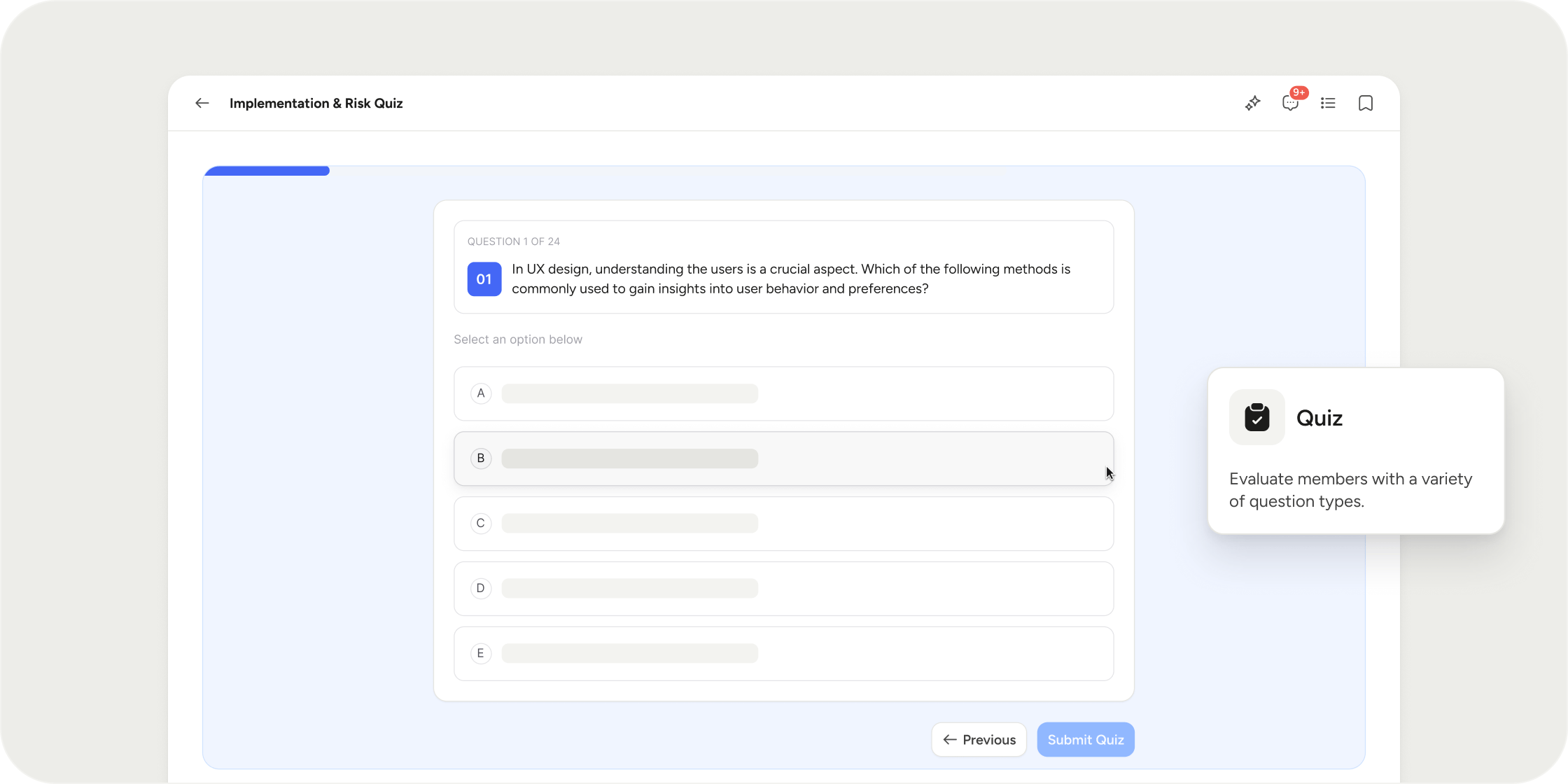
Overview
Quizzes live inside curriculum modules in a Program. Admins can build them manually with custom questions and answer keys, or generate questions with AI based on existing module content. After members complete a quiz, admins have access to detailed submission reporting, including individual responses and aggregate analytics. Quizzes are only supported inside curriculum modules.Create a Quiz
You can add a quiz directly from the curriculum module where it will live.- Navigate to your Program’s Curriculum app. Click the Add button in the top-right corner of the module.
- Select Quiz from the content type list.
- Enter a Title for the quiz.
- Add a quiz overview or change the quiz background color in the gear setting icon. This will act as the quiz cover.
- Click Set Up Quiz to add questions.
- Choose the question type: single-select or multi-select.
- Enter the question text.
- Add the answer options.
- Select the correct answer key or keys.
- Repeat for each question.
- Optionally, add attachments to provide reference materials or use the text editor to provide any instructions or requirements.
- Click Save.
Quiz Content Settings
Access standard curriculum content settings from the Admin button > Settings.- Comments: Toggle on or off to control whether members can discuss the quiz with each other.
- Prerequisites: Use prerequisites to require members to complete specific content before they can access this quiz. Prerequisites are set at the instance level, meaning the same quiz can have different prerequisites across different Programs.
- Require a Passing Grade: This toggle controls whether a quiz is auto-completed or members are required to pass a specific percentage score.
- Off: Members complete the quiz once. No minimum score is required.
- On: Members have to score a minimum of the required passing grade to complete the quiz. Members can retry the quiz if they fail.
- POV: Enabling a passing grade is the right call for any quiz that gates progress or certification. It lets members retake the quiz until they pass, which is a better learning experience than a one-and-done attempt.
- Confirmation Checkboxes: Require members to check a box before marking the quiz complete. This is useful for acknowledging a policy or confirming they completed an offline task. This works the same way as the confirmation checkbox on lessons.
Review Submissions
After members complete a quiz, admins can review results at both the individual and aggregate level.- Open the quiz and select the Admin button > Submissions.
- The submissions sidebar shows:
- Total number of members who have viewed the quiz.
- Total number of submissions.
- Distribution of submission results.
- Recent submissions.
- Click View Quiz Submission to view detailed results.In the detailed submissions view, three tabs are available:
- Overview: The total number of members who have passed, the average score across all submissions, and the average time spent per submission. A table of all complete and incomplete submissions is shown below.
- Individual Submissions: Individual member submissions. If a passing grade is enabled and a member has made multiple attempts, all attempts are visible here.
- Question Summaries: Aggregate reporting with pie chart and bar graph visualizations of submission data.
FAQ
Can I edit a quiz after members have submitted responses?
Can I edit a quiz after members have submitted responses?
No. Once at least one member has submitted a quiz, it cannot be modified. To develop or iterate on a quiz in an active program, create it inside an unreleased module, refine it there, then move it to the live module when you are ready to release it.
What happens if I change the passing grade percentage after members have already taken the quiz?
What happens if I change the passing grade percentage after members have already taken the quiz?
Changing the pass percentage does not retroactively update previous results. If a member previously passed with a score below the new threshold, their status remains “pass.” If a member previously failed with a score above the new threshold, their status remains “fail.” Only new submissions are evaluated against the updated percentage.
Can members retake a quiz?
Can members retake a quiz?
It depends on your settings. If no passing grade is required, members cannot retake a quiz unless an admin deletes their submission. Note that answer keys are revealed to members upon completion. If a passing grade is enabled, members can retake the quiz as many times as needed to pass.
Can I use quizzes outside of a curriculum module?
Can I use quizzes outside of a curriculum module?
No. Quizzes are only supported inside curriculum modules and cannot be added to other content areas in an Academy.
How are in-progress submissions handled in reporting?
How are in-progress submissions handled in reporting?
Admins can view in-progress submissions in the submissions view, and their status will show as “incomplete.” Aggregate reporting across the overview tab and question summaries only includes completed submissions.
How does AI question generation work?
How does AI question generation work?
When you click Generate Questions, Disco generates quiz questions by referencing other content already in the same module. This option availability is based on how much lesson content is in the module, and the LLM determines if there’s enough to generate from.