

Overview
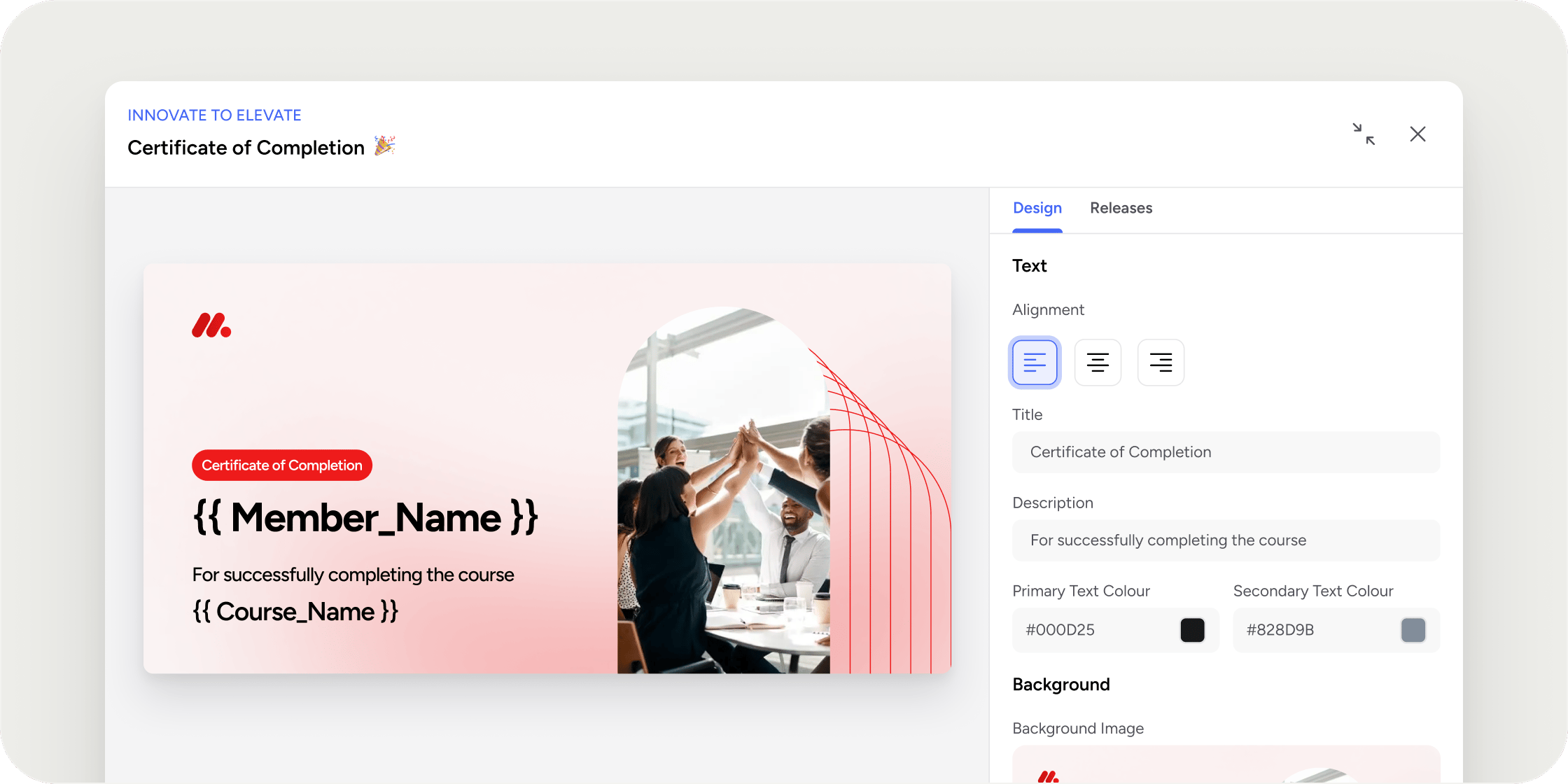
Certificates let Admins issue designed, social-ready recognition when Members finish a program. Each certificate is an image featuring the Member’s name, the completion date, and custom text the Admin chooses. Members can download their certificates from their profile and share them on social platforms like LinkedIn. You can create multiple certificates for a single course or pathway, which is useful when you want different designs for different cohorts, audiences, or milestones.Open the Certificates drawer
Certificates are configured per course or pathway.- Navigate to the course or pathway detail page.
- Open the three-dot menu in the Admin header.
- Select Certificates.
Create a certificate
Inside the Certificates drawer, click Add Certificate. The editor opens alongside a live preview that updates as you make changes. Fill in the template fields:- Name: an internal label visible only to Admins
- Title: the heading printed on the certificate image (required)
- Subtitle: an optional line below the title
- Background image: a PNG or JPEG file. Disco applies a default background if you leave this blank
- Text colors: a primary and secondary color for text on the image
- Text alignment: center, left, or right
- Custom course name: overrides the course name as it appears on the certificate, up to 100 characters
- Additional text: an optional footnote line, up to 100 characters
Choose when to release
The release option controls when Members receive their certificate. Pick the one that fits how your program runs:- Draft: saves the template without releasing anything. No automation is created.
- Release on completion: issues a certificate to each Member at the moment they complete the course or pathway.
- Release on course end date: issues certificates to all enrolled Members when the course end date passes. Not available for pathways.
- Schedule release: issues certificates to all enrolled Members on a specific date and time you choose.
- Release immediately: issues certificates to all currently enrolled Members right away. This is irreversible.
Customize the release email
The template editor includes an optional Release Message section for personalizing the email Members receive when their certificate is issued. You can set a custom subject line and rich-text body. The following variables are available inside the message:- user.firstName
- user.lastName
- product.name
Manage templates
Every template you create appears in the Certificates drawer as a card. Each card shows a thumbnail, the template name, the release option, and a color-coded status chip:- Grey: Draft
- Yellow: Scheduled
- Blue: Ongoing (used for completion-based release, since certificates are issued per Member over time)
- Green: Released
- Edit: opens the certificate editor. Editing is disabled once a certificate has been released.
- Delete: removes the template. If the certificate has already been released, a warning confirms that every previously issued certificate will also be removed from Member profiles.
What Members see
When a certificate is released, each eligible Member receives an email notification. The certificate image also appears in the Achievements section of their profile, where they can download it and share it externally. The date on each certificate is formatted in the individual Member’s timezone, so Members in different regions may see different dates even when the certificates were released at the same moment.FAQ
Can I send certificates retroactively to Members who already completed the course?
Can I send certificates retroactively to Members who already completed the course?
How do I make sure a certificate only goes to Members who actually finished?
How do I make sure a certificate only goes to Members who actually finished?
Can I manually pick which Members receive a certificate?
Can I manually pick which Members receive a certificate?
Will Members automatically receive the certificate by email?
Will Members automatically receive the certificate by email?
Where do Members find their certificates?
Where do Members find their certificates?
Can I edit a certificate after it has been released?
Can I edit a certificate after it has been released?
What file format is a certificate delivered in?
What file format is a certificate delivered in?
What name appears on the certificate?
What name appears on the certificate?
Why is "Release on completion" greyed out on my course?
Why is "Release on completion" greyed out on my course?
Why is "Release on course end date" greyed out?
Why is "Release on course end date" greyed out?
Which release options work for pathways?
Which release options work for pathways?
Can I reverse a "Release immediately" after confirming?
Can I reverse a "Release immediately" after confirming?
Can I create more than one certificate for the same course or pathway?
Can I create more than one certificate for the same course or pathway?
Do non-Latin characters like Thai or Arabic render correctly on the certificate?
Do non-Latin characters like Thai or Arabic render correctly on the certificate?