

Overview
Registration has two parts. Academy Access decides whether your Academy is open for self-serve sign-up or locked down to approved access paths. Registration Settings let you add a custom description and required acknowledgment checkboxes to the sign-up experience. A public Academy allows anyone to create an account and join. A private Academy replaces that flow with an invite-only state, unless SSO just-in-time provisioning is configured to let approved people in automatically.Choose Academy Access
Academy Access controls whether self-serve sign-up exists at all. Set this before you share any registration links.- Open Admin Area and select Settings.
- On the General Settings page, scroll to Academy Access.
- Choose one option:
- Private restricts sign-up to people with an approved access path, such as an invite, or SSO just-in-time provisioning.
- Public lets anyone who reaches your Academy create an account and join.
- Click Save to apply the change.
Set Up Registration Requirements
Use Registration Settings to add a custom description and required acknowledgment checkboxes to the sign-up page.- Open Admin Area and select Settings → Registration.
- In Registration Checkboxes, click Add Checkbox to create a new acknowledgment. Enter the text you want Members to agree to.
- Repeat for each required checkbox. Click Remove next to any checkbox you no longer need.
- In Registration Description, use the rich-text editor to add the informational content you want Members to see on the left panel of the registration page.
- Click Save Changes to publish.
How Members Register
The registration flow depends on whether a Member is brand new, already signed in to Disco, or blocked by access restrictions.- The Member opens the Academy registration page, or clicks Join from the public Academy landing page.
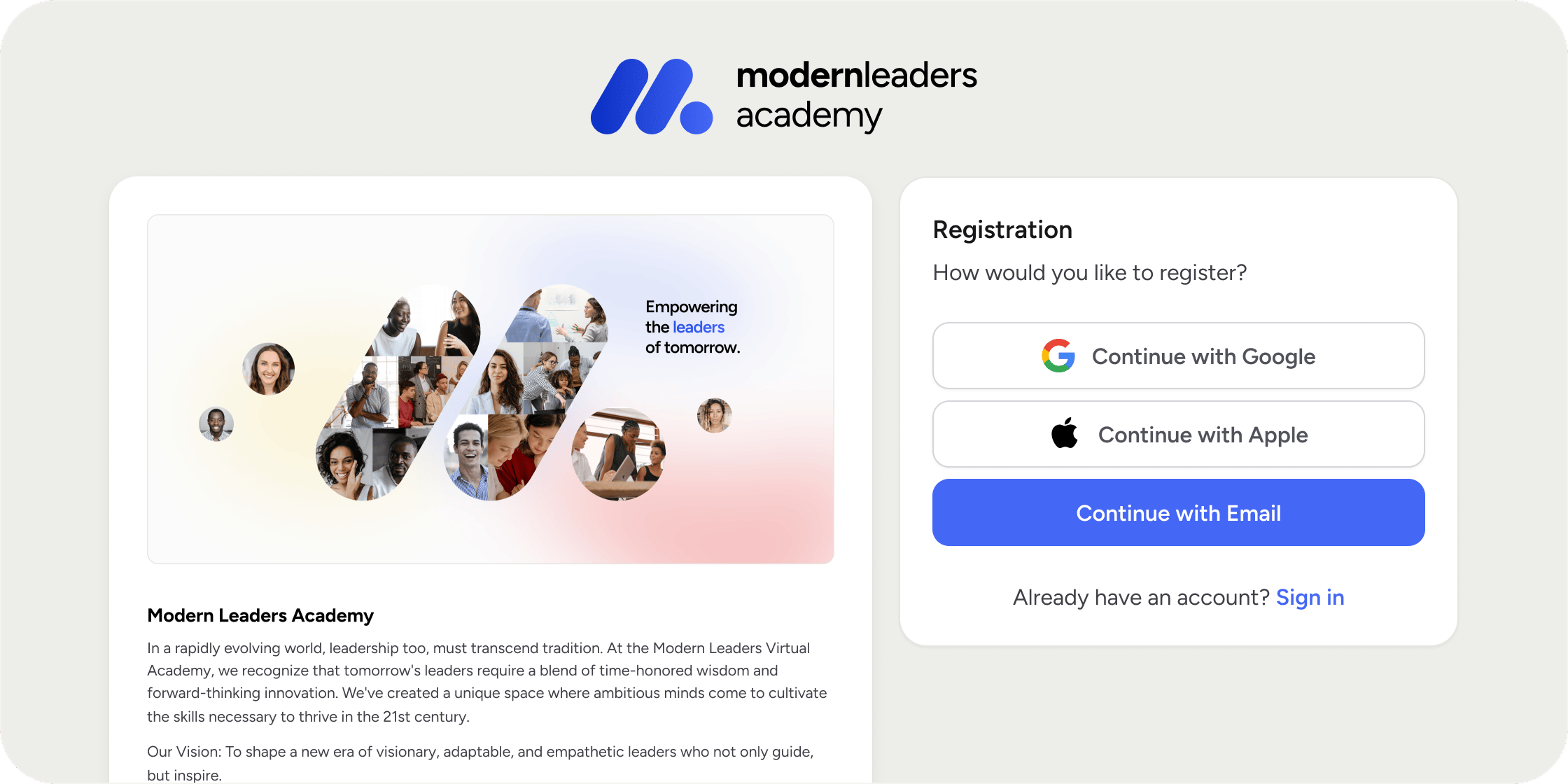
- They choose how to continue. Depending on your auth provider configuration, the page may offer SSO, Google, Apple, or Continue with Email.
- If they continue with email, they enter their first name, last name, and email, accept any required acknowledgments, and click continue.
- Disco sends a verification code. They enter the code on the Verify Your Email screen to finish account creation.
- If your Academy requires two-factor authentication and they have not set it up before, Disco guides them through setup as part of registration.
- Disco adds them to the Academy once verification succeeds, and sends them to the Academy “For You” page by default.
What Members See on the Registration Page
The first step of the Academy registration page uses a two-column layout. The left panel shows your Academy cover image, your Academy name, and the optional Registration Description if you added one. The right panel shows the sign-up action area for account creation, sign-in, or joining as an existing Disco user. After the Member chooses how to continue, later steps focus on the action they need to complete, such as verifying their email or setting up required two-factor authentication. When a Member continues with email, the form collects their name and email. Disco lists its End User License Agreement and Privacy Policy with any custom acknowledgments you added in Registration Settings, then uses one checkbox to accept everything shown.FAQ
What is the difference between the Academy home URL and the /join URL?
What is the difference between the Academy home URL and the /join URL?
The /join URL sends someone directly into the sign-up and onboarding flow. The Academy home URL is where existing Members log in. If your Academy is public, the home URL also lets visitors enter their email and get routed to create an account. Use the /join link when you want new people to hit the sign-up experience directly.
Are the registration checkboxes required for every new Member?
Are the registration checkboxes required for every new Member?
Yes. All custom Registration Checkboxes are required. Disco lists them together during registration, and a Member cannot finish sign-up until they select the single checkbox that accepts every acknowledgment shown.
Do existing Disco users have to accept the terms of service again?
Do existing Disco users have to accept the terms of service again?
No. Members who have already accepted Disco’s standard End User License Agreement and Privacy Policy do not see those terms again. They still see any custom Registration Checkboxes you added for your Academy.
Will a new Member be able to enter the Academy before they verify their email?
Will a new Member be able to enter the Academy before they verify their email?
No. New email sign-ups are not able to enter the Academy until they enter the verification code successfully.
What does a signed-in Disco user see when they hit my registration page?
What does a signed-in Disco user see when they hit my registration page?
Disco skips account creation for them. They see a shorter join flow with their existing profile, any required acknowledgments, and a Join Academy button.
Can people still join a private Academy through SSO?
Can people still join a private Academy through SSO?
Yes, if the auth provider supports just-in-time provisioning. When JIT is enabled, approved users can sign in through SSO and Disco creates their account on the fly, even when Academy Access is Private.
Where do membership plans and invite workflows fit in?
Where do membership plans and invite workflows fit in?
Membership plans and invite workflows are separate entry paths that can augment the Academy Registration flow.