

Overview
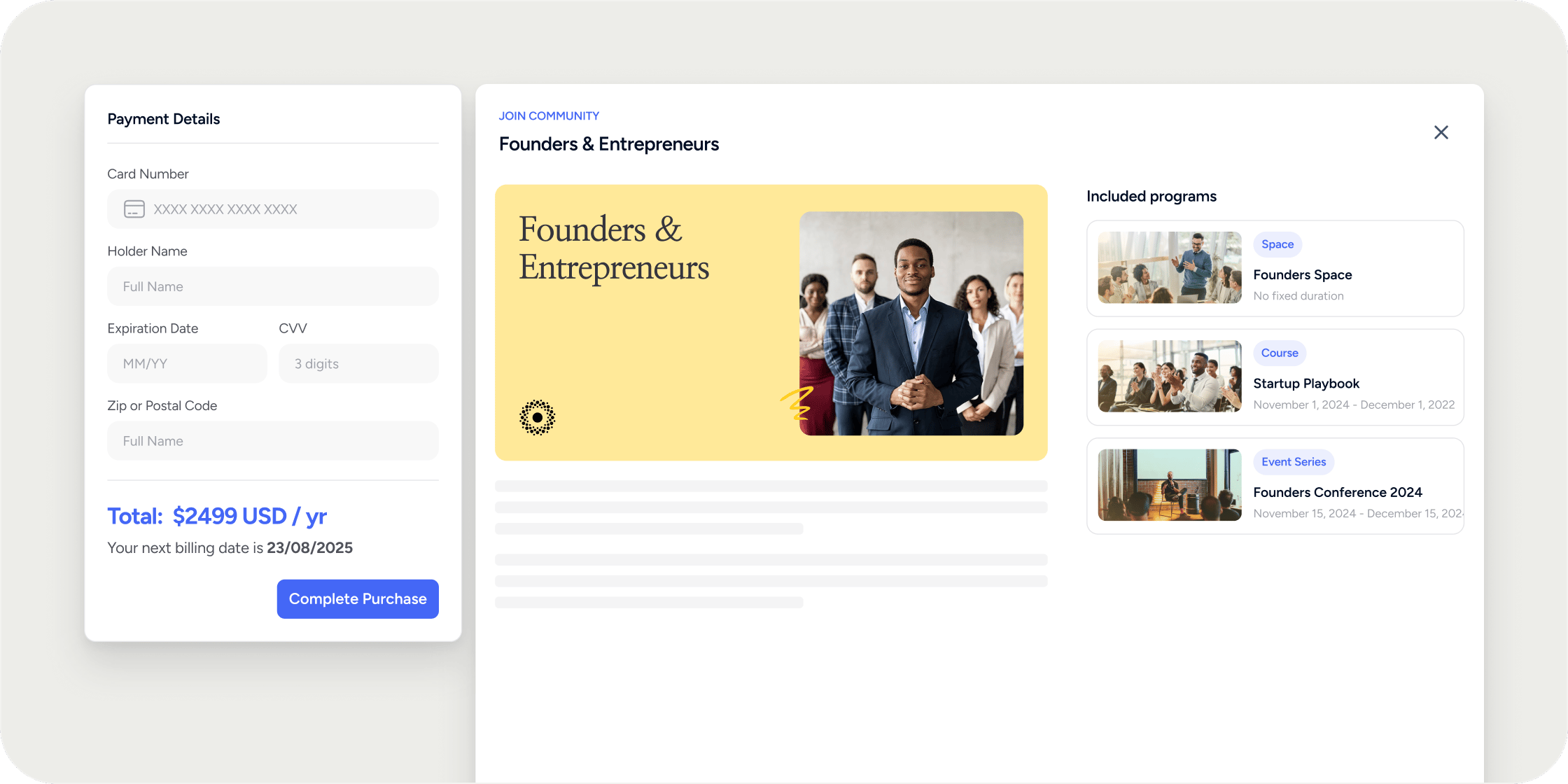
Payments & Checkout connects your Academy to Stripe so you can sell programs and subscriptions directly from Disco. Admins set pricing on each program, Members complete a guided checkout powered by Stripe’s Embedded Checkout, and all revenue flows into the connected Stripe account. Tax collection, payment methods, and discount codes are handled in Stripe. This keeps the checkout flow simple for Members while giving Admins a single source of truth for payments, payouts, and reporting. Paid checkout requires a connected Stripe account. Courses and pathways support one-time pricing. Membership plans support recurring pricing on a weekly, monthly, or annual cadence.Connect Stripe
Stripe must be connected before you can set paid pricing on any program.- Go to Admin Settings → Integrations → Stripe.
- Click Connect.
- Complete the Stripe OAuth flow in the new window.
- Return to Disco. The integrations page confirms your account is connected.
Set Pricing on a Program or Pathway
Open the program’s settings and find the Pricing section. Three pricing types are available:- Free: No charge to Members. No further input required.
- Paid: A single flat price charged to every Member regardless of their membership plan. Enter a price amount in your Academy’s currency.
- Per-Plan: A different price for each membership plan the program is available on. Enter a price for each plan. Plans left blank are treated as free for Members on that plan.
Set Pricing on a Membership Plan
Membership plans use recurring pricing. Set pricing when you create the plan, or update it later from the plan’s settings drawer.- In the membership plan creation modal, choose Free or Paid in the first step.
- For paid plans, select a billing frequency: Weekly, Monthly, or Annually.
- Enter a price.
- Save the plan.
Manage Discount and Promotion Codes
Discount and promotion codes are created and managed in the Stripe dashboard, not in Disco. Disco surfaces them automatically at checkout. Stripe supports the full range of coupon and promotion code behaviors:- Percent off or fixed amount off
- Expiry dates and maximum redemption limits
- First-time customer restrictions
- Minimum order amounts
- Codes limited to specific programs or subscriptions
Enable Tax Collection
Disco does not collect tax by default. Tax collection activates automatically when Stripe Tax is active on your connected Stripe account.- In your Stripe dashboard, set up and activate Stripe Tax.
- Return to Disco. No additional configuration is needed.
- Stripe determines the applicable tax rate based on the buyer’s location and adds it during checkout.
Configure Payment Methods
The payment methods offered to Members (cards, Apple Pay, Google Pay, Klarna, bank transfers, and others) are controlled by your Stripe Payment Method Configuration. Enable or disable methods directly in your Stripe dashboard. No configuration is needed in Disco.Member Checkout Flow
Free registrations do not use checkout. After the Member confirms registration for a free Product, they are immediately taken to the Product dashboard. When a Member registers for something paid, the checkout steps depend on what they are registering for:- Summary page (when needed): A checkout with multiple items, including a combination of a Membership Plan and a Product, starts with a summary. The Member reviews each line item, the amount due now, and any recurring amount that will be charged later, then clicks Checkout. A checkout containing one paid item skips this page and opens Stripe’s payment form directly.
- Payment page: Stripe’s payment form opens. The Member enters payment details and can apply a discount or promotion code.
- Additional steps (if required): Some payment methods redirect to a third-party page (for example, Klarna) or provide instructions for completing a bank transfer.
- Success page: After payment is confirmed, the Member sees a confirmation page with a link to continue to the Product they registered for, or to the Academy.
Monitor Payments and Transactions
High-level revenue is summarized on the Admin Dashboard. For a breakdown of individual orders and fees:- Go to Admin → Products → Transactions.
- Review orders, prices, and fees per Member.
Edge Cases
Free registration. If all items in the cart are free, payment is skipped and they see the confirmation page immediately. Payment failures. If payment fails, the Member sees an error and is prompted to try another method. The Member is not registered until Stripe confirms payment. Async payment methods. Some methods (like bank transfers) are not confirmed instantly. The Member sees a “processing” state and is registered automatically once Stripe confirms the payment. Already registered. If a Member tries to check out for a program they are already registered for, checkout is blocked and they are told they are already registered. Plan switching. When a Member switches paid membership plans, the existing subscription is cancelled immediately and a new one starts. There is no proration or refund for unused time. The Member keeps access to programs they already registered for and loses access only to programs exclusive to the old plan that they had not yet joined. Refunds. Refunds are issued from the Stripe dashboard. Refunding a Member does not automatically unenroll them. Remove their access manually in Disco if needed.Settings That Affect Checkout
Academy currency. Each Academy has one currency, set at Academy setup. It applies to every program and to every Stripe session. It cannot be set per program. Pricing type. The pricing type on a program (Free, Paid, or Per-Plan) determines whether a Member is charged. If a Member’s plan entitles them to a Per-Plan program for free, the payment step is skipped. Registration settings. A program’s registration setting controls who can reach checkout:- Open: Any Member can register.
- Closed: Registration is disabled.
- Waitlist: Members can join a waitlist but cannot register directly.
- Application: Members must apply and be accepted first. Paid programs send the accepted Member a payment link at that point.
FAQ
Where does a Member enter a discount or promotion code?
Where does a Member enter a discount or promotion code?
The code field appears on the Stripe payment step, not on the summary page. A checkout containing one paid item can open the payment form immediately. If a summary appears for multiple items, the Member clicks Checkout to reach the Stripe-hosted payment form and enter the code.
Are invoices and receipts sent automatically?
Are invoices and receipts sent automatically?
Yes. Stripe sends an invoice or receipt to the Member’s email when a payment is processed. You can view and resend invoices from the Stripe dashboard.
Does Disco support every currency Stripe supports?
Does Disco support every currency Stripe supports?
Disco supports the major currencies Stripe offers, set at the Academy level. If you need a specific currency like GBP or PLN, confirm Stripe supports payouts to your bank in that currency, then select it when configuring your Academy.
Can I charge different currencies on different programs?
Can I charge different currencies on different programs?
No. Each Academy has a single currency that applies to every program. If you need to sell in multiple currencies, run separate Academies.
What payment methods can Members use?
What payment methods can Members use?
Whatever you enable in your Stripe Payment Method Configuration: cards, Apple Pay, Google Pay, Klarna, bank transfers, and other Stripe-supported methods. Members see the full list of enabled methods on the Stripe payment step.
Is PayPal supported as a payment method?
Is PayPal supported as a payment method?
PayPal is available only if Stripe supports it for your account and region. Enable it in your Stripe dashboard if supported. If PayPal is not available, cards plus wallets (Apple Pay, Google Pay) cover most international buyers.
Why isn't tax being collected at checkout even though I configured it in Stripe?
Why isn't tax being collected at checkout even though I configured it in Stripe?
Stripe Tax must be fully activated on your Stripe account, not only configured. Once Stripe Tax is active, Disco applies it automatically on the next checkout. If it is still not appearing, open a support ticket so we can check your integration status.
Does refunding a Member remove their access?
Does refunding a Member remove their access?
No. Refunds are issued in Stripe and do not automatically unenroll the Member. Remove their access manually in Disco after the refund if that is your intent.
Is there proration when a Member switches paid plans?
Is there proration when a Member switches paid plans?
No. When a Member switches paid plans, the old subscription is cancelled immediately and the new one starts. There is no refund or credit for unused time.
How do I handle cancellations?
How do I handle cancellations?
A Member cancels their own membership plan inside Disco at My Profile → Account → Cancel. Billing stops at the end of the current billing period, and the Member keeps access until then. An Admin has three other routes: move the Member to the default free plan, delete the plan with the default free plan as the transition plan, or cancel the subscription in the Stripe dashboard. All three take effect immediately and give no refund. See Stop Membership Payments for the full steps.