

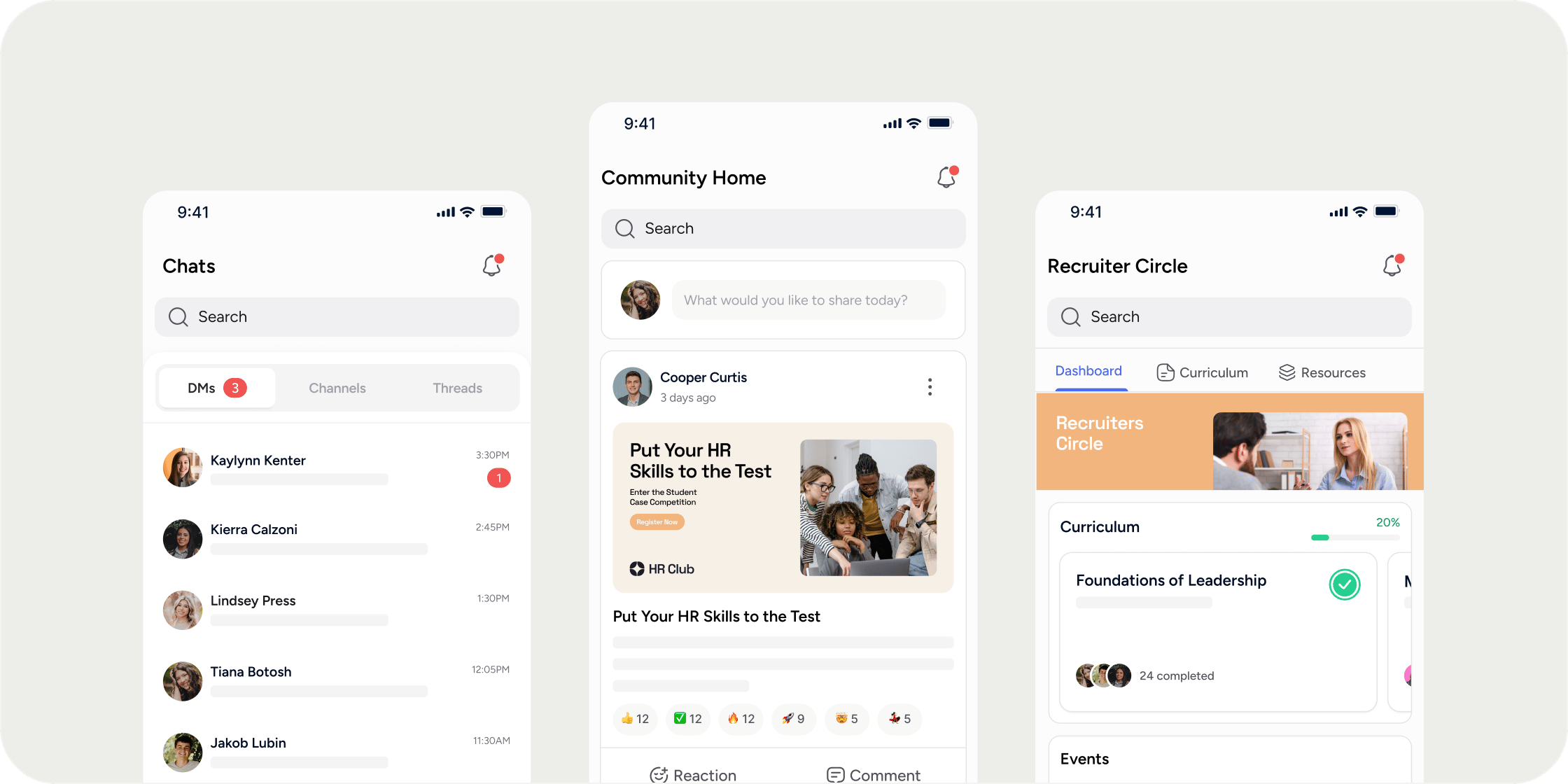
- The Disco Mobile App is a companion app that ultimately augments and enhances the Disco Community Member experience.
- **New Members of your Community should start with onboarding via their desktop. ** Admin/s should refer to the Admin limitations below to better understand what Admin functions are available in the mobile app.
How It Works
Current Features:
- Community Home: Access the community’s main Home Page.
- Community Switcher: Switch between different communities.
- Product Experience: View and interact with the product Dashboard, Curriculum, Collection, Feed, Custom Links and Embeds, etc.
- Channels & Threads: Participate in discussions and follow threads
- Direct Messages: Initiate private conversations with community members.
- Notifications: Receive and manage push notifications.
- Posts in Feeds: Create posts in Feeds.
- React & Comment: Respond to posts and content by reacting or commenting.
- Search: Find members, content, or products or events within the app.
- More: Navigate through Member Profile, Events, Bookmarks, Settings, etc.
Current Limitations and Considerations:
For Admins
Admins currently cannot:- Create new products or edit/manage existing ones.
- Add new left nav apps/sections or reorder/edit the left nav.
- Create new channels or edit/manage existing ones.
- Create new events or editing/managing existing events
- Create new content or edit/manage existing content.
- Share events or content.
- Invite or remove members or access the Admin Dashboard
For Members
Members currently cannot:- Register for new products
- Update account settings
About The Disco Mobile Experience
The Mobile Navigation integrates the desktop experience into our mobile app, allowing Admins and Members to actively engage with the community on the go. Admins can choose whether Members initially land on the Academy Apps Menu or the For You Screen when they open the mobile app. Configure this under Admin > Settings. See Academy Setup for details.How It Works
The bottom navigation highlights key sections, allowing users to move through different areas, including:- Community Menu: Access all community sections and spaces.
- Registered Products: Access enrolled products.
- Global Actions: Access universal functions across the app ie. create new DMs or new Post.
- Chat Discussions: Engage in private or public conversations and discussions.
- More: Discover additional functionalities such as Events, Bookmarks, Settings, and Profile.
How To Navigate
Tab 1: Community Menu: This tab is consistent with the desktop’s left navigation. To access the community switcher, tap the community badge and name. Tab 2: Registered Products Access the list of registered products through this tab. Tap on the product to access the dashboard, curriculum, collections, and beyond. Tab 3: Global Actions The Global Actions button provides the most essential engagement functions:- Create New Post: Share updates, insights, or ask questions in a feed.
- Create New Channel Message: Send messages to a community channel or specific product channels.
- Create New Direct Messages: Send 1:1 messages or private messages to a small group.
- Direct Messages
- Channels
- Threads
- Update member profile
- Discover upcoming events within the community
- Access saved content
- Help & Support
- Leave Community
- Sign Out
Helpful Considerations
- At the top, the global search box is always visible for easy access.
- Notification bell at the top right corner of every tab