

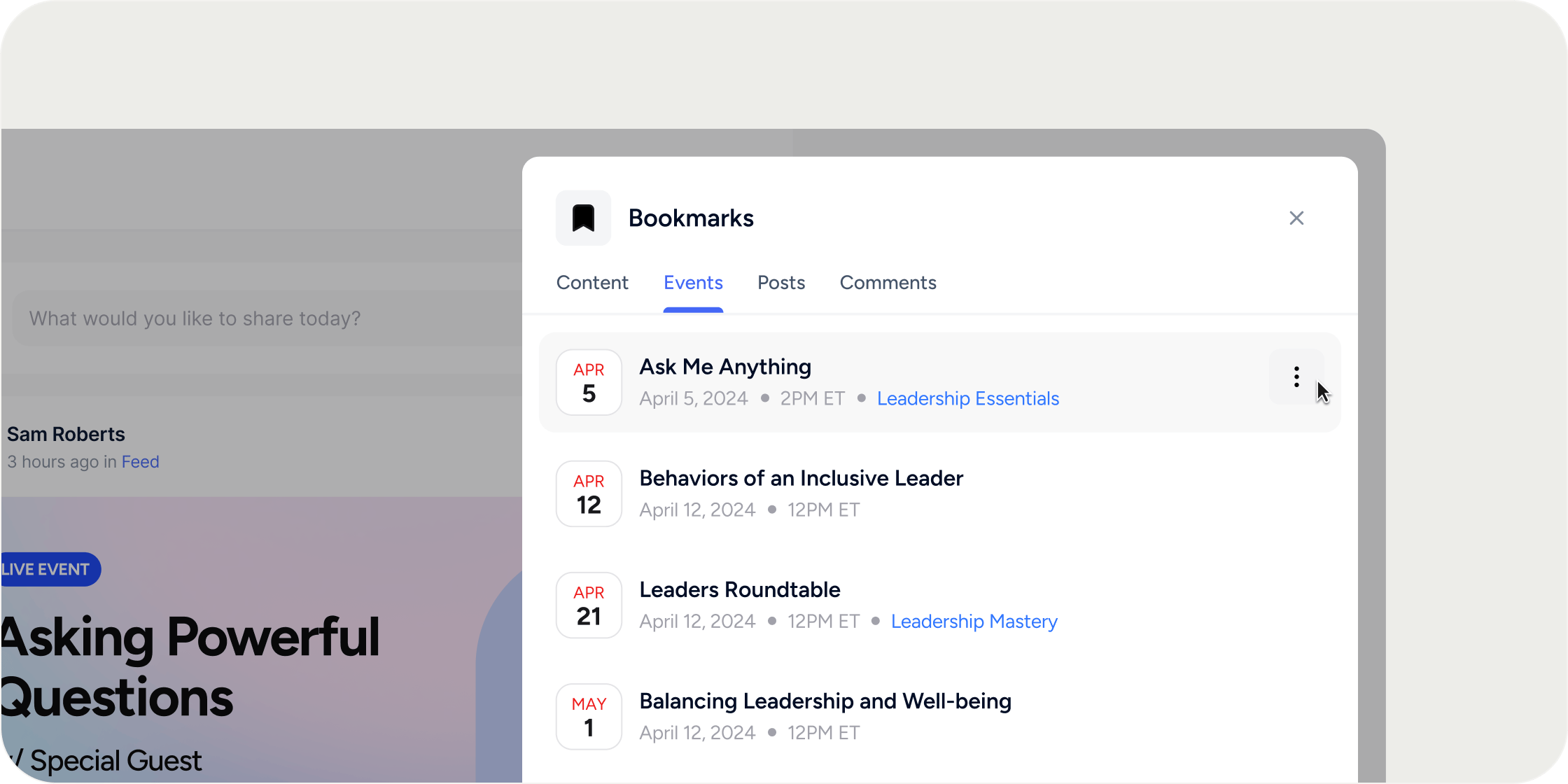
Overview
Bookmarks help Members stay organized and productive inside your Academy. Anything a Member bookmarks is saved to a dedicated area in the sidebar, making it easy to return to important activities, events, and resources without searching for them again. This drives Members back into the Academy and keeps high-value content within reach.What you can bookmark
Members and Admins can bookmark the following object types in Disco:- Content
- Posts
- Comments
- Events
- Ask AI conversations
Save a bookmark
Use the bookmark icon on any supported object to save it.- Open the post, comment, content, event, or Ask AI conversation you want to save.
- Click the bookmark icon in the top right of the header.
- The object is instantly added to your saved bookmarks.
Find your bookmarks
Your bookmarks live in a dedicated area of the left global navigation.- Click the bookmark icon (labeled Saved) in the left side of global navigation.
- Review the full list of everything you have bookmarked.
Filter bookmarks by type
Once you open your bookmarks, you can narrow the list by object type.- Open Saved from the left global navigation.
- Click the tab for the type you want to view: Content, Posts, Comments, Events, or Ask AI.
- The list updates to show only bookmarks of that type.