

Overview
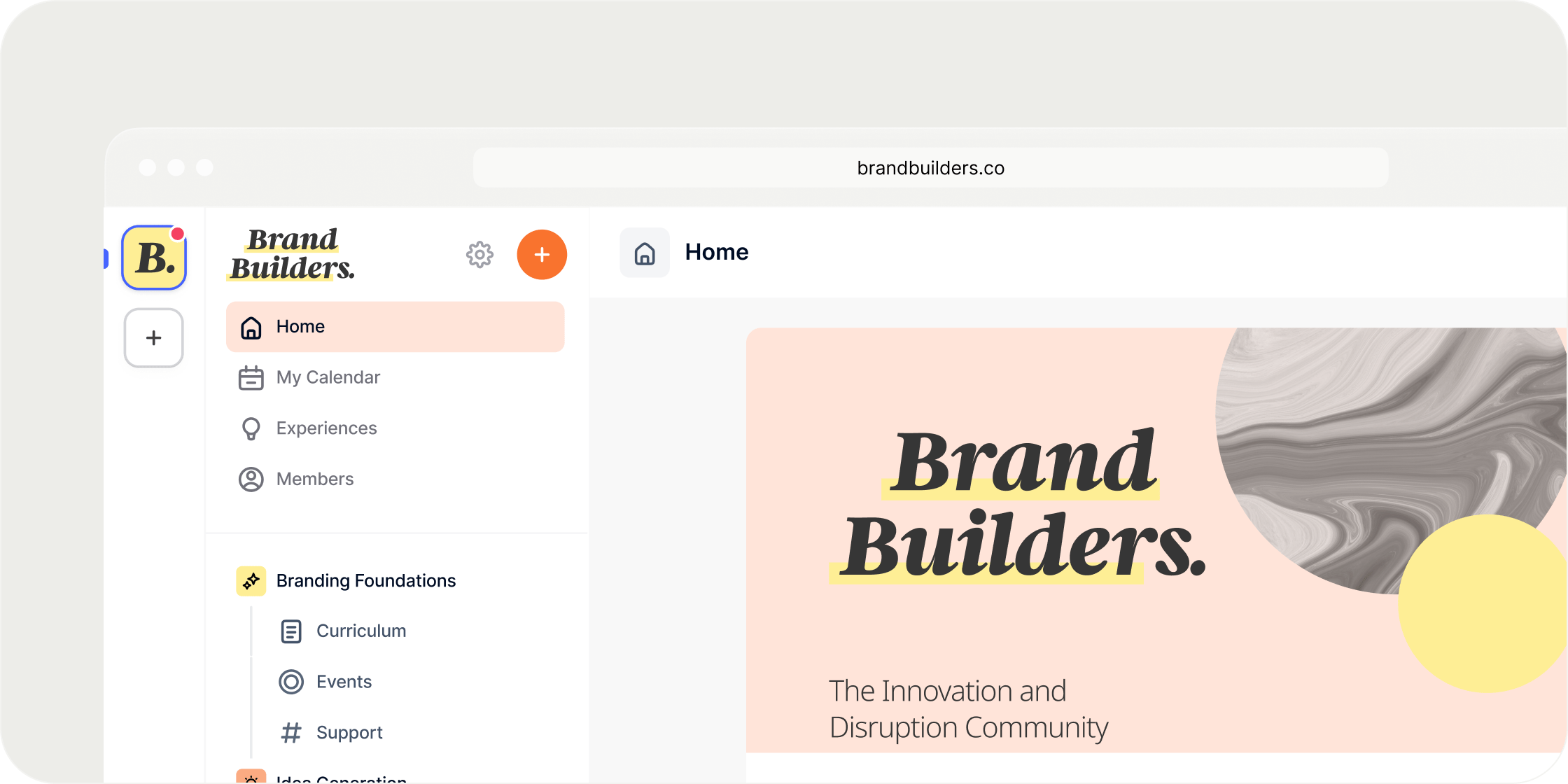
Custom Domains gives Admins control over the web URL members use to access an Academy. Once a custom domain is set as the primary domain, every link Disco generates (including email notifications, sign-in links, and calendar invites) uses that domain. The default yourcompany.disco.co address stays reachable and cannot be disabled, and page loads on it are sent to the primary domain automatically. Custom Domains applies only to the web URL; email sender domains are configured separately. The feature is available on all paid plans.Set Up a Custom Domain
Setting up a custom domain takes two steps: add the domain in Disco, then add DNS records at your domain registrar.- Go to Admin Console → Appearance → Domain.
- Click Add Custom Domain.
- Enter the bare hostname. Do not include https:// or a path. For example, enter learn.yourcompany.com or yourcompany.com.
- Click Add. Disco generates the DNS records you need to add at your registrar.
- One TXT record for ownership verification
- Two A records pointing to Disco’s servers
- One TXT record for ownership verification
- Two A records pointing to Disco’s servers
- One CNAME record pointing www.yourcompany.com to yourcompany.com
Set the Primary Domain
Once your domain reaches OK status, you can make it the primary domain for your Academy. The primary domain determines which URL Disco uses to generate outbound links.- On the Domain page, find the verified domain.
- Open the three-dot menu on the domain row.
- Select Set as Primary Domain.
Links to the Default Address
After you set a primary domain, Disco sends page loads on the defaultyourcompany.disco.co address to the same path on your primary domain. A member who opens yourcompany.disco.co/product/course-101 lands on learn.yourcompany.com/product/course-101. This makes sure that links written before the switch continue to work.
Bypass the Redirect
Add?disableAutoRedirect=1 to a default-address URL to stay on that address. For example, open yourcompany.disco.co/login?disableAutoRedirect=1.
Use it when your custom domain is unreachable. A DNS record deleted at your registrar, or a DNS change that has not propagated, makes the custom domain fail to load. The redirect still points at it, so an Admin cannot sign in to correct the setting. The bypass gives you a working way back to the Academy.
The choice lasts 12 hours in that browser, so you do not need the parameter on every page. Add ?disableAutoRedirect=0 to end it early.
The Domain Page
The Domain page lists every domain mapped to your Academy. Each domain appears as an expandable card showing the domain name, the date it was added, and a status. Status values:- OK: the domain is verified and the SSL certificate is active.
- Provisioning: DNS records are detected but the SSL certificate is still being issued.
- Setup Incomplete: DNS records have not been detected yet.
- Failure: the SSL certificate failed to issue or renew.
- Refresh manually triggers a DNS check and status update.
- Delete removes the domain. If the deleted domain was primary, the Academy falls back to the default disco.co address automatically.
Settings and Configurations
Primary domain. The primary domain controls which URL Disco uses to generate all outbound links, including email notifications, sign-in links, calendar invites, and OAuth redirects. Only one domain can be primary at a time. The previous primary domain remains accessible after you switch, but Disco stops using it for link generation. Page loads on the defaultyourcompany.disco.co address are sent to the primary domain. See Links to the Default Address.
SSL certificate management. Disco provisions and renews SSL certificates automatically for every custom domain. No configuration is required from the Admin. If a certificate renewal fails, the domain enters Failure status and a Retry button appears on its card.
FAQ
How long does DNS propagation take?
How long does DNS propagation take?
I added the DNS records but Disco still shows Missing. What should I do?
I added the DNS records but Disco still shows Missing. What should I do?
My setup won't be verified by the domain registrar?
My setup won't be verified by the domain registrar?
Why can't I set my domain as primary?
Why can't I set my domain as primary?
Do I need to link the custom URL from my main website, or does it work automatically?
Do I need to link the custom URL from my main website, or does it work automatically?
Will members have to log in again after I switch to a custom domain?
Will members have to log in again after I switch to a custom domain?
Does the default yourcompany.disco.co address stop working after I add a custom domain?
Does the default yourcompany.disco.co address stop working after I add a custom domain?
An old yourcompany.disco.co link sends members to the wrong place. What should I check?
An old yourcompany.disco.co link sends members to the wrong place. What should I check?
A member is getting a "Your connection is not private" error. What should I do?
A member is getting a "Your connection is not private" error. What should I do?
I have a root domain. Do I need to set up www separately?
I have a root domain. Do I need to set up www separately?
Why did Disco reject the domain when I tried to add it?
Why did Disco reject the domain when I tried to add it?
I tried to add a domain and got an error saying it already exists.
I tried to add a domain and got an error saying it already exists.
What happens if SSL fails on the primary domain?
What happens if SSL fails on the primary domain?
What if SSL fails on a non-primary domain?
What if SSL fails on a non-primary domain?
What happens if I delete the primary domain?
What happens if I delete the primary domain?