

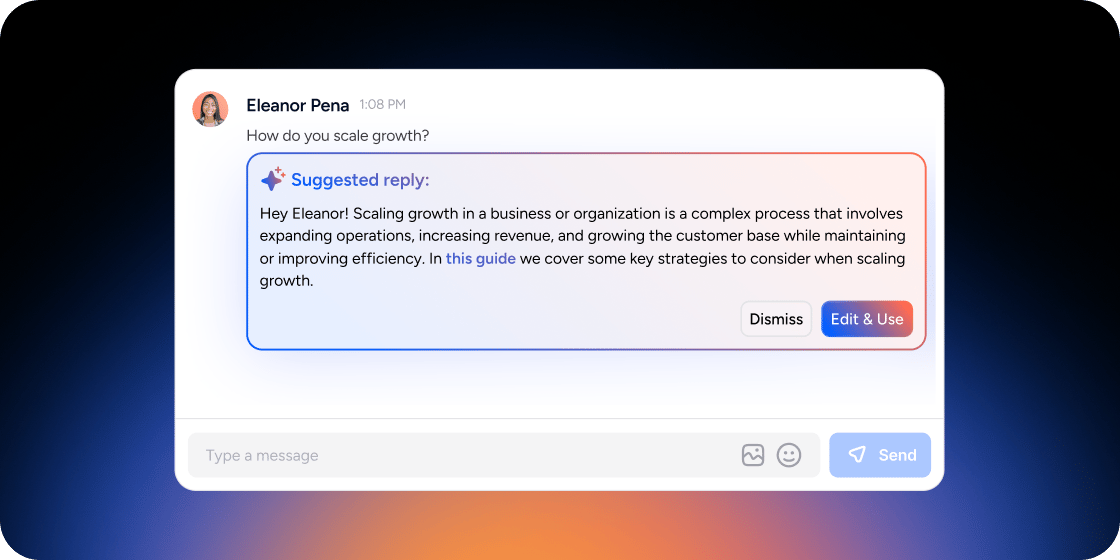
Overview
AI Suggested Replies empower every Academy Owner to make sure no members message goes unanswered. AI Suggested Replies generate a response which can be edited and posted by the Admin when ready. In addition to Disco Channels, AI Suggested Replies also work across connected Slack workspaces. Only Owners, Admins, and Product Managers can use Suggested Channel Replies. Instructors and Members do not see AI-generated suggestions.Set Up Community Engagement AI
Before using the tools, configure your sources and monitored channels in the Admin Area.- Go to Admin Area > Disco AI > Community Engagement and click Edit.
- Open the Details tab. Under Q&A Suggestions, configure:
- Disco Channel Monitored: The Disco community channels to watch for Member messages.
- Slack Channel Monitored: The Slack channels to watch for Member messages.
- Slack Admin Channel: The Slack channel where suggested replies appear for Admin review.
- Open the Sources tab. Toggle internal and external sources on or off:
- Internal: Content, Documents, Videos, Member Profiles, Disco Channel Messages, Slack Channel Messages
- External: Links, Knowledge Bases
- Click Update to save.
How to Use AI Suggested Replies
AI Suggested Replies detects Member messages in monitored channels and generates a draft reply for Admins to review and post. In Disco channels, the suggested reply appears inline in the thread directly below the Member’s message. In Slack, the suggestion appears in the designated Slack Admin Channel rather than inline in the original thread. To respond using a suggestion:- Review the AI-generated reply in the channel thread (Disco) or in your Slack Admin Channel (Slack).
- Edit the draft if needed.
- Click Approve to post the response in the channel.
FAQ
Will Members know that content was created by AI?
Will Members know that content was created by AI?
No. Members see the posted content the same way they see any other message or post. Only Admins and editors see generation details.
Can Disco AI monitor multiple channels at once?
Can Disco AI monitor multiple channels at once?
Yes. You can select multiple Disco channels and multiple Slack channels to monitor simultaneously in the Details tab.
Do the AI tools work without connecting Slack?
Do the AI tools work without connecting Slack?
Yes. Slack is only required to use Suggested Channel Replies in Slack channels. Suggested Messages, Message Generator, Suggested Posts, and Post Generator all work entirely within Disco without a Slack connection.
My Slack channels are not appearing in the channel selector when I configure Community Engagement AI. What should I check?
My Slack channels are not appearing in the channel selector when I configure Community Engagement AI. What should I check?
First, confirm your Slack workspace is connected under Admin Area > Integrations > Slack. Next, check that your Admin account is linked. If your Slack account was added after the initial workspace connection was made, your account may not have been linked automatically. Open the Disco app inside Slack and click Connect Now to link your account. Only public Slack channels are supported for monitoring. Private Slack channels cannot be connected to Community Engagement AI.
Does the Slack channel need to be public to use Community Engagement AI?
Does the Slack channel need to be public to use Community Engagement AI?
Yes. Only public Slack channels can be monitored by Disco AI. Private Slack channels are not supported.
How does Community Engagement AI work in Slack?
How does Community Engagement AI work in Slack?
Only Suggested Channel Replies extends to Slack. When a Member asks a question in a monitored Slack channel, the AI generates a suggested reply and delivers it to your designated Slack Admin Channel for review. You approve or edit the reply there, and it is then posted into the original Slack channel thread. The Message Generator, Post Generator, Suggested Messages, and Suggested Posts are only available within Disco.
The AI suggestion feature stopped working after a Disco update. What should I check?
The AI suggestion feature stopped working after a Disco update. What should I check?
Start by verifying your Community Engagement AI configuration under Admin Area > Disco AI > Community Engagement. Confirm that at least one channel source is enabled and that the channels you want to monitor are still selected. If Suggested Channel Replies was toggled off in a specific channel’s settings drawer, re-enable it from the Details tab in that channel’s settings.