

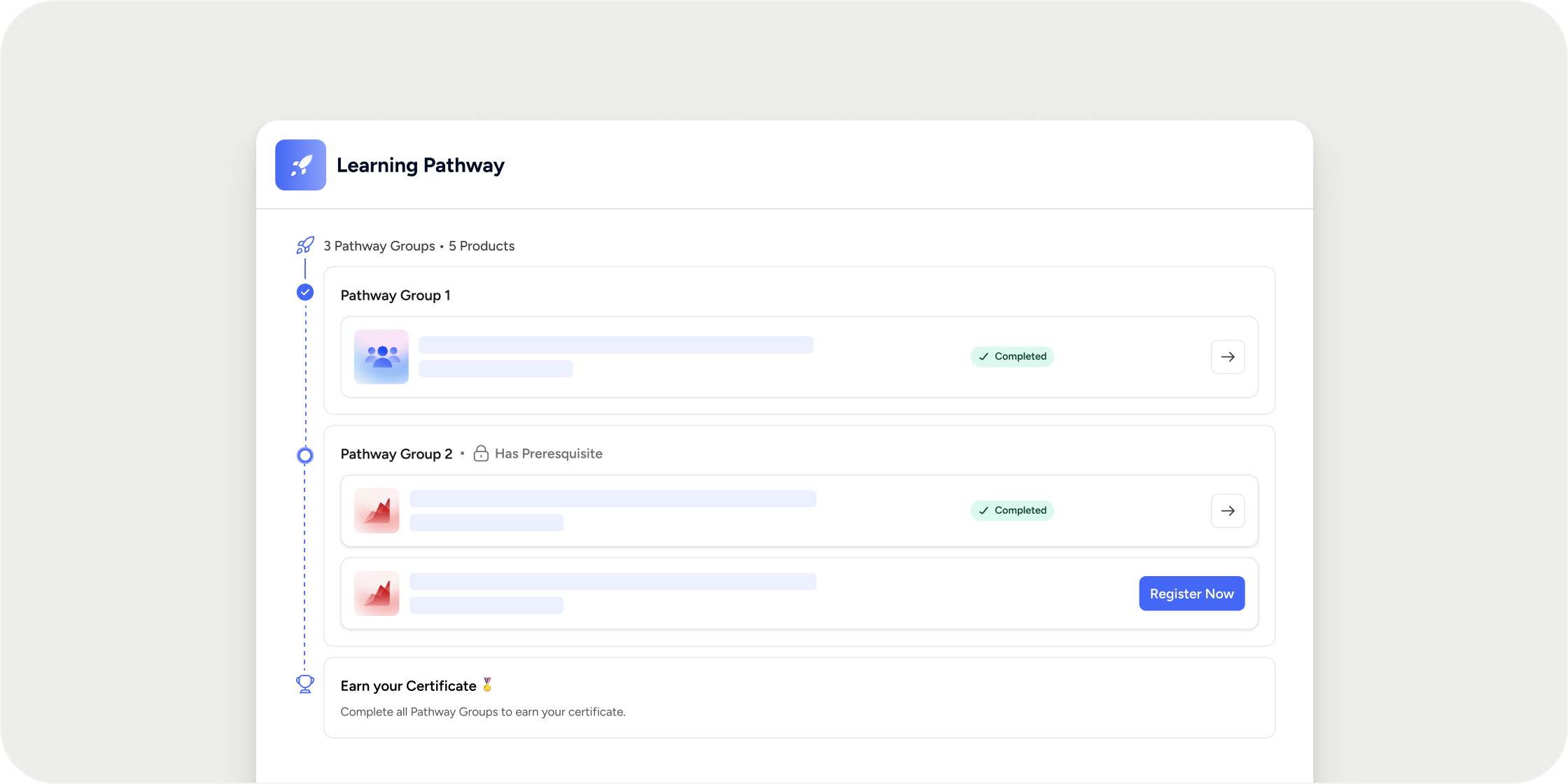
Overview
A Learning Pathway is a container that holds multiple Programs and organizes them into ordered groups. Members register for the pathway as a whole, then work through each group in sequence. Pathways appear alongside Programs in the left navigation of the Learning area and on the Explore page. Only community owners and admins can create and manage pathways. Instructor and manager roles do not exist at the pathway level.Program eligibility requirements
Not every Program can be added to a pathway. A Program must meet two conditions to be eligible. It must have a curriculum app, meaning it must be completable. Programs that contain only events or resource collections are not eligible because there is nothing for a member to finish. It must also be evergreen, meaning it cannot have a fixed start date or end date. If a Program ends while a member is partway through a pathway, they would be permanently blocked from progressing. Only evergreen Programs prevent this. If no eligible Programs exist in your Academy yet, the Add Pathway button is disabled and shows a tooltip explaining why.Where to create a pathway
You can create a pathway from three locations. From the Learning page, click the down arrow next to Add Product and select Pathway from the dropdown. Alternatively, click the + button at the top of the left navigation and choose Add Pathway. From Admin Area > Products > Pathways, click the + Pathway button in the top right. All three options open the same Create Pathway modal.Set up pathway details
In the Create Pathway modal, enter a title for the pathway. You can optionally set a badge, which appears next to the pathway name in the left navigation. Add a short description to display on the pathway card on the Explore page. This is a brief overview that gives members a quick sense of what the pathway covers. A more detailed description can be added to the registration page after you save the pathway. Members see this when they register, so it is a good place to provide a thorough overview of the sequence, learning goals, and what is included. Choose the access setting for the pathway. There are four options. Public means anyone on the internet can find the registration page and sign up without an existing account in your Academy. All Members means only people who already have an account in your Academy can register. Someone who is not signed in is prompted to sign in, and Disco then shows whether their account is eligible. A person who is not already an Academy Member cannot continue. If you need to onboard new external users, use Public access instead, or send them a direct email invite. Private means only specific members or groups you designate can see the pathway on the Explore page and register. Invite Only means the pathway is not discoverable anywhere. Members can only join if you send them a direct invitation.Build the pathway sequence
Click Next in the creation modal to set up the pathway sequence. The sequence is made up of groups, and each group contains one or more Programs. Every pathway requires at least one group, and every group requires at least one Program. The first group is labeled Immediate Access. When a member registers for the pathway, they gain the ability to register for any Program in this first group right away. They are not automatically enrolled in those Programs. They must go to the Pathway Dashboard and click Register now for each Program they want to start. Click Add Pathway Group to add additional groups below the first. Each subsequent group is labeled Has Prerequisites, which means members must complete all Programs in the previous group before they can register for any Programs in the next group. Within a group, members can register for and complete Programs in any order. The visual order you set in the sequence is a suggested order, not an enforced one. To rename a group, click the pencil icon next to its name. To remove a group, click the X at the top right of the group. To add or remove Programs within a group, use the Add Product button inside that group.Registration bypasses product-level requirements
When a member registers for a Program through a pathway via the Pathway Dashboard, all product-level registration requirements are bypassed. This includes applications, payments, capacity limits, and any other access restriction set on that Program. This bypass applies only when a member registers through the pathway. If a member navigates directly to a Program’s registration page outside of the pathway, all standard registration requirements still apply.Save the pathway and configure the registration page
Click Save Draft in the modal to save the pathway. This opens the pathway registration drawer, where you can:- Set a custom image for the registration page
- Add detailed pathway information using the rich text editor
- Review the default Pathway Overview block, which shows all groups and the Programs within them. Members can expand each Program to preview its modules. You can delete this block if you prefer not to show it.
Publish the pathway
A pathway must be published before members can register for it. You cannot publish a pathway that contains any Programs still in draft status. Publish or remove all draft Programs first. Once a pathway is published, it cannot be reverted to draft status. You must also publish the pathway before you can send invitations to members.Manage the pathway after publishing
Open pathway settings by clicking Admin at the top of the Pathway Dashboard. From here you can:- Edit the pathway title, description, and sequence
- Add or remove Programs from groups
- Rename, add, or remove groups
- Change the access setting or pathway visibility
- Add the pathway to membership plans
- Update the URL slug and add tags for filtering
How pathway completion works
A Program is complete when a member has finished 100% of its curriculum. Events and resource collections do not count toward completion. Quizzes that require a passing grade must be passed, not just attempted. A pathway group is complete when all Programs in that group are complete. A pathway is complete when all groups are complete. Certificates can be set up to issue automatically on pathway completion, just like on individual Program completion.Completion and prior progress
If a member has already completed Programs outside the pathway before registering, that completion carries over. They do not need to redo any work. If a member has already completed every Program within a pathway when they register, they are granted pathway completion and receive any associated certificate or automations immediately upon registration. This makes it possible to retroactively reward members for finishing a set of related Programs by creating a pathway and assigning them to it.What happens when you edit an active pathway
You can edit a pathway’s sequence after it has been published and members are already working through it. The following rules govern how existing member progress is handled. Removing a Program from a group: If a member is partway through completing a group and you remove the last Program they had not yet completed, the system automatically grants them completion credit for that group. Removing an entire group: If a member has already completed all remaining groups when you remove a group, they are immediately granted completion for the entire pathway. Adding a Program to a group a member has already completed: That member is not required to complete the new Program. It appears in their pathway sequence and they can register for it if they choose, with all registration requirements bypassed as usual. However, it counts as optional because they have already completed the group. Adding a new group after a member has completed the pathway: Members who have already completed the pathway are not required to complete the new group. They retain their completion status and any certificates they earned. The new group appears in their pathway sequence and they can work through it at their own pace. The general rule is that once something is completed in a pathway, it is considered completed permanently. Adding new content never requires a member to go backwards.Invite and assign members
Members can discover and self-register for a pathway based on its access setting. You can also invite or assign members directly. To invite members, open the pathway admin dropdown and choose Invite. To assign members without requiring them to accept an invitation, choose Assign from the same dropdown. You cannot invite instructors or managers to a pathway. Only community owners and admins can manage pathway settings.How members experience a pathway
Once a member registers for a pathway, it appears in their left navigation alongside their other Programs. On the Pathway Dashboard, members see the sequence with the first group marked as Available and subsequent unlocked groups ready to register for. Locked groups show a lock icon until all Programs in the previous group are complete. Members click Register now on any available Program to open the registration drawer for that Program. Because they are registering through the Pathway, all requirements are bypassed and they gain immediate access. Disco shows a success message and takes them directly to the Program dashboard. The left navigation updates as they progress, showing module completion counts for the pathway and a quick link back to each Program.FAQ
Can I remove the prerequisite requirement so members can start any group whenever they want?
Can I remove the prerequisite requirement so members can start any group whenever they want?
Why is a member stuck at a locked group even though their progress appears to be 100%?
Why is a member stuck at a locked group even though their progress appears to be 100%?
Can I make Programs accessible only through a pathway and not discoverable or registerable on their own?
Can I make Programs accessible only through a pathway and not discoverable or registerable on their own?
Can members self-enroll in a pathway without admin involvement?
Can members self-enroll in a pathway without admin involvement?
Can I add the same Program to multiple pathways?
Can I add the same Program to multiple pathways?
Can I stop new registrations without deleting a pathway?
Can I stop new registrations without deleting a pathway?
Can I track member progress in pathways?
Can I track member progress in pathways?
Can I clone or duplicate a Learning Pathway?
Can I clone or duplicate a Learning Pathway?
Can I charge for a pathway?
Can I charge for a pathway?
Can I use a certificate image link in an automation triggered by pathway completion?
Can I use a certificate image link in an automation triggered by pathway completion?
Can products in a private pathway show on the community home page when a member first creates an account?
Can products in a private pathway show on the community home page when a member first creates an account?
Can an Admin manually override or mark a Program as complete for a member who is blocked from progressing in a Learning Pathway?
Can an Admin manually override or mark a Program as complete for a member who is blocked from progressing in a Learning Pathway?
Can products inside a private Learning Pathway be surfaced on the Academy home page when a new member creates an account?
Can products inside a private Learning Pathway be surfaced on the Academy home page when a new member creates an account?