> ## Documentation Index
> Fetch the complete documentation index at: https://docs.disco.co/llms.txt
> Use this file to discover all available pages before exploring further.
# Surveys
Surveys are a content type in Disco that lets you collect structured responses from members using multiple question formats.
 ## **Overview**
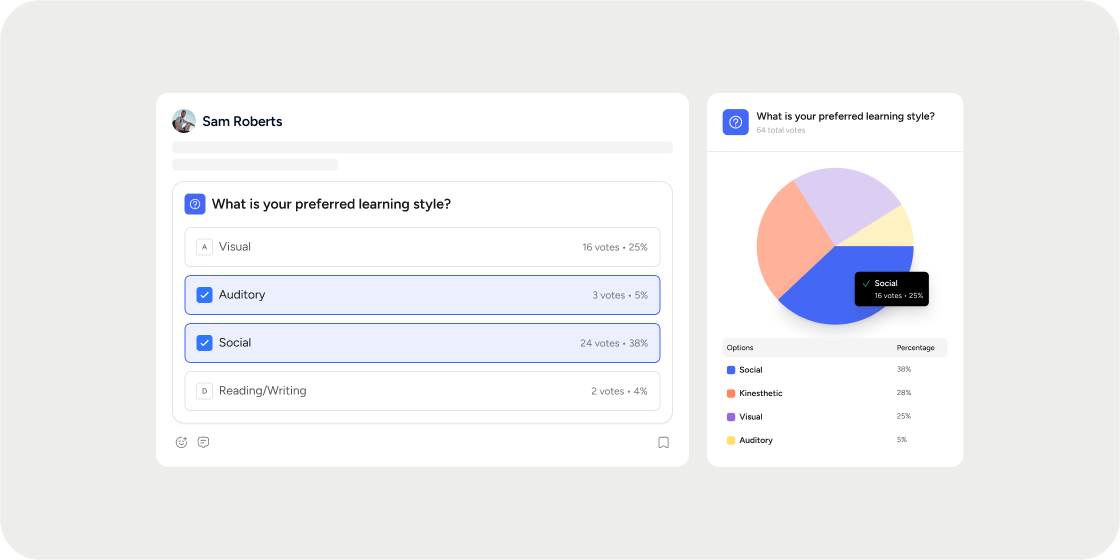
Surveys give admins a flexible way to gather feedback, run self-assessments, or check in with members at any point in their experience. Unlike quizzes, surveys are not scored and questions are not required by default. You can use surveys academy-wide via a share link or embed them directly inside a Program's curriculum. A survey can have multiple instances across your academy, and each instance tracks its own results independently.
## **Access the Surveys Page**
The Surveys page is your central hub for creating, searching, and managing all surveys in your academy.
1. Click **Admin** in the left navigation.
2. Select the **Content** tab.
3. Click **Surveys**.
From this page you can search surveys by name, sort by number of instances, creation date, or last updated date, and filter by content label, number of instances, or whether the survey was created by AI or manually. The default content label for new surveys is "Survey," but you can apply any label you like.
## **Create a Survey**
There are two ways to create a new survey:
* From the Surveys page: click **Add Survey** in the top right corner.
* From anywhere in the academy: click the global **+** button, select **Content**, then choose **Survey**.
Once the survey editor opens:
1. Enter a title.
2. Add a body using the rich text editor. Text, images, embeds, and other content blocks are all supported, the same as other content types.
3. Click **Setup Questions** to begin adding questions.
## **Add and Configure Questions**
Surveys support five question types. Click **Add Question** to get started, then select the type you want.
**Single Select** Members choose one option from a list. Add options one at a time using the **Add Option** button, drag the handle to reorder them, or click **X** to remove one. You can also click **Create options with AI** to generate options automatically based on your question text.
**Note:** AI option generation replaces any options you have already typed. Use it before adding manual options, not after.
**Multiple Select** Members choose one or more options from a list. Configuration works the same way as Single Select.
**Rating** Members rate on a numeric scale. Choose from 1-5, 1-10, or 0-10. Add an optional label at the low and high ends (for example, "Very poor" and "Very good") to guide responses.
**Ranking** Members order all options by dragging and dropping or by selecting a number from a dropdown. The order you set in the editor is the default display order shown to members. Options are not randomized.
**Written Answer** Members type a free-form response with no predefined options.
### **Require a question**
Survey questions are not required by default. To require a member to answer a question before advancing, toggle **Required** on for that question. A member cannot continue past a required question without answering it.
### **Duplicate or delete a question**
Use the buttons in the bottom right of each question card to duplicate or delete it.
When you are done building questions, click **Done** to save them, then click **Save Changes** to save the full survey.
## **Share a Survey Academy-Wide**
Every survey has one community share link instance. This is the primary way to distribute a survey to your full academy membership.
When you save a survey for the first time, a share popup appears automatically. Copy the link and share it anywhere: a chat message, a post, an email, or any other channel you use to reach members. Only existing members of your academy can open the survey via this link. Non-members who click the link will not have access.
If you close the popup before copying the link, return to **Admin** > **Content** > **Surveys**, find the survey, and open it. The settings panel shows the community instance with a copy link option.
**Note:** Surveys cannot be added directly to a Collection. The share link is the recommended path for academy-wide distribution outside of a curriculum.
## **Add a Survey to a Curriculum**
Surveys can be added as items inside a Program's curriculum, where members complete them as part of the structured learning flow.
1. Navigate to the Program and open its curriculum.
2. Inside a module, click the **+** add button.
3. Select **Survey** to create a new survey, or choose an existing one.
4. Configure the questions and click **Save**.
The survey appears as a curriculum item. Members are prompted to complete it as they move through the module in the normal sequence.
When you add a survey to a curriculum, Disco automatically creates a community share link instance in the background. This instance cannot be removed. The curriculum instance and the share link instance maintain completely separate result sets. Only copy and share the community share link if you want to make the survey available to members outside of the Program.
If you want to collect feedback at multiple points in a program, for example at the end of each module, adding surveys directly to the curriculum is the most effective approach. Members encounter them naturally as part of the learning flow, which tends to produce higher completion rates than sharing a standalone link after the fact.
## **View Survey Results**
To review submissions for a survey:
1. Go to **Admin** > **Content** > **Surveys**.
2. Find the survey and click to open it.
3. Click **View Results**.
The results modal has two tabs:
**Individual Submissions** Shows each member's answers one submission at a time. Use this to review responses on a per-member basis. Both completed and in-progress submissions are visible here.
**Question Summaries** Shows aggregate data broken down by question. This tab is most useful for Single Select, Multiple Select, and Rating questions, which display the percentage of members who chose each option. For Ranking and Written Answer questions, this tab only shows how many members answered or skipped the question. There are no aggregate stats for those types.
The results view also displays high-level stats such as completion rate and average time spent, and supports search and sorting across all submissions.
### **Results are per instance**
Each survey instance tracks results independently. If the same survey exists as both a curriculum item and a community share link, the submissions from each are stored separately and must be viewed from their respective instances.
## **FAQ**
No. Survey questions are optional by default, which differs from quiz questions, which are required by default. Turn on the **Required** toggle for any question where you want to prevent the member from advancing without answering.
No. The share link is accessible only to existing members of your academy. Non-members who click the link will not be able to open the survey.
No. Surveys can only be added to a Program's curriculum or shared via the academy-wide community share link. Collections do not support surveys.
No. Each instance tracks results separately. A survey added to a curriculum and the same survey shared via the community link will have two completely distinct result sets. If you need a single result set across all Members who complete the survey regardless of which curriculum they open it from, you can paste the community share link inside a Lesson’s content, instead of creating a new instance of the survey directly in the curriculum module.
No. Each instance tracks results separately. A survey added to a curriculum and the same survey shared via the community link will have two completely distinct result sets. If you need a single result set across all Members who complete the survey regardless of which curriculum they open it from, you can paste the community share link inside a Lesson’s content, instead of creating a new instance of the survey directly in the curriculum module.
Yes, for Single Select and Multiple Select questions. Click **Create options with AI** and Disco will generate options based on your question text. This replaces any options you have already typed, so use this feature before adding manual options.
No. The **Question Summaries** tab does not aggregate written responses. To read written answers, review each member's submission individually in the **Individual Submissions** tab.
No. Surveys are designed for qualitative feedback collection, not scoring. They do not calculate totals or show results to members after submission. If you need scored assessments, use a Quiz instead. For self-assessments that require custom scoring logic and automatic result displays, consider embedding an external tool such as Google Forms or Typeform via an iframe block in a curriculum lesson.
Yes. The most straightforward approach is to create a separate survey for each checkpoint and add each to its corresponding curriculum module. Each survey tracks its own results independently, so you can analyze responses by module. Alternatively, you can reuse the same survey across multiple modules, but each instance will have separate results, so you will need to view them individually.
Sub-group filtering is not currently available in survey results. This has been requested by customers and flagged to the product team as a feature request.
## **Overview**
Surveys give admins a flexible way to gather feedback, run self-assessments, or check in with members at any point in their experience. Unlike quizzes, surveys are not scored and questions are not required by default. You can use surveys academy-wide via a share link or embed them directly inside a Program's curriculum. A survey can have multiple instances across your academy, and each instance tracks its own results independently.
## **Access the Surveys Page**
The Surveys page is your central hub for creating, searching, and managing all surveys in your academy.
1. Click **Admin** in the left navigation.
2. Select the **Content** tab.
3. Click **Surveys**.
From this page you can search surveys by name, sort by number of instances, creation date, or last updated date, and filter by content label, number of instances, or whether the survey was created by AI or manually. The default content label for new surveys is "Survey," but you can apply any label you like.
## **Create a Survey**
There are two ways to create a new survey:
* From the Surveys page: click **Add Survey** in the top right corner.
* From anywhere in the academy: click the global **+** button, select **Content**, then choose **Survey**.
Once the survey editor opens:
1. Enter a title.
2. Add a body using the rich text editor. Text, images, embeds, and other content blocks are all supported, the same as other content types.
3. Click **Setup Questions** to begin adding questions.
## **Add and Configure Questions**
Surveys support five question types. Click **Add Question** to get started, then select the type you want.
**Single Select** Members choose one option from a list. Add options one at a time using the **Add Option** button, drag the handle to reorder them, or click **X** to remove one. You can also click **Create options with AI** to generate options automatically based on your question text.
**Note:** AI option generation replaces any options you have already typed. Use it before adding manual options, not after.
**Multiple Select** Members choose one or more options from a list. Configuration works the same way as Single Select.
**Rating** Members rate on a numeric scale. Choose from 1-5, 1-10, or 0-10. Add an optional label at the low and high ends (for example, "Very poor" and "Very good") to guide responses.
**Ranking** Members order all options by dragging and dropping or by selecting a number from a dropdown. The order you set in the editor is the default display order shown to members. Options are not randomized.
**Written Answer** Members type a free-form response with no predefined options.
### **Require a question**
Survey questions are not required by default. To require a member to answer a question before advancing, toggle **Required** on for that question. A member cannot continue past a required question without answering it.
### **Duplicate or delete a question**
Use the buttons in the bottom right of each question card to duplicate or delete it.
When you are done building questions, click **Done** to save them, then click **Save Changes** to save the full survey.
## **Share a Survey Academy-Wide**
Every survey has one community share link instance. This is the primary way to distribute a survey to your full academy membership.
When you save a survey for the first time, a share popup appears automatically. Copy the link and share it anywhere: a chat message, a post, an email, or any other channel you use to reach members. Only existing members of your academy can open the survey via this link. Non-members who click the link will not have access.
If you close the popup before copying the link, return to **Admin** > **Content** > **Surveys**, find the survey, and open it. The settings panel shows the community instance with a copy link option.
**Note:** Surveys cannot be added directly to a Collection. The share link is the recommended path for academy-wide distribution outside of a curriculum.
## **Add a Survey to a Curriculum**
Surveys can be added as items inside a Program's curriculum, where members complete them as part of the structured learning flow.
1. Navigate to the Program and open its curriculum.
2. Inside a module, click the **+** add button.
3. Select **Survey** to create a new survey, or choose an existing one.
4. Configure the questions and click **Save**.
The survey appears as a curriculum item. Members are prompted to complete it as they move through the module in the normal sequence.
When you add a survey to a curriculum, Disco automatically creates a community share link instance in the background. This instance cannot be removed. The curriculum instance and the share link instance maintain completely separate result sets. Only copy and share the community share link if you want to make the survey available to members outside of the Program.
If you want to collect feedback at multiple points in a program, for example at the end of each module, adding surveys directly to the curriculum is the most effective approach. Members encounter them naturally as part of the learning flow, which tends to produce higher completion rates than sharing a standalone link after the fact.
## **View Survey Results**
To review submissions for a survey:
1. Go to **Admin** > **Content** > **Surveys**.
2. Find the survey and click to open it.
3. Click **View Results**.
The results modal has two tabs:
**Individual Submissions** Shows each member's answers one submission at a time. Use this to review responses on a per-member basis. Both completed and in-progress submissions are visible here.
**Question Summaries** Shows aggregate data broken down by question. This tab is most useful for Single Select, Multiple Select, and Rating questions, which display the percentage of members who chose each option. For Ranking and Written Answer questions, this tab only shows how many members answered or skipped the question. There are no aggregate stats for those types.
The results view also displays high-level stats such as completion rate and average time spent, and supports search and sorting across all submissions.
### **Results are per instance**
Each survey instance tracks results independently. If the same survey exists as both a curriculum item and a community share link, the submissions from each are stored separately and must be viewed from their respective instances.
## **FAQ**
No. Survey questions are optional by default, which differs from quiz questions, which are required by default. Turn on the **Required** toggle for any question where you want to prevent the member from advancing without answering.
No. The share link is accessible only to existing members of your academy. Non-members who click the link will not be able to open the survey.
No. Surveys can only be added to a Program's curriculum or shared via the academy-wide community share link. Collections do not support surveys.
No. Each instance tracks results separately. A survey added to a curriculum and the same survey shared via the community link will have two completely distinct result sets. If you need a single result set across all Members who complete the survey regardless of which curriculum they open it from, you can paste the community share link inside a Lesson’s content, instead of creating a new instance of the survey directly in the curriculum module.
No. Each instance tracks results separately. A survey added to a curriculum and the same survey shared via the community link will have two completely distinct result sets. If you need a single result set across all Members who complete the survey regardless of which curriculum they open it from, you can paste the community share link inside a Lesson’s content, instead of creating a new instance of the survey directly in the curriculum module.
Yes, for Single Select and Multiple Select questions. Click **Create options with AI** and Disco will generate options based on your question text. This replaces any options you have already typed, so use this feature before adding manual options.
No. The **Question Summaries** tab does not aggregate written responses. To read written answers, review each member's submission individually in the **Individual Submissions** tab.
No. Surveys are designed for qualitative feedback collection, not scoring. They do not calculate totals or show results to members after submission. If you need scored assessments, use a Quiz instead. For self-assessments that require custom scoring logic and automatic result displays, consider embedding an external tool such as Google Forms or Typeform via an iframe block in a curriculum lesson.
Yes. The most straightforward approach is to create a separate survey for each checkpoint and add each to its corresponding curriculum module. Each survey tracks its own results independently, so you can analyze responses by module. Alternatively, you can reuse the same survey across multiple modules, but each instance will have separate results, so you will need to view them individually.
Sub-group filtering is not currently available in survey results. This has been requested by customers and flagged to the product team as a feature request.