> ## Documentation Index
> Fetch the complete documentation index at: https://docs.disco.co/llms.txt
> Use this file to discover all available pages before exploring further.
# Sections
Sections are organizational containers in the Disco sidebar that group apps and products to keep your Academy navigation clear and structured.
 ## **Overview**
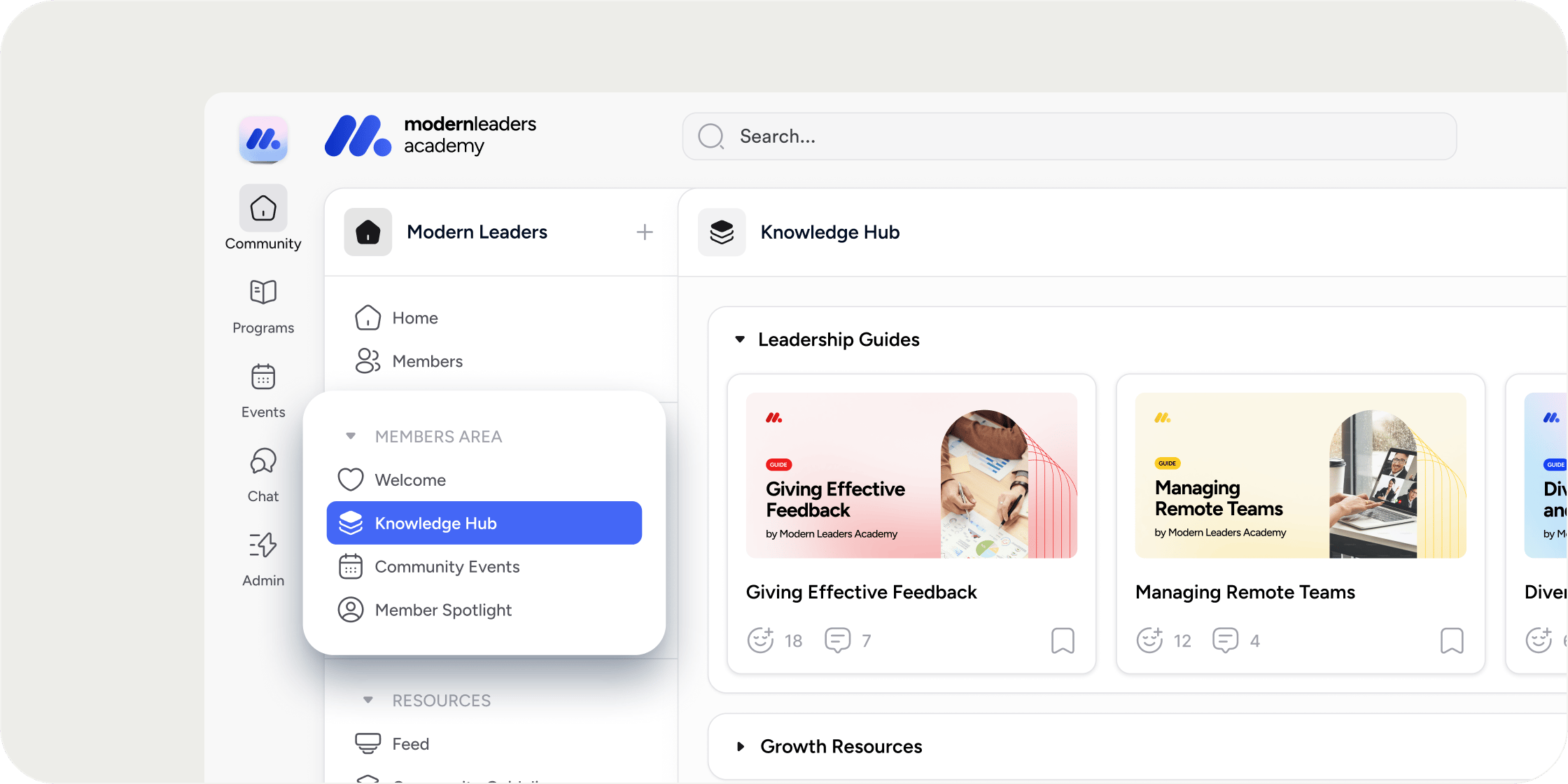
Sections appear in the left sidebar at both the Academy level and the learning (product) level. At the Academy level, sections group apps. At the learning level, sections group products. Sections are optional. Apps and products can also live at the top level of the sidebar without belonging to any section. Only admins can create, rename, reorder, or remove sections, and any ordering changes are reflected for all members.
## **Add a Section**
You can add a section in two ways depending on where you want it to appear.
**To add a section at the top of the sidebar:**
1. Click the **+ Add** button at the top of the sidebar.
2. Select **Section**.
3. Enter a name for the section.
4. Click **Save**.
**To add a section in a specific position:**
1. Hover over the divider line between existing sections or apps until the **+ Add Section** button appears.
2. Click it.
3. Enter a name for the section.
4. Click **Save**.
## **Rename or Remove a Section**
1. Hover over the section header to reveal the overflow menu (**...**).
2. Click the overflow menu.
3. Select **Edit** to rename the section, or **Remove** to delete it.
4. If editing, update the name and click **Save**.
When you remove a section, any apps or products inside it are not deleted. They move up to the top level of the sidebar.
## **Add an App to a Section**
There are two ways to assign an existing app to a section.
**By drag and drop:** Drag the app from its current position and drop it into the target section.
**Through app settings:**
1. Open the app's settings.
2. In the Section dropdown, select the section you want.
3. Click **Save**.
To remove an app from a section through app settings, click the **X** next to the selected section name in the dropdown, then click **Save**.
When you hover over a section header, an **+ Add App** button appears. Clicking it opens the app setup modal with the Section field pre-populated for that section.
## **Reorder Sections**
Drag sections up or down in the sidebar to reorder them. The new order is applied globally and all members see the updated ordering immediately.
## **Expand and Collapse Sections**
Click a section header to expand or collapse it. Disco remembers the expand/collapse state for each section on a per-browser basis. This means your personal collapsed or expanded preferences do not sync across devices or browsers, and member expand/collapse states are independent of your own.
**POV:** Section ordering is the one setting that matters globally and use it to surface your most important content at the top for all members. Leave expand/collapse preferences to each individual; members will naturally collapse sections they use less often.
## **Use Sections at the Learning Level**
At the learning level, sections contain products rather than apps. The behavior is otherwise the same: you can add sections using the **+ Add** button or by hovering over dividers, name them, and drag products into them.
Note: at the learning level, you cannot assign a product to a section through a settings dropdown. Drag and drop is the only way to place a product into a section here.
## **Folders Within a Product**
Inside a product, you can use **Folder** apps to organize content in the same way sections organize the sidebar. Folders behave like sections but live within a single product. You can add apps into folders, drag and drop apps in and out, rename folders, and remove them. Removing a folder preserves the apps inside it; they move to the top level of the product.
## **Sections in the Chat Sidebar**
Sections also organize the **Chat** sidebar. Under the **Channels** tab, all chat channels in the Academy are grouped by the same sections and products they belong to in the Academy and learning sidebars. You cannot edit sections or apps from the chat view, but you can collapse and expand section groups there.
## **FAQ**
Apps inside a deleted section are not removed. They move to the top level of the sidebar. No content is lost.
No. Only admins can reorder sections. The order admins set is what all members see.
Expand/collapse state is stored per browser. If you collapse a section in Chrome, it stays collapsed in that browser only. Other browsers and other members have independent states.
No. At the learning level, there is no section dropdown in product settings. Use drag and drop to place a product into a section.
Sections organize apps or products in the sidebar. Folders are a type of app used inside a product to group that product's apps. Functionally they work the same way, but the name differs based on where they appear.
## **Overview**
Sections appear in the left sidebar at both the Academy level and the learning (product) level. At the Academy level, sections group apps. At the learning level, sections group products. Sections are optional. Apps and products can also live at the top level of the sidebar without belonging to any section. Only admins can create, rename, reorder, or remove sections, and any ordering changes are reflected for all members.
## **Add a Section**
You can add a section in two ways depending on where you want it to appear.
**To add a section at the top of the sidebar:**
1. Click the **+ Add** button at the top of the sidebar.
2. Select **Section**.
3. Enter a name for the section.
4. Click **Save**.
**To add a section in a specific position:**
1. Hover over the divider line between existing sections or apps until the **+ Add Section** button appears.
2. Click it.
3. Enter a name for the section.
4. Click **Save**.
## **Rename or Remove a Section**
1. Hover over the section header to reveal the overflow menu (**...**).
2. Click the overflow menu.
3. Select **Edit** to rename the section, or **Remove** to delete it.
4. If editing, update the name and click **Save**.
When you remove a section, any apps or products inside it are not deleted. They move up to the top level of the sidebar.
## **Add an App to a Section**
There are two ways to assign an existing app to a section.
**By drag and drop:** Drag the app from its current position and drop it into the target section.
**Through app settings:**
1. Open the app's settings.
2. In the Section dropdown, select the section you want.
3. Click **Save**.
To remove an app from a section through app settings, click the **X** next to the selected section name in the dropdown, then click **Save**.
When you hover over a section header, an **+ Add App** button appears. Clicking it opens the app setup modal with the Section field pre-populated for that section.
## **Reorder Sections**
Drag sections up or down in the sidebar to reorder them. The new order is applied globally and all members see the updated ordering immediately.
## **Expand and Collapse Sections**
Click a section header to expand or collapse it. Disco remembers the expand/collapse state for each section on a per-browser basis. This means your personal collapsed or expanded preferences do not sync across devices or browsers, and member expand/collapse states are independent of your own.
**POV:** Section ordering is the one setting that matters globally and use it to surface your most important content at the top for all members. Leave expand/collapse preferences to each individual; members will naturally collapse sections they use less often.
## **Use Sections at the Learning Level**
At the learning level, sections contain products rather than apps. The behavior is otherwise the same: you can add sections using the **+ Add** button or by hovering over dividers, name them, and drag products into them.
Note: at the learning level, you cannot assign a product to a section through a settings dropdown. Drag and drop is the only way to place a product into a section here.
## **Folders Within a Product**
Inside a product, you can use **Folder** apps to organize content in the same way sections organize the sidebar. Folders behave like sections but live within a single product. You can add apps into folders, drag and drop apps in and out, rename folders, and remove them. Removing a folder preserves the apps inside it; they move to the top level of the product.
## **Sections in the Chat Sidebar**
Sections also organize the **Chat** sidebar. Under the **Channels** tab, all chat channels in the Academy are grouped by the same sections and products they belong to in the Academy and learning sidebars. You cannot edit sections or apps from the chat view, but you can collapse and expand section groups there.
## **FAQ**
Apps inside a deleted section are not removed. They move to the top level of the sidebar. No content is lost.
No. Only admins can reorder sections. The order admins set is what all members see.
Expand/collapse state is stored per browser. If you collapse a section in Chrome, it stays collapsed in that browser only. Other browsers and other members have independent states.
No. At the learning level, there is no section dropdown in product settings. Use drag and drop to place a product into a section.
Sections organize apps or products in the sidebar. Folders are a type of app used inside a product to group that product's apps. Functionally they work the same way, but the name differs based on where they appear.