> ## Documentation Index
> Fetch the complete documentation index at: https://docs.disco.co/llms.txt
> Use this file to discover all available pages before exploring further.
# Roles
Roles are permission levels in Disco that control what an individual user can see and do across your Academy and its Programs.
 ## Overview
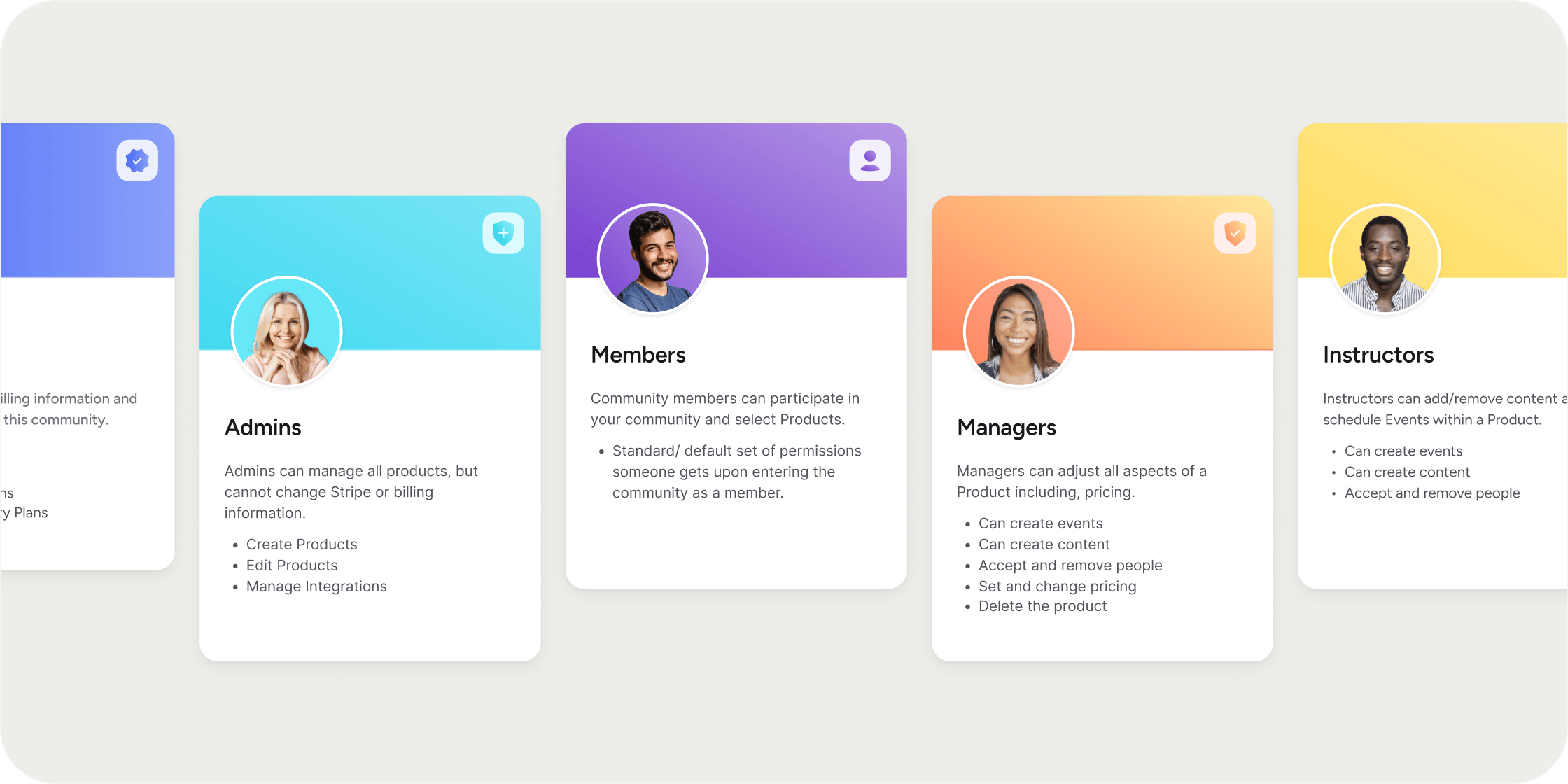
Disco has two tiers of roles: Academy-level roles that apply across the entire Academy, and Program-level roles that apply within a specific Program. Every Member holds at least one role. A single person can hold multiple roles at the same time, such as being an Academy Admin and a Program Instructor simultaneously. Roles are fixed and cannot be customized or renamed.
## Academy Roles
Academy-level roles govern access and management across your entire Academy.
**Owner** is the highest Academy role. Owners control all aspects of the Academy, including billing and Stripe settings. There must always be at least one Owner in every Academy. An Owner can:
* Create and edit Programs
* Manage integrations
* Change plans
* Manage billing
**Admin** can manage all Programs in the Academy but cannot access billing or Stripe settings. An Admin can:
* Create and edit Programs
* Manage integrations
**Member** is the default role every person receives when they join the Academy. Members can participate in the Academy and enroll in Programs.
## Program Roles
Program-level roles apply to one specific Program and do not carry over to other Programs in the Academy.
**Manager** has full control over a specific Program. A Manager can:
* Edit the Program
* Manage integrations
* Change plans and manage billing for that Program
* Add and remove people
**Instructor** can build and manage content and Events within a Program. An Instructor can:
* Create Events
* Create content
* Add and remove people
## Group Lead Role
Group Lead is a lightweight elevated role for Members who need visibility into group progress without full admin access. Group Leads can view reports and track Member progress within their assigned group, but cannot edit settings or access other areas of the Academy.
To assign a Group Lead:
1. Go to **Admin** > **Members** > **Groups**.
2. Open the group and click **Settings**.
3. Select **Assign as Group Lead** and choose a Member.
## Assign a Role
You can assign roles from several locations in the Admin area. The most direct path is through the **Roles** page.
1. Go to **Admin** > **Members** > **Roles**.
2. Click the edit icon on the role you want to assign.
3. Click the **Assign Role** tab.
4. For Academy roles (Owner, Admin, Member): search for an existing Member, or click **+ Add Members** to invite someone by email address.
5. For Program roles (Manager, Instructor): select the Program first, then search for a Member or click **+ Add to Team**.
You can also assign a role when inviting someone to the Academy. Open the invite modal from the **Members** page, select the desired role from the dropdown, and send the invite. The invite modal is also accessible from **Admin** > **Members** (Members Table) and **Admin** > **Members** > **Invites**.
Assign roles at the point of invitation rather than updating them after the fact. Setting roles upfront reduces follow-up steps and ensures Members have the right access from their first login.
## Update a Member's Role
To change an existing role assignment:
1. Go to **Admin** > **Members** > **Roles**.
2. Click the edit icon on the relevant role.
3. Click **Assign Role**.
4. Select the Member you want to update.
5. Click **Change to \[Role Name]**.
You can also update a role from the **Members** table. Select a Member and click the avatar icon in the floating card that appears at the bottom of the screen.
## Remove a Member from a Role
How you remove someone from a role depends on whether it is an Academy or Program role.
* For Academy roles (Owner or Admin): change the Member to the Member role rather than removing the role outright.
* For Program roles (Manager or Instructor): either change their role to Member, or remove them from the Program entirely.
You must hold the same role level or higher to remove someone from a role.
## Assign Program Roles from Within a Program
You can manage Program-level roles directly from a Program without navigating to the **Roles** page.
1. Open the Program in the left-hand navigation.
2. Click the overflow menu on the Program.
3. Select **Settings**.
4. Click **Manage Team** in the settings tray.
5. Search for a Member or click **+ Add to Team** to assign a Manager or Instructor role.
You can also click the **Invite** button in the top-right corner of the main Program page, enter names or email addresses, and select the desired role next to each person before sending the invite.
## FAQ
Yes. Owners can assign other Members as Owners. At least one Owner must exist in every Academy at all times.
No. The roles in Disco are fixed and cannot be edited, renamed, or customized.
Yes. A Member can hold an Academy-level role and a Program-level role at the same time. For example, someone can be an Admin across the Academy and an Instructor within a specific Program.
Managers can edit all aspects of a Program, including pricing, visibility settings, and billing. Instructors can create curriculum and Events and manage people within the Program, but cannot access pricing or billing settings.
Both can create and manage all Programs in the Academy. The key difference is billing access: Owners can manage billing and Stripe settings, Admins cannot. Admins also cannot delete the Academy.
No. Program roles are scoped to the specific Program they are assigned in. To give someone Manager or Instructor access across multiple Programs, assign the role separately in each Program.
Yes. Assign them as a Manager or Instructor within that Program. Program roles grant no Academy-wide admin access. If you need someone to have read-only visibility into group progress without any editing rights, use the Group Lead role instead.
Yes. You can paste multiple email addresses into the invite modal to send role invitations to several people in one step.
No. Changing a role updates what a Member can access, not how they log in. Login credentials stay the same.
## Overview
Disco has two tiers of roles: Academy-level roles that apply across the entire Academy, and Program-level roles that apply within a specific Program. Every Member holds at least one role. A single person can hold multiple roles at the same time, such as being an Academy Admin and a Program Instructor simultaneously. Roles are fixed and cannot be customized or renamed.
## Academy Roles
Academy-level roles govern access and management across your entire Academy.
**Owner** is the highest Academy role. Owners control all aspects of the Academy, including billing and Stripe settings. There must always be at least one Owner in every Academy. An Owner can:
* Create and edit Programs
* Manage integrations
* Change plans
* Manage billing
**Admin** can manage all Programs in the Academy but cannot access billing or Stripe settings. An Admin can:
* Create and edit Programs
* Manage integrations
**Member** is the default role every person receives when they join the Academy. Members can participate in the Academy and enroll in Programs.
## Program Roles
Program-level roles apply to one specific Program and do not carry over to other Programs in the Academy.
**Manager** has full control over a specific Program. A Manager can:
* Edit the Program
* Manage integrations
* Change plans and manage billing for that Program
* Add and remove people
**Instructor** can build and manage content and Events within a Program. An Instructor can:
* Create Events
* Create content
* Add and remove people
## Group Lead Role
Group Lead is a lightweight elevated role for Members who need visibility into group progress without full admin access. Group Leads can view reports and track Member progress within their assigned group, but cannot edit settings or access other areas of the Academy.
To assign a Group Lead:
1. Go to **Admin** > **Members** > **Groups**.
2. Open the group and click **Settings**.
3. Select **Assign as Group Lead** and choose a Member.
## Assign a Role
You can assign roles from several locations in the Admin area. The most direct path is through the **Roles** page.
1. Go to **Admin** > **Members** > **Roles**.
2. Click the edit icon on the role you want to assign.
3. Click the **Assign Role** tab.
4. For Academy roles (Owner, Admin, Member): search for an existing Member, or click **+ Add Members** to invite someone by email address.
5. For Program roles (Manager, Instructor): select the Program first, then search for a Member or click **+ Add to Team**.
You can also assign a role when inviting someone to the Academy. Open the invite modal from the **Members** page, select the desired role from the dropdown, and send the invite. The invite modal is also accessible from **Admin** > **Members** (Members Table) and **Admin** > **Members** > **Invites**.
Assign roles at the point of invitation rather than updating them after the fact. Setting roles upfront reduces follow-up steps and ensures Members have the right access from their first login.
## Update a Member's Role
To change an existing role assignment:
1. Go to **Admin** > **Members** > **Roles**.
2. Click the edit icon on the relevant role.
3. Click **Assign Role**.
4. Select the Member you want to update.
5. Click **Change to \[Role Name]**.
You can also update a role from the **Members** table. Select a Member and click the avatar icon in the floating card that appears at the bottom of the screen.
## Remove a Member from a Role
How you remove someone from a role depends on whether it is an Academy or Program role.
* For Academy roles (Owner or Admin): change the Member to the Member role rather than removing the role outright.
* For Program roles (Manager or Instructor): either change their role to Member, or remove them from the Program entirely.
You must hold the same role level or higher to remove someone from a role.
## Assign Program Roles from Within a Program
You can manage Program-level roles directly from a Program without navigating to the **Roles** page.
1. Open the Program in the left-hand navigation.
2. Click the overflow menu on the Program.
3. Select **Settings**.
4. Click **Manage Team** in the settings tray.
5. Search for a Member or click **+ Add to Team** to assign a Manager or Instructor role.
You can also click the **Invite** button in the top-right corner of the main Program page, enter names or email addresses, and select the desired role next to each person before sending the invite.
## FAQ
Yes. Owners can assign other Members as Owners. At least one Owner must exist in every Academy at all times.
No. The roles in Disco are fixed and cannot be edited, renamed, or customized.
Yes. A Member can hold an Academy-level role and a Program-level role at the same time. For example, someone can be an Admin across the Academy and an Instructor within a specific Program.
Managers can edit all aspects of a Program, including pricing, visibility settings, and billing. Instructors can create curriculum and Events and manage people within the Program, but cannot access pricing or billing settings.
Both can create and manage all Programs in the Academy. The key difference is billing access: Owners can manage billing and Stripe settings, Admins cannot. Admins also cannot delete the Academy.
No. Program roles are scoped to the specific Program they are assigned in. To give someone Manager or Instructor access across multiple Programs, assign the role separately in each Program.
Yes. Assign them as a Manager or Instructor within that Program. Program roles grant no Academy-wide admin access. If you need someone to have read-only visibility into group progress without any editing rights, use the Group Lead role instead.
Yes. You can paste multiple email addresses into the invite modal to send role invitations to several people in one step.
No. Changing a role updates what a Member can access, not how they log in. Login credentials stay the same.