> ## Documentation Index
> Fetch the complete documentation index at: https://docs.disco.co/llms.txt
> Use this file to discover all available pages before exploring further.
# AI Quiz Generator
You’ll create high-quality quizzes that assess knowledge retention using AI-generated questions and answer options based on your lesson content.
 ### Overview
* Owner, Admin, Product Manager, or Instructor access required
* Quiz questions are generated from the related module and lesson content
* You can fully edit quizzes after generation
### How to generate quizzes with Disco AI
Disco AI supports two quiz generation methods: full quiz generation from a module and individual answer option generation for custom questions.
#### Generate a full quiz
1. Go to a curriculum module
2. Click the **+** button and select **Quiz**
3. In the quiz editor, click **Generate Questions**
4. Wait a few seconds while Disco AI analyzes the lesson content
5. Review the generated questions and answers
6. Edit quiz items as needed
7. Save changes
This gives you a ready-to-use quiz that aligns with your lesson material.
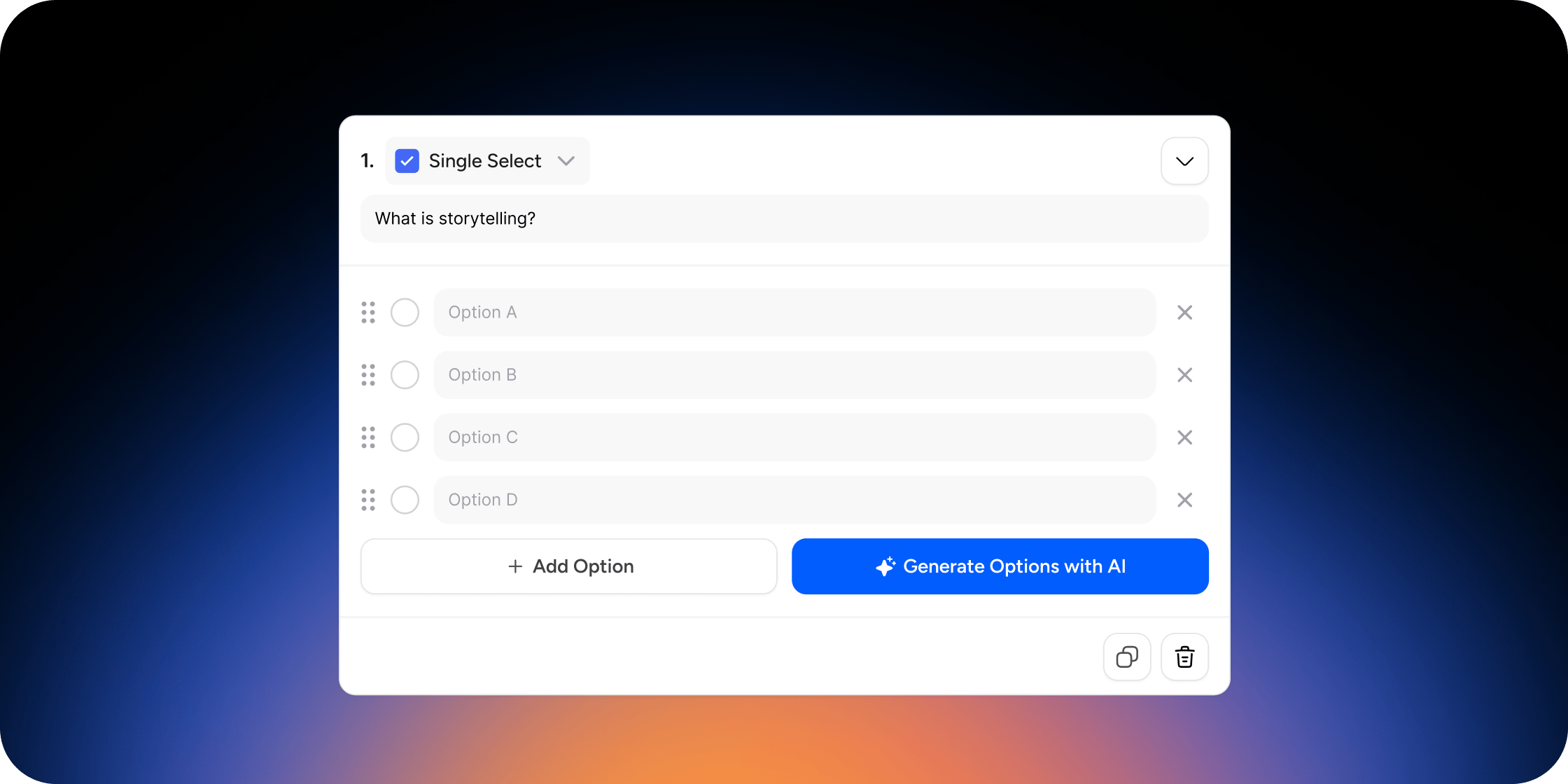
#### Generate answer options for a custom question
1. Create or edit a quiz from the **Content** section
2. Type a custom question into the editor
3. Click **Generate Options with AI**
4. Review the generated answer choices and the indicated correct option
5. Edit or replace any item as needed
This speeds up quiz creation while giving you control over the final content.
### FAQ
It uses AI to analyze your question and related lesson content, then suggests plausible correct and incorrect answers.
Yes. You can revise, add, or remove any answer choice before saving your quiz.
### Overview
* Owner, Admin, Product Manager, or Instructor access required
* Quiz questions are generated from the related module and lesson content
* You can fully edit quizzes after generation
### How to generate quizzes with Disco AI
Disco AI supports two quiz generation methods: full quiz generation from a module and individual answer option generation for custom questions.
#### Generate a full quiz
1. Go to a curriculum module
2. Click the **+** button and select **Quiz**
3. In the quiz editor, click **Generate Questions**
4. Wait a few seconds while Disco AI analyzes the lesson content
5. Review the generated questions and answers
6. Edit quiz items as needed
7. Save changes
This gives you a ready-to-use quiz that aligns with your lesson material.
#### Generate answer options for a custom question
1. Create or edit a quiz from the **Content** section
2. Type a custom question into the editor
3. Click **Generate Options with AI**
4. Review the generated answer choices and the indicated correct option
5. Edit or replace any item as needed
This speeds up quiz creation while giving you control over the final content.
### FAQ
It uses AI to analyze your question and related lesson content, then suggests plausible correct and incorrect answers.
Yes. You can revise, add, or remove any answer choice before saving your quiz.